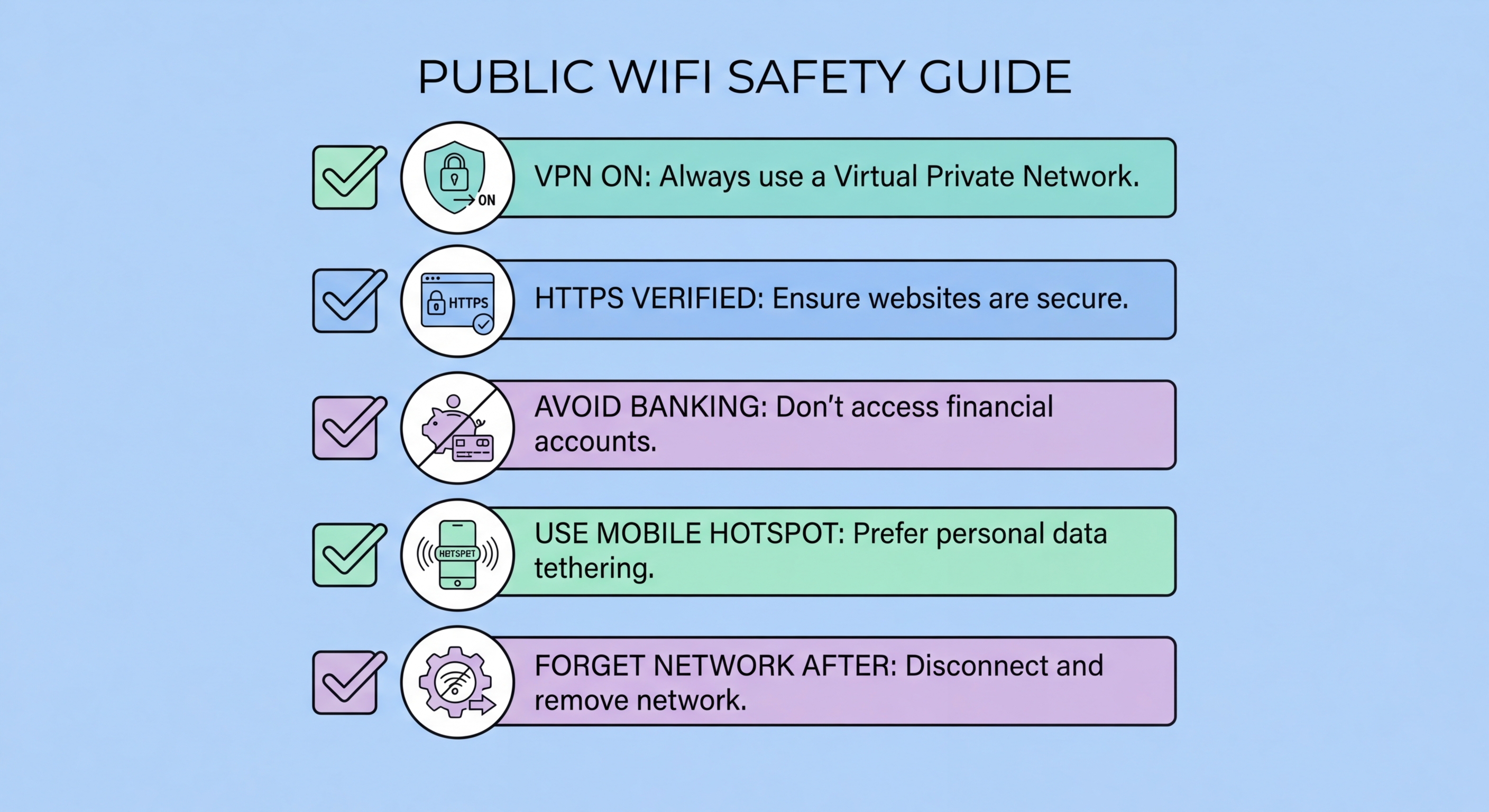
Everything you need to know about public WiFi security in Hong Kong — threats, high-risk locations, protection setup, and specific advice for MTR, hotels, airports, and cafés — in one comprehensive guide. Bookmark this as your reference for safe public WiFi use across the city.
Public WiFi in for Business Travellers: Protecting Corporate Data in Hong Kong">Hong Kong exposes users to a hierarchy of threats, from passive monitoring to active credential theft. At the foundation is passive eavesdropping: on open networks (WiFi.HK, most café networks, hotel lobby networks), traffic travels unencrypted at the radio layer. Any device with a WiFi adapter and packet capture software can monitor traffic on the same network. This enables interception of unencrypted HTTP traffic, capture of DNS queries (revealing sites visited even on HTTPS connections), and collection of traffic metadata. While passive eavesdropping is low-skill and low-sophistication, it is perpetually present on any open network and requires no attacker engagement.
Active attacks require the attacker to be on the same network and take active steps to intercept traffic. ARP spoofing establishes a man-in-the-middle position by poisoning the ARP cache of the victim and router, routing all traffic through the attacker's device. From this position, SSL stripping defeats HTTPS on sites without HSTS, DNS hijacking redirects domain queries to malicious servers, session cookies are captured from HTTP traffic, and full credential capture is possible from any login that occurs over downgraded HTTP. These attacks are automated by tools like Bettercap and require moderate technical skill; they are the most common sophisticated attack on café and hotel networks in Hong Kong.
Evil twin attacks operate at the network layer, before you've transmitted any traffic. An attacker broadcasts a WiFi access point with the same SSID as a legitimate network (WiFi.HK, Airport_Free_WiFi, a specific hotel network) and higher signal strength. Devices with auto-connect enabled for the known SSID connect automatically. The attacker serves a fake captive portal to collect credentials, performs MITM attacks on all connected traffic, and provides internet access to avoid detection. Evil twin attacks are particularly effective against frequently used SSIDs with high recognition — WiFi.HK, being deployed across thousands of locations in Hong Kong, is the most widely auto-connected SSID and therefore the most valuable to impersonate. Device-targeting attacks (probing open ports, exploiting network services) complete the threat picture for users without proper firewall configuration.
HKIA (Hong Kong International Airport) carries the highest risk profile among Hong Kong's public WiFi environments. The concentration of international travellers with high-value business and financial data, the publicly known "Airport_Free_WiFi" SSID that is trivial to impersonate, the distracted state of pre-flight and post-arrival travellers, and the historical targeting of airport environments by professional attackers including nation-state actors make HKIA the highest-risk public WiFi location in Hong Kong. For all sensitive activities at HKIA, use 4G/5G cellular data exclusively. Airport_Free_WiFi may be used with VPN active for entertainment and general browsing, but never for credentials, banking, or work systems.
Hotels represent the second highest risk tier. Hotel networks concentrate business travellers with corporate credentials, often lack client isolation (allowing guests to see other guests' devices at the network layer), may run outdated access point firmware, and are the documented target of sophisticated attacks like the DarkHotel APT operation. Business hotels in Central and Tsim Sha Tsui attract higher-value targets and correspondingly more sophisticated attackers. For hotel WiFi: connect only after establishing VPN, use mobile hotspot for all business-sensitive work, never install software prompted through the hotel's captive portal, and configure Windows to Public or disable macOS sharing before connecting. MTR station WiFi (WiFi.HK) is moderate risk: the network is open, the SSID is universally known and commonly impersonated, and the high density of commuters creates attack value. Use VPN on MTR WiFi, disable auto-join, and use mobile data for banking and work tasks.
Coffee shop WiFi (Starbucks, Pacific Coffee, Pret, and independent cafés) sits at moderate risk with the additional concern of extended exposure time. Café sessions of two to four hours give patient attackers time to identify and target specific users. Central and Admiralty cafés frequented by finance sector workers are higher-risk target environments than residential neighbourhood cafés. Use VPN on all café WiFi, use your phone's hotspot for any banking or corporate system access, disable file sharing on your laptop, and consider a screen privacy filter for sensitive work. Shopping mall WiFi and general venue WiFi in Hong Kong is low-to-moderate risk for casual browsing with a VPN, but applies the same protections as other public environments for anything more sensitive.
The following setup, completed once, provides ongoing automatic protection on every public WiFi connection without requiring manual action each time. Step 1: Install a quality VPN app (NordVPN, ExpressVPN, Mullvad, or ProtonVPN) and configure auto-connect for all networks except your home and office WiFi. Enable DNS leak protection and the kill switch in the VPN settings. Test with dnsleaktest.com to confirm no DNS leaks. Step 2: On your phone, go through all saved WiFi networks and disable auto-join for every public network (WiFi.HK, past hotel networks, café networks, airport networks). Delete networks from hotels and airports visited more than six months ago. Step 3: On your laptop, verify Windows Defender Firewall or macOS firewall is active. On Windows, ensure the network type is set to "Public" for all public networks. On macOS, enable Stealth Mode and disable all sharing services (File Sharing, Screen Sharing, Remote Login).
Step 4: Enable 2FA on your five highest-value accounts: primary email, banking apps, work Microsoft 365 or Google Workspace account, Apple ID or Google Account, and social media with real name/identity. Use an authenticator app (Google Authenticator, Microsoft Authenticator, or Authy) rather than SMS for these accounts — SMS 2FA is susceptible to SIM swap attacks and is weaker than TOTP-based authenticator apps. Download backup codes for each account and store them securely offline. Step 5: Install a password manager (1Password, Bitwarden, or Dashlane) if you don't already use one, and ensure all accounts you access on public WiFi use unique, strong passwords generated by the password manager. Enable the password manager's phishing protection features that prevent auto-fill on lookalike domains.
Step 6: Establish clear personal rules for sensitive activities. Banking apps: mobile data only, never public WiFi regardless of VPN status. Work email and corporate systems: VPN mandatory, mobile hotspot preferred for any high-sensitivity content. Financial authorisations and approvals: mobile data only. Software updates and installations: only from trusted networks at home or office, never prompted through a public network captive portal. Change passwords for any account after a public WiFi session where you experienced unexpected certificate warnings, unexpected portal requests, or any other suspicious network behaviour. This six-step setup takes approximately twenty minutes and provides layered protection that handles the complete threat surface of Hong Kong's public WiFi environment.
Family and household security requires extending your protection setup to all devices and all users who connect to public WiFi. Children using smartphones or tablets on free WiFi at shopping malls and public spaces face the same risks as adults — they are arguably more vulnerable because they are less likely to apply the same vigilance. Configure VPN auto-connect on children's devices and set parental controls to prevent disabling the VPN. Elderly relatives who habitually connect to any available free WiFi are a particular concern: auto-connecting to familiar SSIDs is a natural behaviour that evil twin attacks specifically exploit. A five-minute conversation about not connecting to public WiFi for banking or sensitive tasks, combined with VPN setup on their device, significantly reduces family risk exposure.
Business travel to international destinations requires additional preparation. Research the cybersecurity threat environment of your destination before travelling — HKCERT and international equivalents publish country-specific threat assessments. Pre-install and test your VPN before departure (some destinations block VPN downloads or certain VPN protocols). Activate international data roaming before travel so mobile data is available as a WiFi alternative throughout your trip. Consider whether to travel with a stripped-down "travel device" versus your primary laptop for high-risk destinations. Delete all international hotel and airport networks from your devices after each international trip to prevent future auto-connections at those locations. If your laptop is taken for inspection at any international border crossing, consider a full device wipe and restore from backup before reconnecting to your home or corporate network.
Monthly maintenance sustains your protection without time-consuming effort. Once per month: review and clean saved WiFi networks on all devices — delete any public networks added since last review. Check that VPN auto-connect is still enabled (app updates can sometimes reset settings). Review 2FA status on your top accounts — ensure backup codes are still stored safely and haven't been lost. Check for operating system updates on all devices — security patches for WiFi-related vulnerabilities are included in regular OS updates. If you use a password manager, review any breach alerts it has generated for accounts you use. These five checks take under ten minutes monthly and ensure your protection setup remains current as your device ecosystem, travel patterns, and software change over time.