Android Security Settings You Must Enable in 2026

A comprehensive walkthrough of every critical Android security setting — Google Play Protect, Find My Device, Safe Browsing, Privacy Dashboard, and the developer options settings that most users never touch.

Android security settings guide 2026
1Core Security Settings

Essential Android Security Settings to Configure First

Android's security settings are spread across multiple menus, and the exact paths vary by manufacturer and Android version. This guide covers stock Android (as found on Google Pixel devices) with notes on common Samsung and other manufacturer variations. The settings described are available on Android 12 and later — the recommended minimum Android version for any security-conscious user in 2026. If your device no longer receives security updates, replacing it should be a priority.

Start at Settings → Security. The most important items here are: Screen Lock (configure an alphanumeric password or strong PIN as described in our screen lock guide); Device Admin Apps (should only show legitimate MDM apps from your employer — revoke admin rights from any other app); and Android version / Security patch level (check this against the current patch date — if it's more than 2 months out of date, your device is running known vulnerabilities). On Pixel devices, enable Adaptive Security updates to allow critical patches to be applied automatically without a full OS update.

Encryption status can be verified at Settings → Security → Encryption and Credentials. Most modern Android devices running Android 6.0 or later are encrypted by default. If your device shows as "not encrypted," this is a serious security deficiency — check whether it can be enabled, and if not, consider whether the device is suitable for any security-sensitive use. Additionally, check "Device credentials" at the bottom of this section to ensure no unexpected certificates have been installed — unknown Certificate Authority certificates can enable HTTPS traffic interception.

  • Strong screen lock: Settings → Security → Screen Lock → Password — use 8+ character alphanumeric passcode. See our screen lock guide for full details.
  • Auto-lock: Settings → Display → Screen Timeout → 30 seconds. Also enable Settings → Security → Screen Lock → Lock after screen timeout → immediately.
  • Verify encryption: Settings → Security → Encryption and Credentials → confirm "Phone is encrypted."
  • Check patch date: Settings → About Phone → Android Security Patch Level — if older than 2 months, update immediately.
  • Device Admin Apps: Settings → Security → Device Admin Apps — revoke admin rights from any app you don't recognise or didn't intentionally grant.
  • Remove unknown certificates: Settings → Security → Encryption and Credentials → Trusted Credentials — review and remove any unfamiliar custom CAs.
Configure the strongest screen lock for Android →
Android core security settings
2Play Protect and Find My Device

Google Play Protect and Find My Device: Enable Both

Google Play Protect is Android's built-in Myths Debunked: Common Misconceptions About Malware Protection">malware protection system. It scans every app on your device — including those not downloaded from the Play Store — and checks them against Google's database of known malicious apps. It also performs real-time analysis of app behaviour, flagging apps that attempt suspicious actions like reading contacts without permission or sending unusual amounts of data. Play Protect scans over 125 billion apps per day across Android devices globally — making it one of the most extensive malware detection systems in existence.

Verify Play Protect is active by opening the Google Play Store app → Menu (three-bar icon) → Play Protect. The status should show "No harmful apps found" with a green checkmark. If it's disabled, tap "Turn on" immediately. Enable "Improve harmful app detection" to allow Google to collect and analyse information about apps that aren't on the Play Store — this improves detection of novel malware. Run a manual scan periodically (tap "Scan") particularly after installing new apps or if you notice unusual device behaviour.

Find My Device allows you to locate, lock, and erase your Android phone remotely. Enable it at Settings → Security → Find My Device — it requires location permission and a Google account. Test it at findmydevice.google.com now, before you ever need it. Also review Find My Device's expanded capabilities introduced in Android 14: the Find My Device network, which uses Bluetooth signals from nearby Android devices to locate How to Spot and Avoid Attacks on Your Phone">your phone even when offline, provides much more reliable location tracking than GPS alone — particularly useful in Hong Kong's dense urban environment where your phone might be inside a building with limited GPS signal.

  • Enable Play Protect: Play Store → Menu → Play Protect → Turn on. Enable "Improve harmful app detection" for better coverage of novel threats.
  • Regular Play Protect scans: Run a manual scan monthly or after installing significant numbers of new apps.
  • Enable Find My Device: Settings → Security → Find My Device → On. Requires location permission and an active Google account.
  • Test remote location: Visit findmydevice.google.com from another device now to confirm your phone appears and remote commands work.
  • Find My Device network: Android 14+ devices participate in the offline-finding network — enable at Settings → Security → Find My Device → Use offline finding.
  • Emergency SOS: Settings → Safety & Emergency → Emergency SOS — configure to call emergency services and/or share location when Side button is pressed rapidly.
What to do when your Android phone is lost or stolen →
Google Play Protect Find My Device Android
3Privacy Settings

Android Privacy Settings: Dashboard, Permissions, and Ad Tracking

Android 12 introduced the Privacy Dashboard — one of the most useful privacy tools available on any mobile platform. Access it at Settings → Privacy → Privacy Dashboard to see a 24-hour timeline of which apps accessed location, camera, microphone, and other sensitive permissions, and exactly when those accesses occurred. This makes it straightforward to identify unexpected background access — an app accessing your microphone at 3am when you weren't using your phone is a clear indicator of a privacy or security problem worth investigating.

The Permission Manager (Settings → Privacy → Permission Manager) provides a category-by-category view of which apps have each permission. Work through each category — Location, Camera, Microphone, Contacts, Calendar, Call logs, Physical Activity, Nearby devices — and revoke permissions from any app that doesn't clearly need them. For location specifically, review which apps have "Allow all the time" (always-on) access and downgrade all but navigation and fitness apps to "Allow only while using the app."

Advertising ID deletion is the highest-impact single privacy action for most Android users. Go to Settings → Privacy → Ads → Delete Advertising ID. This permanently replaces your Google Advertising ID (GAID) with a zeroed value, blocking cross-app advertising tracking from any app that uses the standard SDK. Also navigate to your Google Account at myaccount.google.com → Data & Privacy and audit Web & App Activity, Location History, and Ads Personalisation settings — pausing or deleting these histories significantly reduces Google's data profile on you.

  • Privacy Dashboard: Settings → Privacy → Privacy Dashboard — review the 24-hour timeline of permission access; investigate any unexpected entries.
  • Permission Manager audit: Settings → Privacy → Permission Manager — work through each category and revoke unnecessary permissions.
  • Delete Advertising ID: Settings → Privacy → Ads → Delete Advertising ID — the single highest-impact privacy action for most Android users.
  • Safe Browsing: Settings → Privacy → Advanced → Safe Browsing → Enhanced protection — improves phishing and malware site detection in Chrome.
  • Notification access: Settings → Privacy → Notification Access — revoke access from any app that shouldn't be reading your notifications (including lock screen notifications).
  • Clipboard access: Android 12+ shows alerts when apps read your clipboard — be aware of which apps are reading clipboard content; change passwords if a suspicious app accessed it.
Complete mobile data privacy guide for Android →
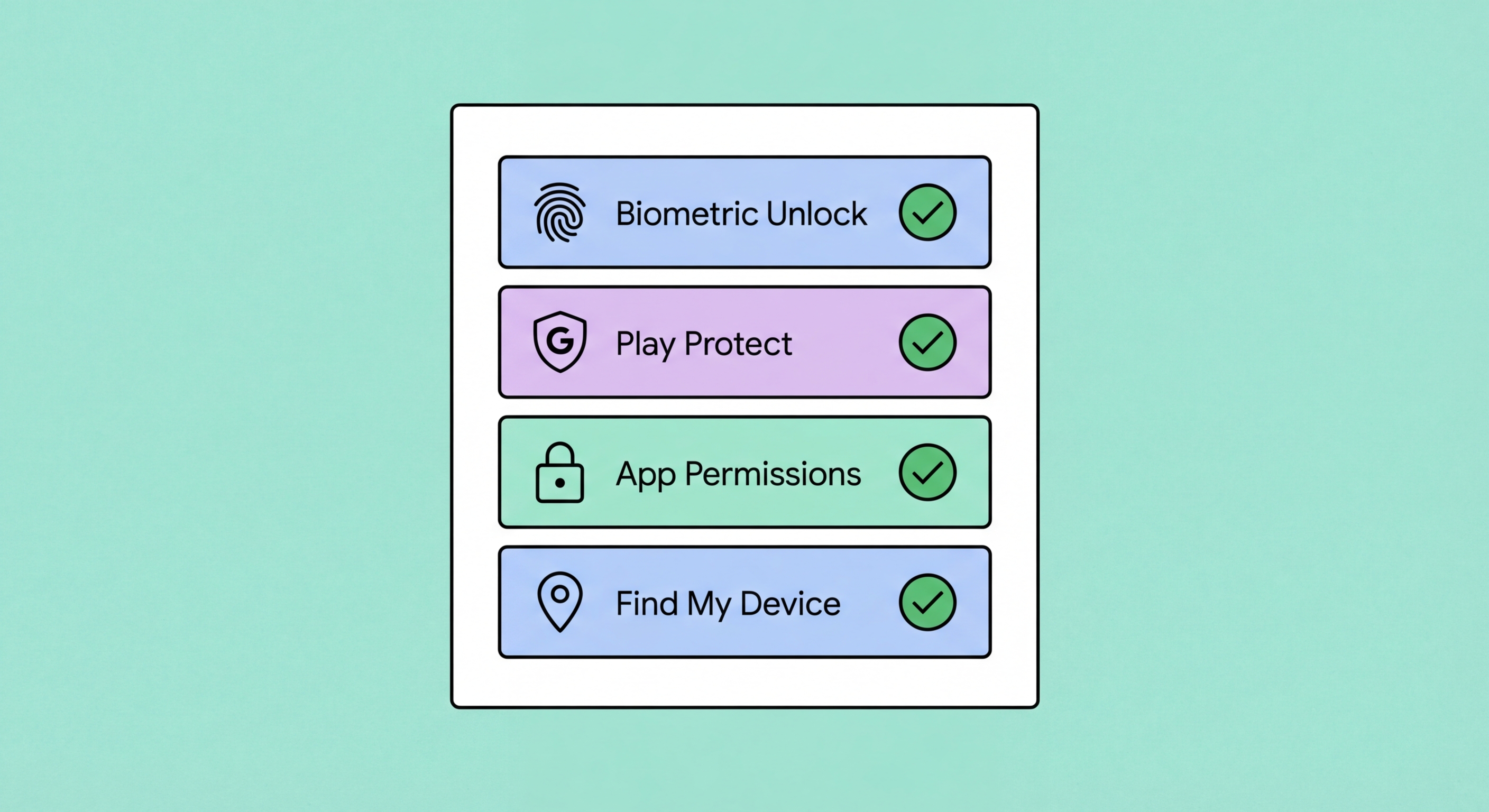
Android privacy settings dashboard
4Developer Options and Network

Developer Options and Network Security Settings

Android Developer Options — a hidden menu typically unlocked by tapping Build Number 7 times in About Phone — contains several security-relevant settings that security-conscious users should review. However, it's equally important to ensure that Developer Options are disabled on devices that don't need them: Developer Options enable USB debugging, which significantly weakens device security by allowing ADB (Android Debug Bridge) access from connected computers. If you've previously enabled Developer Options for any reason and no longer need them, disable the toggle at Settings → System → Developer Options.

Within Developer Options (if intentionally using them), two security-relevant settings deserve attention: "Enable Bluetooth HCI snoop log" should be disabled — leaving it enabled creates a persistent log of all Bluetooth communications that could be read if the device is forensically examined. "USB debugging" should only be enabled when actively needed for development; disable it immediately after use. "Verify apps over USB" should be enabled if USB debugging is active — this checks apps installed via ADB against Play Protect's database.

Network security settings on Android offer several important options. Private DNS (Settings → Network → Private DNS → Hostname) can be configured to route all DNS queries through an encrypted DNS-over-TLS server — enter "dns.google" for Google's DNS or "1dot1dot1dot1.cloudflare-dns.com" for Cloudflare's privacy-focused DNS. This encrypts your DNS queries from network observers. Combined with a VPN (which encrypts all traffic), Private DNS provides a comprehensive layer of network security. For WiFi, ensure "Auto-connect to open networks" is disabled and review your saved networks list to remove old or unknown networks.

  • Disable Developer Options: If you've previously enabled Developer Options, disable them entirely at Settings → System → Developer Options — unless actively developing.
  • USB debugging off: Only enable when actively needed; disable immediately after. USB debugging significantly weakens device security against physical access attacks.
  • Private DNS: Settings → Network & Internet → Private DNS → Private DNS provider hostname → "dns.google" or "1dot1dot1dot1.cloudflare-dns.com".
  • WiFi auto-connect: Settings → Network → Wi-Fi → Wi-Fi preferences → Connect to open networks → Off. Prevent automatic connection to unsecured public networks.
  • Saved networks audit: Settings → Network → Wi-Fi → Saved Networks — remove any networks you no longer use or don't recognise.
  • Always-On VPN: Settings → Network → VPN → tap your VPN app → Always-On VPN → On. Also enable "Block connections without VPN" for kill-switch protection.
Set up always-on VPN on Android →
Android developer options network security
Android Secured — What About iOS?

Android Secured — What About iOS?

If you use both Android and Apple devices, or are comparing platforms, our iPhone security settings guide covers the equivalent configuration for iOS.

Related VPN Articles