How to Set Up a Password Manager: Step-by-Step Guide
From download to daily use — a complete setup guide for first-time password manager users covering Bitwarden and 1Password on all major platforms.
Published: March 29, 2026
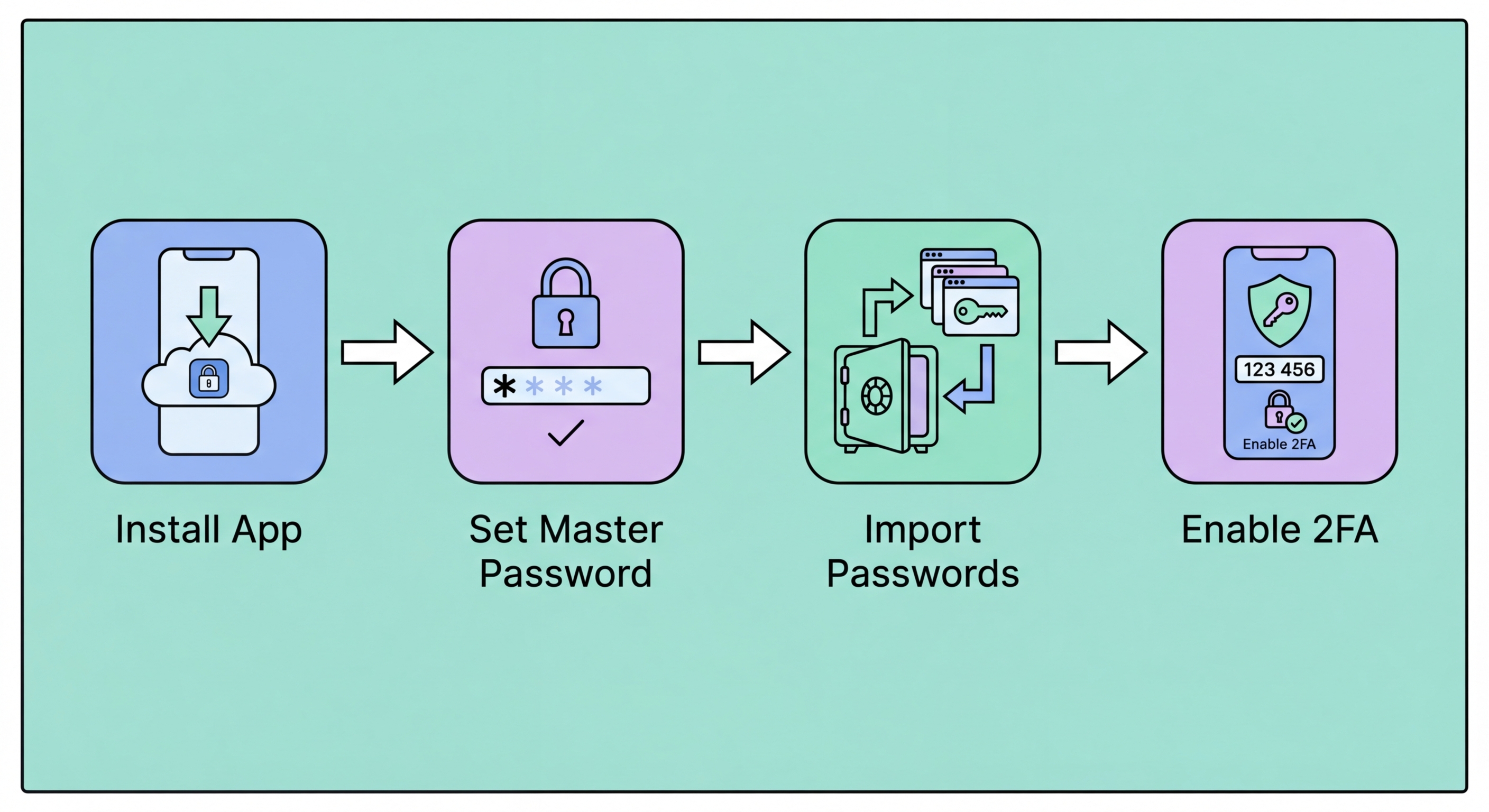
From download to daily use — a complete setup guide for first-time password manager users covering Bitwarden and 1Password on all major platforms.
Published: March 29, 2026
The first step is choosing your password manager and creating an account. For most first-time users in Hong Kong, Bitwarden (bitwarden.com) is the recommended starting point — it is free for personal use, open-source, independently audited, and available on all platforms. Go to bitwarden.com, click "Get Started", and create an account using your primary email address. If you prefer the premium experience from the outset, 1password.com offers a 14-day free trial before billing begins.
Creating your master password is the most important decision in the entire setup process. This is the one password you must memorise — it is the only key that can decrypt your vault, and no one (including the password manager company) can recover it for you if forgotten. Use a Diceware passphrase of four to six truly random words, separated by hyphens or spaces: "ocean-lamp-tiger-seven-clock" is an example. Aim for 25+ characters. Write this passphrase on paper immediately and store it somewhere physically secure — a fireproof safe or a sealed envelope in a safe location known to a trusted person. Never store it digitally in plaintext.
After creating your account, enable two-factor authentication immediately before doing anything else. In Bitwarden, go to Settings → Security → Two-step Login and enable a TOTP authenticator app (Google Authenticator, Authy, or Aegis Authenticator on Android are all good choices). Scan the QR code with your authenticator app and save the backup codes somewhere physically secure — these are essential if you ever lose your 2FA device. With 2FA enabled, your vault is protected by both your master passphrase and your physical device.

The browser extension is the most important component of your daily password manager experience — it is what enables auto-fill on websites and the ability to save passwords as you browse. In Chrome, visit the Chrome Web Store and search for "Bitwarden" (or "1Password"). Install the extension and log in with your email and master password. The extension icon will appear in your browser toolbar. Pin it for easy access — you will use it frequently.
After installing the extension, configure the auto-fill settings to your preference. In Bitwarden's extension settings, enable "Auto-fill on page load" for the most seamless experience, or set it to prompt you first if you prefer more control. Also enable biometric unlock if your computer supports it — this allows you to unlock the extension with your fingerprint rather than typing the master password each time, which encourages keeping the vault locked when not in use rather than leaving it permanently unlocked for convenience.
Install the mobile app on your smartphone next. On iPhone, download Bitwarden from the App Store; on Android, from the Google Play Store. Log in and enable biometric unlock (Face ID or fingerprint). Then enable the password manager as a system-level autofill provider: on iPhone, go to Settings → Passwords → Autofill Passwords and select Bitwarden; on Android, go to Settings → General Management → Passwords and Autofill and select Bitwarden. This allows the app to auto-fill passwords in other apps — including banking apps, which do not run in the browser.

If you have been saving passwords in Chrome, Safari, or another password manager, you can import them directly into Bitwarden or 1Password without re-entering everything manually. In Chrome, go to Settings → Passwords → click the three dots → Export passwords — this downloads a CSV file. In Bitwarden, go to Tools → Import Data, select "Chrome (csv)" from the dropdown, and upload the file. All your Chrome-saved credentials will appear in your Bitwarden vault immediately. The process is similar for Safari: go to File → Export → Passwords in Safari on macOS.
After importing, you will likely have duplicate entries, outdated passwords for sites you no longer use, and entries with missing information. Take 10-15 minutes to review and clean up the imported items. Delete entries for services you have not used in over a year, merge duplicates, and add missing information (website URLs, usernames) for any incomplete entries. This initial cleanup makes the vault much more useful and prevents confusion later.
Going forward, adding new passwords is simple: when you create a new account on any website, the browser extension will notice and prompt you to save the credentials. Click "Save" in the prompt, and the login is stored instantly. When you visit the site again, the extension recognises the login page and auto-fills your credentials. The transition to having all new accounts in your manager happens naturally as you browse — within a few weeks, all your regularly used accounts will be in the vault.

Once your vault is populated with imported passwords, run the built-in security audit to assess your current password health. In Bitwarden, go to Reports (available in the premium tier at USD $10/year) to access Exposed Passwords, Reused Passwords, Weak Passwords, and Unsecured Websites reports. In 1Password, open Watchtower for a comprehensive security score. These reports prioritise the accounts most needing attention, making the remediation process systematic rather than overwhelming.
Start with the Exposed Passwords report — these are accounts where your current password has appeared in known breach data. Change every exposed password immediately using the manager's generator. Next, work through the Reused Passwords report and replace all reused passwords with unique ones. This is likely the most time-consuming part but also the most impactful security improvement you can make. Finally, address weak passwords — short or simple credentials — particularly on financial and email accounts.
Ongoing maintenance requires relatively little effort once the vault is established. The manager automatically saves new credentials as you create accounts and alerts you to breaches in real time. Schedule a brief quarterly review to check for new issues flagged by the security audit, update passwords that have been in use for several years, and delete entries for services you have closed. The annual time investment for maintenance is measured in minutes for most users — far less than the time spent recovering compromised accounts.
