10 Safe Practices for Using Public WiFi in Hong Kong

Most public WiFi risks are preventable. These ten practices, applied consistently, protect you against eavesdropping, man-in-the-middle attacks, and evil twin networks — whether you're on MTR WiFi, at a hotel, in a café, or at the airport.

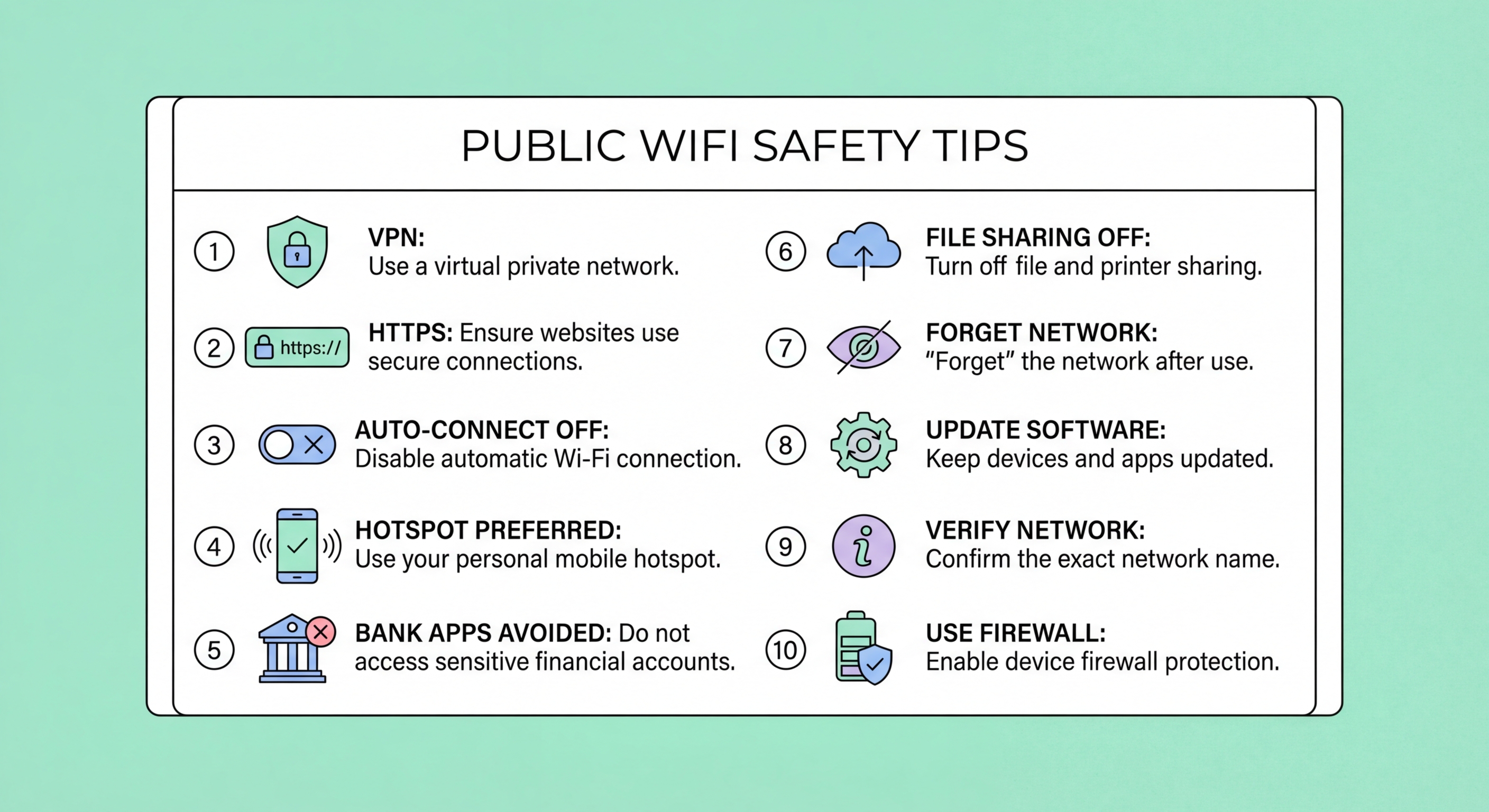
Safe public WiFi practices checklist for Hong Kong users — VPN, HTTPS, mobile hotspot
1Connection Setup

Practices 1–3: How to Connect to Public WiFi Safely

Practice 1: Verify the network name with venue staff before connecting. The single most effective step before connecting to any public WiFi is confirming the correct SSID with a member of staff. Ask a barista, a hotel front desk agent, or an airport information desk employee: "What is the exact WiFi network name?" Do not assume the strongest signal or the most familiar-looking name is legitimate. Evil twin networks succeed precisely because they copy the legitimate SSID — asking staff adds a layer of verification no technical tool can replicate. Write down or screenshot the confirmed SSID so you can check what you actually connect to against what you were told.

Practice 2: Disable automatic WiFi connection for all public networks. Auto-connect is the feature that turns your device into a passive target. When to Spot and Avoid Attacks on Your Phone">your phone or laptop is configured to automatically join any previously connected network, it will reconnect to any access point broadcasting a familiar SSID — including evil twin networks. Go through your saved WiFi networks and disable auto-join for every public network: WiFi.HK, hotel networks from past stays, airport networks, shopping mall networks, and coffee shop chains. On iPhone, tap the "i" next to each saved network and turn off "Auto-Join." On Android, long-press the network name and select "Forget" for public networks you no longer regularly need. On Windows, go to the Network & Internet settings and set your WiFi adapter to not connect automatically.

Practice 3: Enable your VPN before opening any app after connecting. The sequence matters: join the network, complete the captive portal login if required, then immediately start your VPN before opening email, browsers, or any other application. Many VPN apps support an auto-connect feature that activates the VPN automatically when you join a public network — enabling this feature removes the dependency on remembering to start the VPN manually. Once your VPN is active, all traffic from your device is encrypted before it reaches the WiFi network, rendering eavesdropping and MITM attacks ineffective regardless of how insecure the underlying network is.

  • Ask staff: Confirm the exact SSID name before connecting to any public network
  • Disable auto-join: Remove WiFi.HK, hotel, and airport networks from auto-connect saved list
  • VPN first: Activate VPN immediately after captive portal login before opening any other app
  • VPN auto-connect: Configure VPN app to activate automatically on untrusted networks
  • Check what you connected to: Verify the SSID shown in your WiFi settings matches what staff told you
  • Mobile data default: For high-sensitivity tasks, stay on mobile data rather than joining public WiFi at all
Understand why verifying SSIDs prevents evil twin attacks →
Safe connection practices — verify SSID, disable auto-join, enable VPN first
2Traffic Protection

Practices 4–6: Protecting Your Data in Transit

Practice 4: Verify HTTPS on every site you use. HTTPS encrypts the content of your web sessions, making them unreadable to network eavesdroppers even on an open WiFi network. Check the address bar for the padlock icon and "https://" at the start of every URL before entering any credentials or personal information. This is especially important on public WiFi because SSL stripping attacks can downgrade HTTPS to HTTP without obvious warning on some browsers. If a site you regularly access over HTTPS appears without the padlock, or shows an SSL certificate warning, disconnect immediately and switch to mobile data. Installing a browser extension like HTTPS Everywhere (available for Chrome and Firefox) forces HTTPS connections wherever available.

Practice 5: Never submit sensitive information without a VPN. Even on HTTPS-protected sites, the DNS query that resolves the domain name may be unencrypted and visible to network monitors, revealing which sites you visit. Form submissions, login credentials, and personal data should only be transmitted when your traffic is fully protected — meaning a VPN is active. Avoid logging into banking apps, accessing work email, submitting medical information, or making purchases on public WiFi without a VPN. If you must access these services without a VPN, switch to your mobile data connection. for Business Travellers: Protecting Corporate Data in Hong Kong">Hong Kong mobile data plans with 50GB or more monthly allowance make this a practical option throughout the MTR and urban areas where cellular coverage is reliable.

Practice 6: Use your mobile hotspot for high-sensitivity work. When you need to access genuinely sensitive information — company systems, financial accounts, medical records, legal documents — your phone's mobile hotspot is categorically safer than any public WiFi network. Mobile data connections are encrypted at the network level, not accessible to other users in the same location, and not susceptible to evil twin attacks, ARP spoofing, or MITM attacks that affect WiFi. Tether your laptop to your phone's hotspot for sensitive work in hotels, airports, and any location where you are unsure about the WiFi security. The battery and data consumption is modest for short work sessions.

  • HTTPS always: Check the padlock before entering credentials or personal information on any site
  • SSL warning = disconnect: Any certificate warning on a familiar site warrants immediate disconnection
  • VPN for sensitive data: Never submit passwords, financial info, or work data without VPN active
  • DNS encryption: VPN encrypts DNS queries that HTTPS alone does not protect
  • Mobile hotspot: Use phone's mobile data connection for banking, work systems, and sensitive tasks
  • Data allowance: Most HK mobile plans have generous data — switching to mobile data is practical
What HTTPS protects and what it doesn't on public WiFi →
HTTPS verification and traffic protection on public WiFi
3Device Security

Practices 7–8: Securing Your Device on Public Networks

Practice 7: Set your device to public network mode and disable sharing. Operating systems treat network connections differently depending on whether they are classified as "Home," "Work/Private," or "Public." In Windows, when you connect to a new network, select "Public" if prompted — this disables network discovery (hiding your device from other users on the same network) and disables file and printer sharing. If you have previously set a public network as "Private," change it: go to Settings → Network & Internet → WiFi → select the network → set to "Public." On macOS, disable File Sharing and Screen Sharing in System Settings → General → Sharing whenever you connect to public WiFi. These settings prevent other users on the same network from seeing or connecting to services on your device.

Practice 8: Enable and verify your device firewall before connecting. A software firewall provides a second layer of protection against other devices on the same network attempting to connect to your laptop. Windows Defender Firewall is enabled by default but should be verified: search for "Windows Defender Firewall" in the Start menu and confirm it shows "Windows Defender Firewall is on." On macOS, go to System Settings → Network → Firewall and ensure it is turned on. Enable "Stealth Mode" on macOS (under Firewall options) to prevent your device from responding to network probes. On both platforms, review which applications are allowed through the firewall and remove any you do not recognise. A well-configured firewall blocks unsolicited inbound connections, which is particularly relevant on hotel networks where client isolation may not be properly configured.

Device hygiene also matters before you connect to public WiFi. Ensure your operating system and applications are fully updated before travelling or commuting on public networks. Many attacks on public WiFi exploit known vulnerabilities in outdated software that the attacker can identify through network scanning. Uninstall applications you do not use — fewer applications mean fewer potential vulnerability vectors. If you are a Windows user, ensure Windows Update is set to install security updates automatically. macOS users should enable automatic security updates in System Settings → General → Software Update. Updated software reduces the attack surface presented by your device on any network, public or private.

  • Windows "Public" network: Always select "Public" when prompted on new networks to disable discovery
  • macOS sharing off: Disable File Sharing and Screen Sharing whenever on public WiFi
  • Firewall active: Verify Windows Defender Firewall or macOS firewall is enabled before connecting
  • Stealth mode: Enable macOS Stealth Mode to prevent your device responding to network probes
  • OS updates: Keep operating system and apps updated to close known vulnerabilities
  • Minimal attack surface: Uninstall unused apps and review firewall exceptions before public network use
How to configure a personal firewall for public WiFi protection →
Device security settings for public WiFi — firewall and network sharing configuration
4Awareness and Habits

Practices 9–10: Situational Awareness and Long-Term Habits

Practice 9: Know the warning signs of an active attack. Even with preventive measures in place, knowing how to recognise an attack in progress allows you to respond quickly. Warning signs include: unexpected captive portal login requests on networks you have previously connected to without a portal; SSL certificate errors on sites you normally use without any warnings; websites loading over HTTP when they should always show HTTPS; your device disconnecting and reconnecting frequently (a sign of signal competition between a legitimate AP and an evil twin); browser behaviour that seems unusual, such as redirects to unexpected pages or content that looks slightly different from normal. Any combination of these signs in a high-risk location (airport, hotel, busy station) warrants immediate disconnection.

Practice 10: Audit your public WiFi habits regularly. Security habits degrade over time without deliberate maintenance. Once per month, review your saved WiFi networks on all devices — phone, laptop, tablet — and delete any public networks you no longer need. After any trip (domestic or international), go through saved networks from hotels and airports and remove them. Periodically check whether your VPN's auto-connect feature is still enabled and functioning (VPN app updates can sometimes reset settings). Review which apps on your phone have permission to access WiFi in the background, as some apps may transmit data without your explicit action. Developing a monthly "WiFi audit" habit takes five minutes and ensures your settings reflect your current security intentions rather than the accumulated default configurations of years of travel.

Building these practices into your routine requires initial effort but becomes automatic over time. The highest-impact combination for most Hong Kong users is: delete all saved public networks, set any you keep to not auto-join, install a VPN app with auto-connect enabled, and use mobile data for banking and work email. This four-step setup takes less than fifteen minutes and provides strong protection against the majority of public WiFi threats without meaningfully impacting your daily connectivity. Share these practices with family members, particularly elderly relatives or children who use public WiFi but may not be aware of the risks — the weakest point in family digital security is often the least informed user on the same network or account.

  • Unexpected captive portal: A new portal on a known network is a warning sign — verify before proceeding
  • SSL errors: Certificate warnings on familiar HTTPS sites indicate possible traffic interception
  • Frequent disconnects: Repeated drops and reconnects may indicate signal competition from evil twin
  • Monthly audit: Review and clean saved WiFi networks on all devices monthly
  • Post-trip cleanup: Delete hotel and airport networks after every trip
  • Share habits: Educate family members — especially elderly relatives — about public WiFi risks
Review all the public WiFi security risks these practices defend against →
Public WiFi awareness and security habits — recognising suspicious signs

Ten Practices. Strong Protection. Five Minutes to Set Up.

Delete public saved networks, enable VPN auto-connect, and use mobile data for sensitive tasks. These three actions cover the majority of public WiFi risks across Hong Kong.

Related VPN Articles