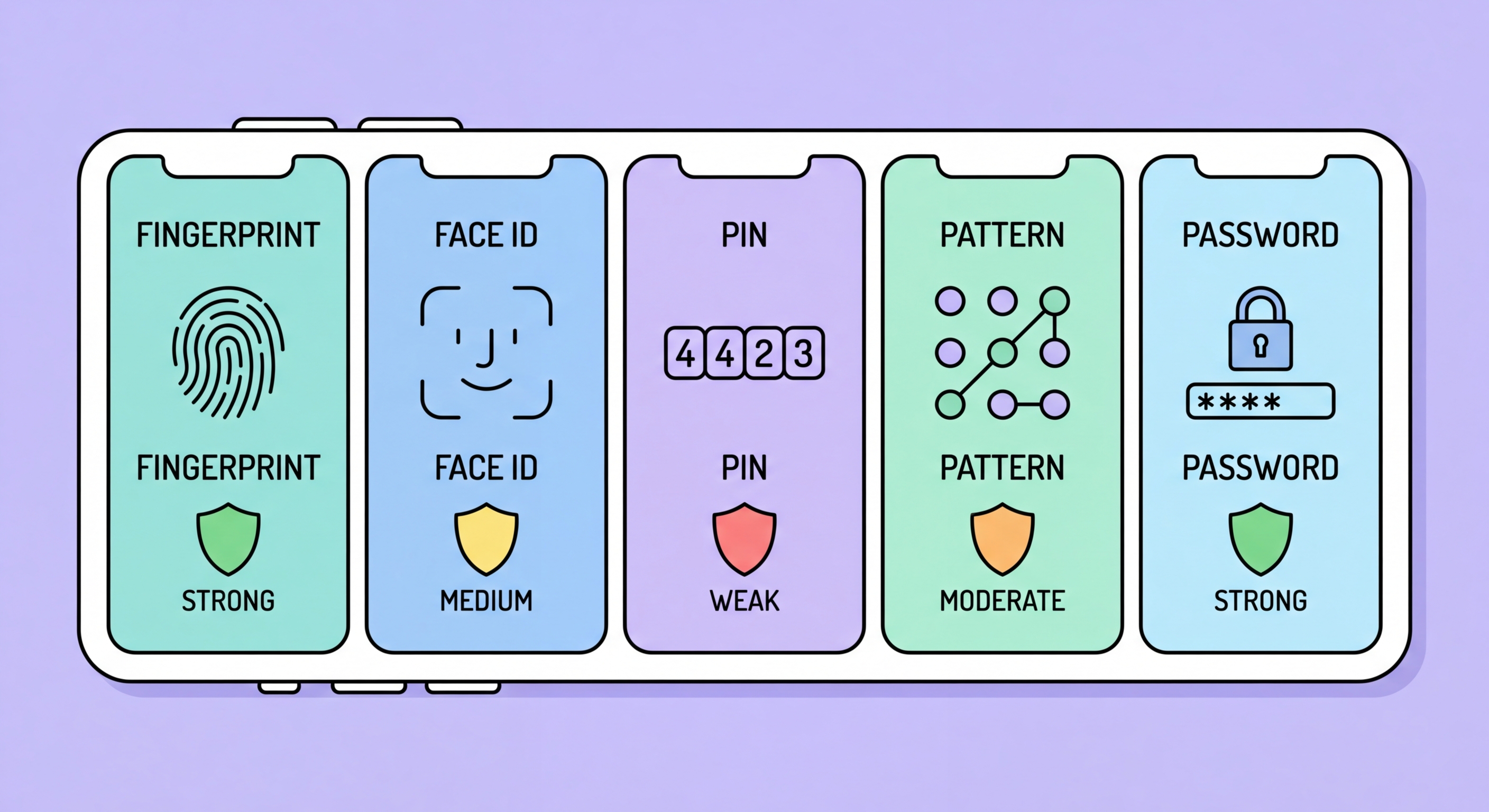
A detailed comparison of every screen lock method — 4-digit PIN, 6-digit PIN, alphanumeric password, pattern, fingerprint, and Face ID — and the optimal configuration for Hong Kong iPhone and Android users.
The passcode you use to lock How to Spot and Avoid Attacks on Your Phone">your phone is the single most critical security decision you'll make for your device, because it determines the strength of your device encryption. On both iOS and Android, the encryption keys protecting your stored data are derived from your passcode — a weak passcode means weak encryption, regardless of the underlying algorithm used. This relationship between passcode strength and encryption security makes choosing a strong passcode a foundational security decision.
A 4-digit PIN has exactly 10,000 possible combinations. Commercial forensic extraction tools like GrayKey and Cellebrite UFED can brute-force a 4-digit PIN in under 10 minutes on older devices, and in seconds on compromised devices using pre-computed tables. A 6-digit PIN has 1 million combinations — significantly better, but still within the reach of forensic tools given sufficient time and the right attack approach. The FBI and law enforcement agencies routinely crack 6-digit PINs in high-priority investigations.
An alphanumeric passcode of 8+ characters mixing uppercase, lowercase, numbers, and symbols provides exponentially stronger protection. An 8-character mixed alphanumeric passcode has over 218 trillion possible combinations — computationally infeasible to brute-force with current technology, even with sophisticated forensic hardware. On iOS, switch from a 6-digit PIN to an alphanumeric passcode at Settings → Face ID & Passcode → Change Passcode → Passcode Options → Custom Alphanumeric Code. The slight inconvenience of entering a longer passcode occasionally is completely offset by the dramatically stronger protection it provides.
Biometric authentication — Face ID on iPhone, fingerprint sensors on most Android and some iPhone models — offers an excellent balance of security and convenience for everyday use. Apple's Face ID uses structured light (infrared dot projection) to create a 3D facial map stored securely in the Secure Enclave, with a false acceptance rate of approximately 1 in 1,000,000 for random users. This is significantly more secure than a standard 4 or 6-digit PIN while being more convenient to use than a long alphanumeric passcode.
Biometric authentication operates as a supplementary method, not a replacement for your passcode. The passcode remains the master credential from which encryption keys are derived — biometrics simply provide a faster way to authenticate once the device is unlocked from a locked state. Understanding this relationship is important: strengthening your passcode to alphanumeric improves your encryption strength even if you primarily use Face ID day-to-day. The passcode is required when the device restarts, when Face ID fails five times, after 48 hours without passcode entry (iOS), and in other scenarios that force passcode re-entry.
The legal and practical privacy caveat for to Do If Your Phone Is Lost or Stolen in Hong Kong">Hong Kong users: in most legal systems, including Hong Kong, there is a meaningful distinction between something you know (a passcode) and something you are (biometrics). Law enforcement can generally obtain a court order compelling someone to provide their fingerprint to unlock a device; compelling someone to reveal a memorised passcode is more legally complex. For users in situations where their device may be examined by authorities — border crossing, arrest, or investigation — temporarily disabling Face ID or Touch ID and requiring passcode entry provides stronger legal protection.
The auto-lock timer — how long before your screen dims and locks when idle — is a critical but frequently overlooked security setting. Many users set long auto-lock timers (5 minutes, 10 minutes, or never) for convenience, not realising that this creates substantial windows of vulnerability. A phone sitting on a table, unlocked, while you briefly step away in a cafe, on public transport, or in a shared office provides complete data access to anyone who picks it up during the grace period.
The security-optimal setting is an auto-lock timer of 30 seconds to 1 minute. Modern Face ID and fingerprint sensors authenticate in milliseconds, making the inconvenience of frequent re-authentication minimal. On iPhone, set auto-lock at Settings → Display & Brightness → Auto-Lock → 30 Seconds. On Android, go to Settings → Display → Screen Timeout and set to 30 seconds or 1 minute. Consider also enabling "Lock Immediately when screen turns off" or equivalent settings that eliminate any grace period after the screen dims.
Beyond the auto-lock timer, review what is accessible from your locked screen without authentication. Both iOS and Android allow various widgets, notification content, camera access, and control centre features to be available on the lock screen. Each of these represents a potential information leak or access point. On iOS, go to Settings → Face ID & Passcode and review the "Allow Access When Locked" section — disable anything not strictly necessary. Particularly important: disable notification previews for banking, messaging, and authentication apps to prevent content from appearing on the lock screen.
Both iOS and Android can be configured to automatically erase device data after a specified number of incorrect passcode attempts. This "nuclear option" feature is particularly valuable in scenarios where your device is stolen and a thief attempts to brute-force your passcode manually. Without this protection, a patient attacker can try passcodes indefinitely (given enough time), eventually succeeding. With it, after 10 incorrect attempts, all data is erased.
On iPhone, the "Erase Data" option is at Settings → Face ID & Passcode → scroll to the bottom → Erase Data toggle. When enabled, the device erases itself after 10 incorrect passcode attempts. iOS also implements progressive delays between attempts — after 5 incorrect attempts, you must wait 1 minute; after 6, 5 minutes; after 7, 15 minutes; after 8, 15 minutes; after 9, 60 minutes — making brute force attacks extremely time-consuming even without the erasure feature. These delays alone provide meaningful protection against casual physical attacks.
On Android, the failed attempt behaviour varies by manufacturer and Android version. Many Android devices automatically erase data or lock the device completely after a configurable number of failed attempts — typically 5-10. The specific path varies: on Samsung, go to Settings → Biometrics and Security → Secure Lock Settings → Auto Factory Reset. On stock Android, this feature is available under Settings → Security → Screen Lock settings. For maximum security, the combination of an alphanumeric passcode plus auto-erase after failed attempts, plus a short auto-lock timer, provides defence-in-depth against physical access attacks.