Protecting Your Mobile Data Privacy in Hong Kong

A comprehensive guide to limiting data collection by apps, advertisers, carriers, and device manufacturers on your smartphone — practical privacy steps for Hong Kong iPhone and Android users.

Mobile data privacy guide Hong Kong
1Who Collects Your Data

Who Is Collecting Your Smartphone Data — and How

Your smartphone generates an extraordinarily detailed data profile about your life. Over the course of a typical day, it records your precise location every few minutes, your physical activity, your browsing behaviour, your communications metadata, your financial transactions, your health metrics, your app usage patterns, and the content of your searches. This data is collected simultaneously by multiple parties: the device manufacturer, your mobile carrier, the operating system provider, app developers, third-party advertising networks embedded in apps, and the services you explicitly use.

Apple and Google are the primary data collectors at the OS level. Apple's privacy stance is markedly different from Google's: Apple's business model is hardware sales, giving it less financial incentive to monetise your personal data. Apple collects diagnostic data, Siri queries, and app usage analytics but provides strong opt-out mechanisms and processes much data on-device using differential privacy. Google's core business is advertising, which is fundamentally based on building detailed user profiles — Android's default settings send significantly more data to Google servers, though this can be substantially reduced through settings changes.

Your to Do If Your Phone Is Lost or Stolen in Hong Kong">Hong Kong mobile carrier (HKT/PCCW, CMHK, HGC/WTT) sees all unencrypted traffic, your call and SMS records, your device identifier, your location based on cell tower connections, and metadata about all your internet activity. Hong Kong carriers are subject to the Personal Data (Privacy) Ordinance, but they are also subject to lawful interception requests under the Telecommunications Ordinance and other legislation. A VPN encrypts traffic content from carrier surveillance but not the metadata of when and with whom you communicate.

  • Device manufacturer: Collects diagnostic data, app crash reports, device usage statistics — review and limit in Settings → Privacy (iOS) or Settings → Privacy → Usage & Diagnostics (Android).
  • Mobile carrier: Sees call records, SMS content, browsing metadata (domains), and location via cell towers — VPN reduces browsing metadata exposure.
  • App developers: Each app collects data according to its privacy policy — check the App Privacy labels (iOS) or Safety section (Google Play) before installing.
  • Advertising networks: Third-party SDKs in apps (Facebook Audience Network, Google Ads, AppsFlyer) collect cross-app tracking data — opt out of ad tracking on both platforms.
  • Google (Android): Device fingerprinting, Google Account activity, location history, app usage, voice searches — significantly more data collection than iOS by default.
  • Apple (iOS): On-device Siri processing, differential privacy for analytics, App Store data — less extensive collection than Google, with more prominent controls.
Control what data apps can access via permissions →
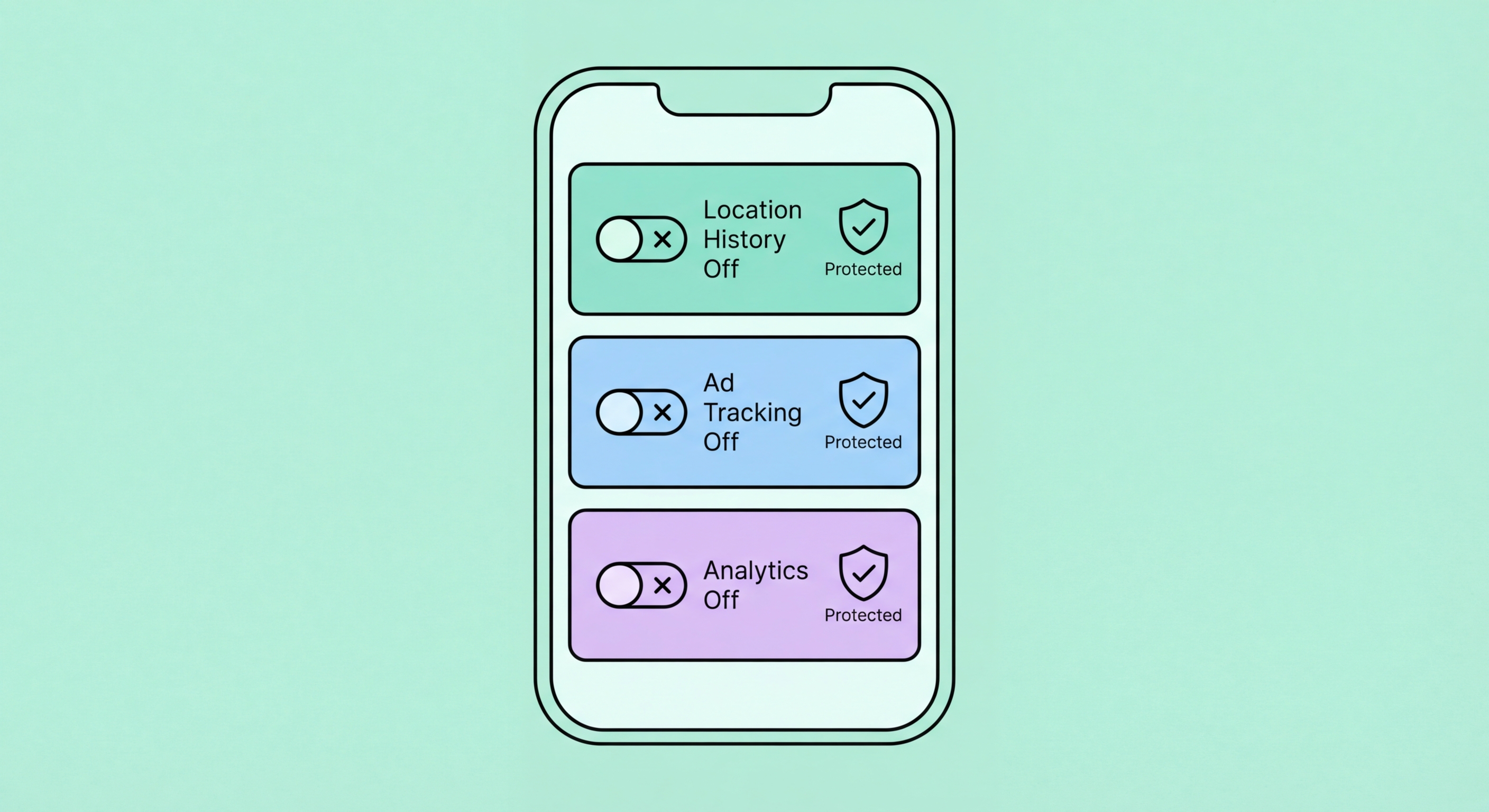
Mobile data collection overview
2iOS Privacy Settings

iOS Privacy Settings That Actually Protect You

iOS provides more granular privacy controls than any previous version of the operating system, and using them effectively can significantly reduce the amount of data collected about you. The Privacy & Security section of Settings is the central hub — working through each category systematically and applying the principle of least privilege (denying access unless clearly necessary) takes about 20 minutes and has lasting impact on your privacy posture.

App Tracking Transparency (ATT), introduced in iOS 14.5, is one of the most impactful privacy features Apple has implemented. It requires every app to request explicit permission before tracking you across other companies' apps and websites. Go to Settings → Privacy & Security → Tracking and disable "Allow Apps to Request to Track" — this denies all tracking requests automatically without even showing you the prompts. This single setting significantly reduces the cross-app data collection that feeds targeted advertising and builds your behavioural profile.

Location Services management deserves particular attention. Review Settings → Privacy & Security → Location Services and go through every app listed. For most apps, "While Using the App" is appropriate; "Never" for apps that clearly don't need location; and "Always" should be reserved for only those apps with a genuine continuous location need (navigation, Find My, fitness tracking). Enable "Precise Location" only for apps that genuinely require GPS-level accuracy — most apps function perfectly with Approximate Location.

  • Disable cross-app tracking: Settings → Privacy → Tracking → disable "Allow Apps to Request to Track" to block all cross-app advertising tracking.
  • Location Services audit: Review every app in Location Services — use "While Using" instead of "Always"; enable Approximate Location for most apps.
  • Personalised ads: Settings → Privacy → Apple Advertising → disable "Personalised Ads" to opt out of Apple's own targeted advertising.
  • Analytics & Improvements: Settings → Privacy → Analytics & Improvements → disable "Share iPhone Analytics" to stop sending diagnostic data to Apple.
  • App Privacy Report: Enable Settings → Privacy → App Privacy Report to see a real-time log of which apps access which sensors and contact which domains.
  • Hide My Email (iCloud+): Use Hide My Email when signing up for apps and services to prevent your real email from being collected and sold by data brokers.
Complete iPhone security and privacy settings guide →
iOS privacy settings guide
3Android Privacy Settings

Android Privacy Settings to Enable Right Now

Android's default privacy settings are significantly more permissive than iOS's — by design, because Google's advertising business depends on the data collected from Android users. However, Android provides extensive privacy controls that, when properly configured, can substantially limit data collection. The key difference from iOS is that these controls require more active configuration: Android's defaults favour data collection, while iOS's defaults tend to favour privacy with opt-in for collection.

The Google Advertising ID (GAID) is the Android equivalent of Apple's IDFA — a persistent identifier that allows advertisers to track you across apps. Go to Settings → Privacy → Ads → Delete advertising ID. This replaces your GAID with a permanent zeroed-out value, effectively preventing cross-app tracking by any app that uses the standard advertising identifier API. This is one of the highest-impact Android privacy actions and takes less than 30 seconds.

Google's data collection at the account level — search history, location history, YouTube history, ad personalisation — is controlled through myaccount.google.com rather than through device settings. Navigate to Data & Privacy on your Google Account and review Web & App Activity, Location History, and YouTube History settings. Disabling these, or setting auto-delete to 3 months, substantially limits the data Google retains about you. For the most privacy-sensitive users, using a non-Google browser (Firefox Focus, Brave) and a non-Google search engine (DuckDuckGo) on Android significantly reduces Google's browsing data collection.

  • Delete advertising ID: Settings → Privacy → Ads → Delete advertising ID — prevents all cross-app advertising tracking on Android.
  • Location History: Google Account → Data & Privacy → Location History → turn off or set auto-delete to 3 months.
  • Web & App Activity: Google Account → Data & Privacy → Web & App Activity → pause or set auto-delete — limits Google's search and browsing history collection.
  • Privacy Dashboard: Settings → Privacy → Privacy Dashboard — provides a 24-hour view of which apps accessed each permission category.
  • Permission Manager: Settings → Privacy → Permission Manager — review and revoke unnecessary app permissions by category.
  • Private DNS: Settings → Network → Private DNS — set to "dns.google" or a privacy-focused alternative like "1dot1dot1dot1.cloudflare-dns.com" to encrypt DNS queries.
Configure all Android security settings →
Android privacy settings guide
4Browsing and Communications

Private Browsing and Secure Communications on Mobile

Your mobile browser is one of the most significant sources of behavioural data collection on your smartphone. Standard browsing in Safari or Chrome — even in private/incognito mode — leaks your browsing activity to your ISP, the websites you visit, and the advertising networks embedded in those sites. Private browsing mode only prevents your browser from saving history locally — it does not make you invisible to websites, advertisers, or your carrier.

For meaningful mobile browsing privacy, the combination of a VPN and a privacy-focused browser provides substantially better protection. On iOS, Safari with the enhanced privacy settings (Intelligent Tracking Prevention enabled, cross-site tracking blocked) and Private Browsing is a reasonable baseline. Firefox Focus, which blocks trackers and deletes all browsing data when you close it, provides stronger protection. On Android, Brave browser includes a built-in content blocker and ad blocker that eliminates most tracking without requiring additional configuration.

Email privacy on mobile is another area where defaults are poor. Apple Mail and Gmail apps collect reading behaviour and display tracking pixels (tiny invisible images that tell senders when you've opened an email and from what IP address). iOS Mail's "Protect Mail Activity" feature (Settings → Mail → Privacy Protection → Protect Mail Activity) uses Apple's privacy proxy to load all remote content through Apple's servers rather than directly from your IP, blocking sender tracking pixels. On Gmail, downloading images only after your explicit approval is available in Settings → Images → Ask before displaying external images.

  • VPN on all networks: A mobile VPN encrypts your browsing from your carrier and prevents network-level tracking injection on public WiFi.
  • Privacy browser: Consider Firefox Focus (iOS/Android) or Brave (Android) for browsing sessions where maximum privacy is needed.
  • Safari ITP: Safari's Intelligent Tracking Prevention is enabled by default — verify in Settings → Safari → Prevent Cross-Site Tracking.
  • Mail Privacy Protection (iOS): Settings → Mail → Privacy Protection → enable "Protect Mail Activity" to block email tracking pixels.
  • Signal for messaging: For private conversations, Signal provides end-to-end encryption and minimal metadata collection — the strongest available consumer messaging privacy.
  • Review app privacy labels: Check App Store privacy labels and Google Play's Data Safety section before installing any app — look for "Data Linked to You" fields that indicate extensive data collection.
Choose the most private messaging app for Hong Kong →
Private mobile browsing and communications
Privacy and Security Go Hand in Hand

Privacy and Security Go Hand in Hand

Limiting data collection reduces your attack surface as well as protecting your privacy. Combine these privacy settings with our full security hardening guide for comprehensive mobile protection.

Related VPN Articles