iPhone Security Settings to Enable Right Now

A complete walkthrough of every critical iPhone security and privacy setting for Hong Kong users in 2026 — from passcode hardening and Advanced Data Protection to Lockdown Mode and the App Privacy Report.

iPhone security settings guide 2026
1Face ID, Passcode, Lock Screen

Face ID, Passcode, and Lock Screen Security Settings

The most critical iPhone security settings are all in one place: Settings → Face ID & Passcode (or Touch ID & Passcode on older models). This section controls your phone's first line of defence — the authentication required to unlock the device and access your data. Configure each setting in this section carefully; collectively, they determine whether a thief or forensic tool can access your phone's contents.

Passcode: tap "Change Passcode" → "Passcode Options" → "Custom Alphanumeric Code." Enter an 8+ character passcode mixing uppercase, lowercase, numbers, and symbols. This creates encryption keys far stronger than any numeric PIN. Require Passcode: set to "Immediately" — this ensures your passcode is required the moment the screen locks. Face ID: face recognition for unlocking is secure and convenient, but understand the emergency disable procedure (press Volume Up + Side button simultaneously, or press Side button 5 times, to disable Face ID temporarily and require passcode).

In the "Allow Access When Locked" section, critically review what is accessible without authentication. Disable: Today View (leaks app notifications to lock screen), Notification Centre (shows notification content), Wallet (unless you have a specific reason to allow tap-to-pay from lock screen), Reply with Message, and Home Control. Enable: Return Missed Calls (useful) and USB Accessories set to OFF (meaning accessories are blocked) — this is the USB Restricted Mode setting that prevents forensic tools from accessing data when the phone is locked.

  • Custom Alphanumeric Passcode: Settings → Face ID & Passcode → Change Passcode → Passcode Options → Custom Alphanumeric Code. Use 8+ characters.
  • Require Passcode: Immediately: Set "Require Passcode" to "Immediately" — eliminates any grace period after screen lock.
  • USB Accessories: Off: In "Allow Access When Locked" → USB Accessories should be toggled OFF — this enables USB Restricted Mode.
  • Erase Data: Scroll to bottom of Face ID & Passcode → enable "Erase Data" — device wipes after 10 incorrect passcode attempts.
  • Disable lock screen widgets: Disable Today View, Notification Centre preview, and Home Control access from the lock screen to prevent information leakage.
  • Auto-Lock: Settings → Display & Brightness → Auto-Lock → 30 Seconds for maximum security.
Full comparison of all screen lock options →
iPhone Face ID passcode lock screen settings
2iCloud and Advanced Data Protection

Apple ID, iCloud, and Advanced Data Protection

Your Apple ID is the master key to your iPhone's data — if an attacker gains access to your Apple ID, they can access your iCloud backups, locate your device, and potentially remotely erase it. Securing your Apple ID is therefore as important as securing the device itself. Go to Settings → [Your Name] → Password & Security and verify: Two-Factor Authentication is On; your trusted phone numbers are correct; and your recovery contacts are set up appropriately.

Advanced Data Protection (ADP) is the single most impactful iCloud security improvement available to Hong Kong iPhone users. When enabled, it applies end-to-end encryption to your iCloud Backup, Photos, Notes, Reminders, Safari bookmarks, Siri Shortcuts, Voice Memos, Wallet passes, and 17 additional data categories. With ADP enabled, Apple cannot access any of this data — even under a court order. Enable it at Settings → [Your Name] → iCloud → Advanced Data Protection → Turn On. You'll be required to Set Up eSIM on Android: Samsung, Pixel, and More">to set up a recovery key or recovery contact first — do this carefully and store the recovery key in a secure location.

Review iCloud Drive sharing and Find My settings. At Settings → [Your Name] → Find My, ensure Find My iPhone is On, Enable Offline Finding is On, and Send Last Location is On. The offline finding feature uses the 1.5 billion Apple device network to locate your iPhone even when it's without power or cellular service. Review the "Share My Location" section and disable location sharing with any apps or people you don't intend to share with. Check Settings → Privacy & Security → Location Services → Share My Location for a list of everyone with access to your location.

  • Enable Advanced Data Protection: Settings → [Name] → iCloud → Advanced Data Protection → Turn On. This is the most important iCloud security step for 2026.
  • Apple ID 2FA: Settings → [Name] → Password & Security → confirm Two-Factor Authentication is On.
  • Recovery contact: Set up a trusted Recovery Contact before enabling ADP — ensures you can recover your account if you lose all your devices.
  • Find My: all options on: Settings → [Name] → Find My → Find My iPhone, Enable Offline Finding, and Send Last Location should all be On.
  • Apple ID strong password: Your Apple ID password should be unique, long, and stored in a password manager — never share it or use it for any other service.
  • Review trusted devices: Settings → [Name] → scroll down to see all trusted devices — remove any you don't recognise.
Understand iPhone encryption and Advanced Data Protection →
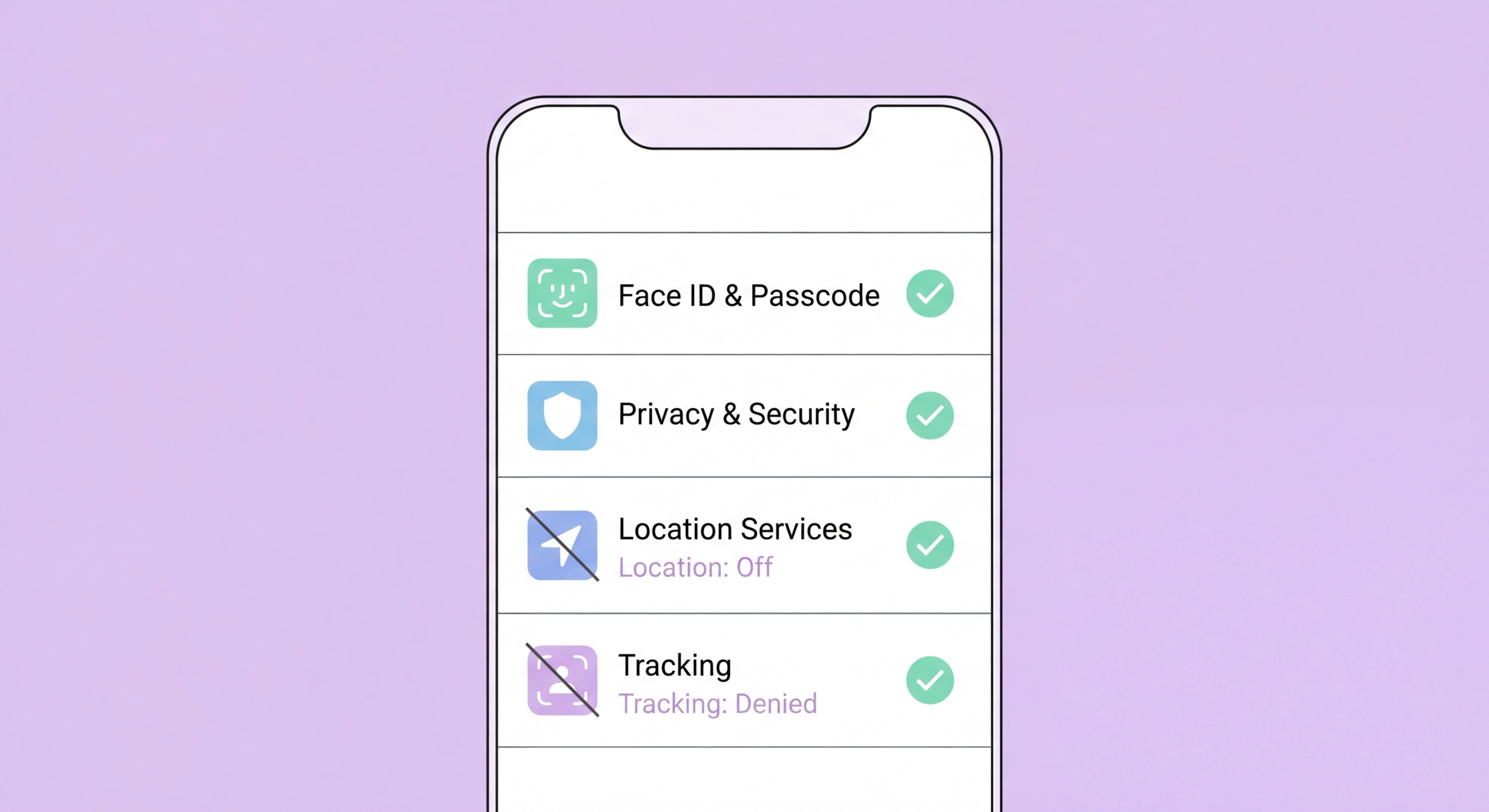
iCloud Advanced Data Protection settings
3Privacy Settings

iOS Privacy Settings: Tracking, Permissions, and App Privacy Report

iOS 14.5 fundamentally changed the mobile privacy landscape with the introduction of App Tracking Transparency (ATT). Every app must now ask your explicit permission before tracking you across other companies' apps and websites using your device's advertising identifier (IDFA). Go to Settings → Privacy & Security → Tracking and disable "Allow Apps to Request to Track" — this automatically denies all tracking requests without even displaying the prompts. Combined with Safari's built-in Intelligent Tracking Prevention (ITP), this significantly reduces cross-app and cross-site advertising surveillance.

The App Privacy Report is one of the most powerful tools available to iOS users. Enable it at Settings → Privacy & Security → App Privacy Report. After a week of normal use, review the report: it shows which apps accessed your camera, microphone, location, contacts, calendar, photos, and media library, and how recently. It also shows which third-party domains your apps are contacting in the background — revealing advertising networks and data brokers that are receiving your data. Use this information to revoke permissions from apps that are accessing sensors more than expected, and delete apps whose network activity looks suspicious.

Work through every category in Settings → Privacy & Security systematically. For Location Services: review every app and change "Always" to "While Using"; enable "Precise Location" only for navigation and genuinely location-dependent apps. For Camera and Microphone: grant only to apps with clear photographic or audio recording functions. For Contacts, Calendar, Photos: use the "Selected Photos" option rather than full library access where possible. For Tracking: disable all. For Apple Advertising: Settings → Privacy & Security → Apple Advertising → Personalised Ads → Off.

  • Disable App Tracking: Settings → Privacy → Tracking → Allow Apps to Request to Track → Off. Blocks all cross-app advertising tracking.
  • Enable App Privacy Report: Settings → Privacy → App Privacy Report → Turn On. Review after a week to identify unexpected data access.
  • Location Services audit: Settings → Privacy → Location Services → review every app; change "Always" to "While Using"; disable Precise Location where not needed.
  • Disable Apple Advertising: Settings → Privacy → Apple Advertising → Personalised Ads → Off.
  • Mail Privacy Protection: Settings → Mail → Privacy Protection → Protect Mail Activity → On. Blocks email tracking pixels.
  • Selected Photos access: When apps request photo library access, choose "Select Photos" and grant access only to specific photos rather than your entire library.
Complete iOS privacy settings guide →
iOS privacy settings tracking permissions
4Lockdown Mode and Safari

Lockdown Mode, Safari Security, and Automatic Updates

iOS Lockdown Mode, introduced in iOS 16, is Apple's extreme security hardening mode for users who face sophisticated, targeted attack threats — journalists, lawyers, executives, activists, and others who may be targeted by state-level adversaries. When Lockdown Mode is enabled, it disables: incoming FaceTime calls from people not in your contacts; message link previews; shared photo albums; wired connections to accessories when iPhone is locked; configuration profiles (commonly exploited for enterprise malware deployment); and critically, JavaScript JIT compilation in Safari — a common exploit vector for zero-click browser attacks.

Most Hong Kong iPhone users don't need Lockdown Mode — it sacrifices significant functionality for protection against sophisticated targeted attacks. However, for users in high-risk positions, the trade-offs are worth it. Enable it at Settings → Privacy & Security → Lockdown Mode → Turn On Lockdown Mode. The device will restart in Lockdown Mode. You can disable it by returning to the same setting and turning it off — iOS retains your other settings between Lockdown Mode sessions.

Safari security settings deserve specific attention. Go to Settings → Safari and enable: Prevent Cross-Site Tracking; Hide IP Address → Trackers and Websites (if you have iCloud+); Block All Cookies — note this will break some websites but maximises privacy; Fraudulent Website Warning (this is Apple's Safe Browsing implementation — keeps it on). Also configure: Settings → Safari → Search Engine → change from Google to DuckDuckGo or another privacy-focused search engine to reduce Google's search data collection from your browsing.

  • Automatic Updates: Settings → General → Software Update → Automatic Updates → enable "Download iOS Updates" and "Install iOS Updates."
  • Lockdown Mode (high-risk users): Settings → Privacy → Lockdown Mode → Turn On — disables multiple exploit vectors at the cost of some functionality.
  • Safari tracking prevention: Settings → Safari → Prevent Cross-Site Tracking → On. Safari's ITP is one of the most effective browser tracking preventions available.
  • Safari Fraudulent Website Warning: Settings → Safari → Fraudulent Website Warning → On. Warns before visiting known phishing sites.
  • Private DNS: Settings → Wi-Fi → tap connected network (i) → Configure DNS → Manual → add 1.1.1.1 (Cloudflare) for encrypted DNS on WiFi.
  • Rapid Security Response: Settings → General → Software Update → Automatic Updates → Security Responses & System Files → On. Allows critical security patches without full OS update.
Apply all these settings with our complete guide →
iOS Lockdown Mode and Safari security
iPhone Secured — Now Check Your Privacy Settings

iPhone Secured — Now Check Your Privacy Settings

With security settings configured, take the next step and audit your app permissions and data privacy settings for complete iPhone protection.

Related VPN Articles