VPN Split Tunnelling: What It Is & How to Use It
Split tunnelling gives you granular control — route sensitive apps through the VPN for privacy, while streaming and gaming bypass it for maximum speed. Here's how.
Published: March 29, 2026
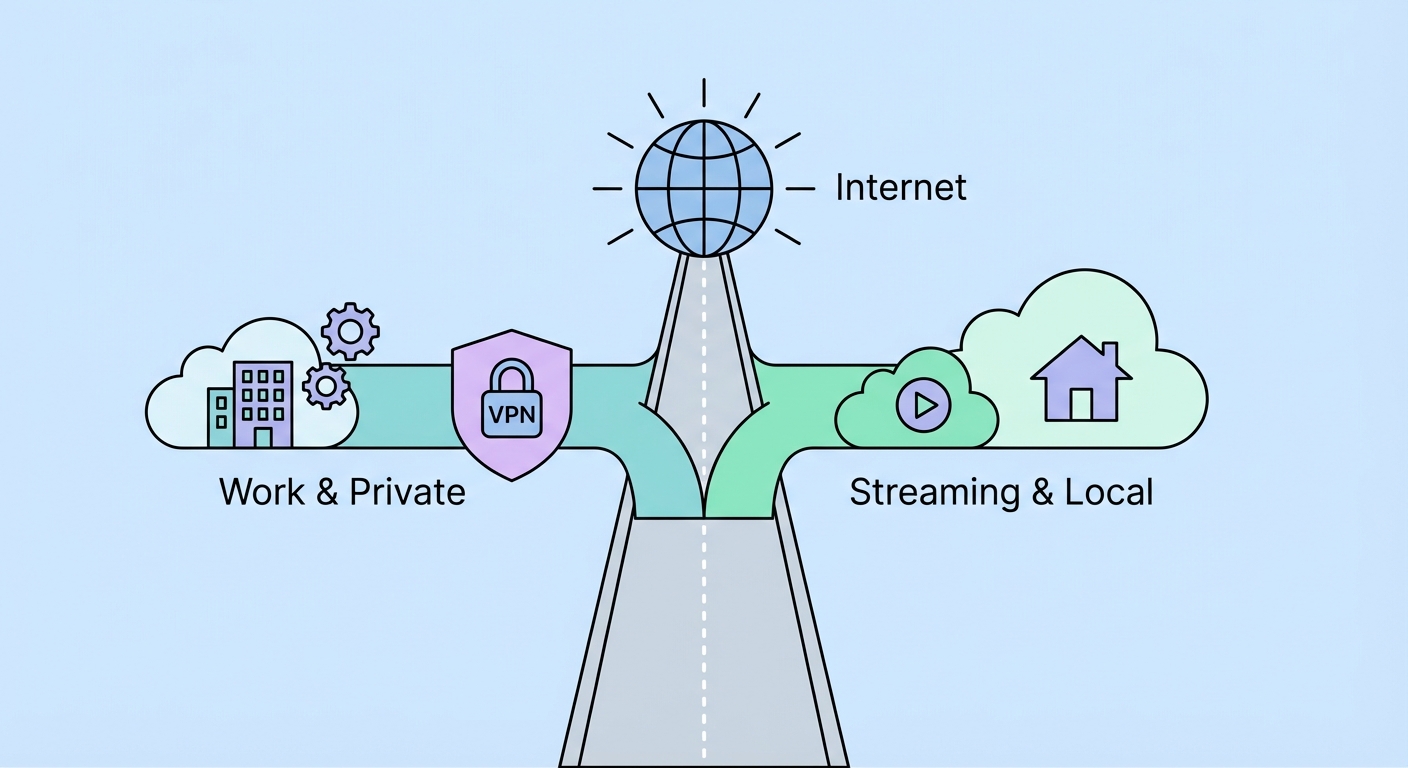
Split tunnelling gives you granular control — route sensitive apps through the VPN for privacy, while streaming and gaming bypass it for maximum speed. Here's how.
Published: March 29, 2026
Split tunnelling is a VPN feature that allows you to divide your internet traffic into two streams: one that goes through the encrypted VPN tunnel, and one that connects directly to the internet without VPN. Instead of the all-or-nothing approach where either everything goes through the VPN or nothing does, split tunnelling gives you fine-grained control over which traffic gets VPN protection and which bypasses it.
The name comes from the concept of splitting the network traffic into two separate "tunnels" — one encrypted tunnel through the VPN, and one direct connection to the public internet. These two traffic streams coexist simultaneously on the same device and the same physical network connection. Your browser might be routing its traffic through a US VPN server while your torrent client routes through a Netherlands P2P-optimised server and your Netflix app connects directly to the internet — all at the same time, on the same WiFi connection.
The practical value is substantial. A VPN inevitably adds some speed overhead and latency due to encryption and routing distance. By excluding high-bandwidth, low-privacy-requirement activities (streaming, gaming, large downloads) from the VPN, you preserve full ISP ↗ speeds for those activities while maintaining VPN protection for privacy-sensitive ones (browsing, email, financial apps). This is particularly valuable for remote workers who use a corporate VPN for work systems while wanting full speed for personal browsing.
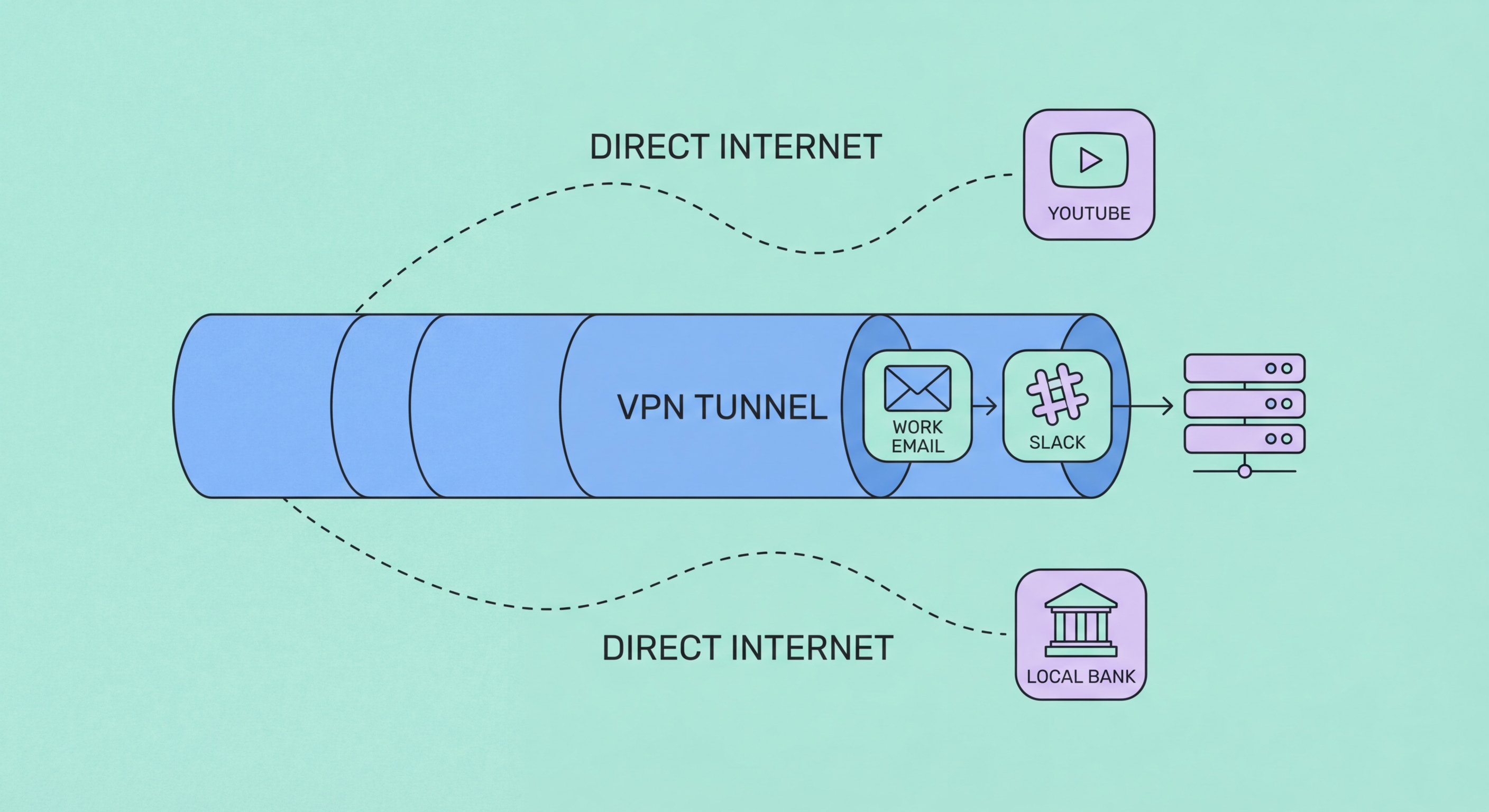
Split tunnelling comes in two primary flavours, each with different levels of granularity and different use cases. App-based split tunnelling (also called per-app VPN) works at the application level — you specify which applications route through the VPN and which connect directly. URL-based split tunnelling (sometimes called IP-based or domain-based split tunnelling) works at the DNS level, routing traffic to specific domains or IP addresses through the VPN while all other traffic goes direct.
App-based split tunnelling is the more common and easier-to-configure option, available on NordVPN, ExpressVPN, Surfshark, Private Internet Access, and most major providers. You add applications to either an "include" list (only these apps use the VPN) or an "exclude" list (all apps except these use the VPN). Typical configurations: exclude Netflix, gaming launchers, and cloud backup apps (let them use full ISP ↗ speed); include your browser, email client, and torrent client (these get VPN protection). On Android, app-based split tunnelling is fully supported. On iOS, Apple's sandboxing makes app-based split tunnelling impossible in the traditional sense — though some providers implement it differently.
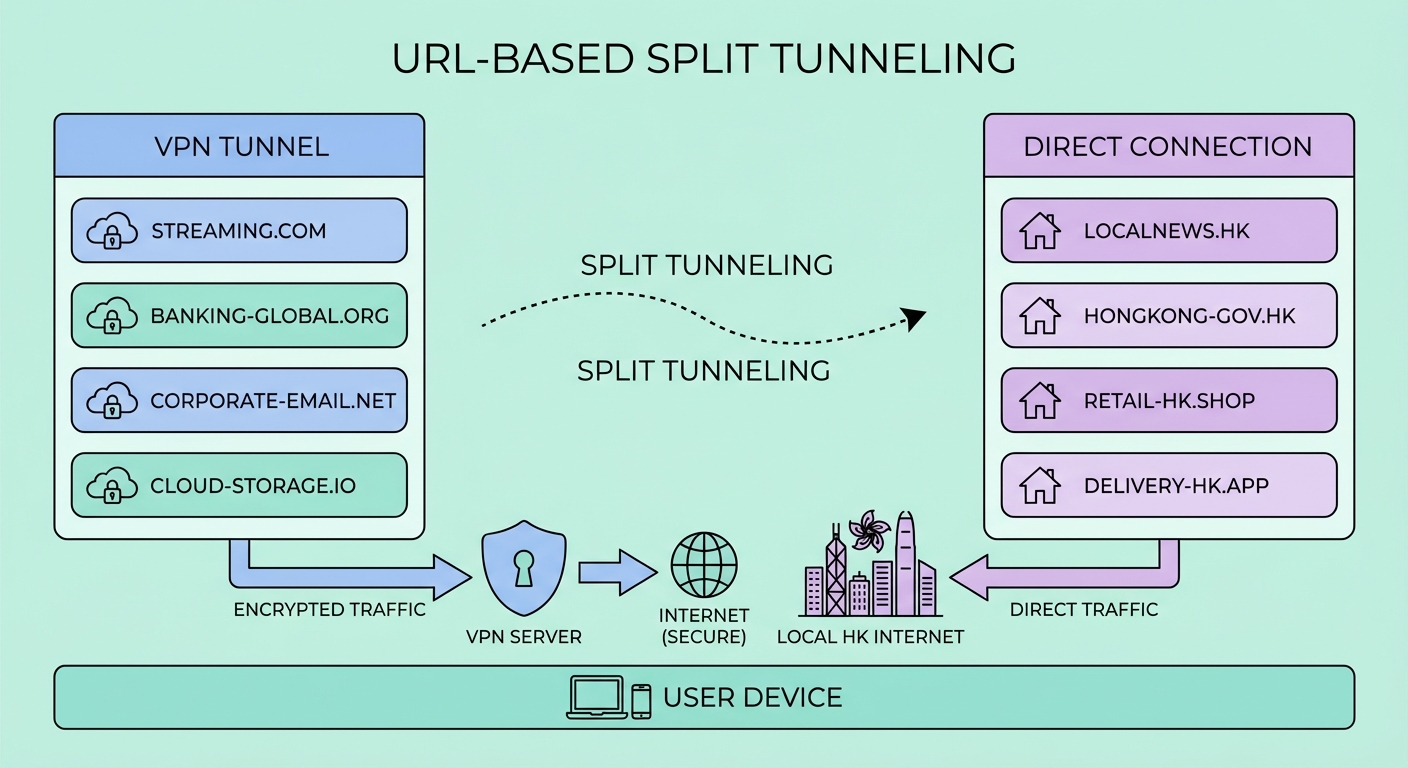
URL-based split tunnelling is available on ExpressVPN (on its router app and Windows app) and a few other providers. You specify domain names (company.com, bank.com) that route through the VPN, while all other domains connect directly. This is more granular than app-based tunnelling and more complex to configure correctly. A potential misconfiguration risk: if you route bank.com through the VPN but forget to also route bankauth.com (the authentication subdomain), auth flows may fail. Inverse split tunnelling — where everything goes through the VPN except specified exclusions — is more intuitive to configure correctly for most users.
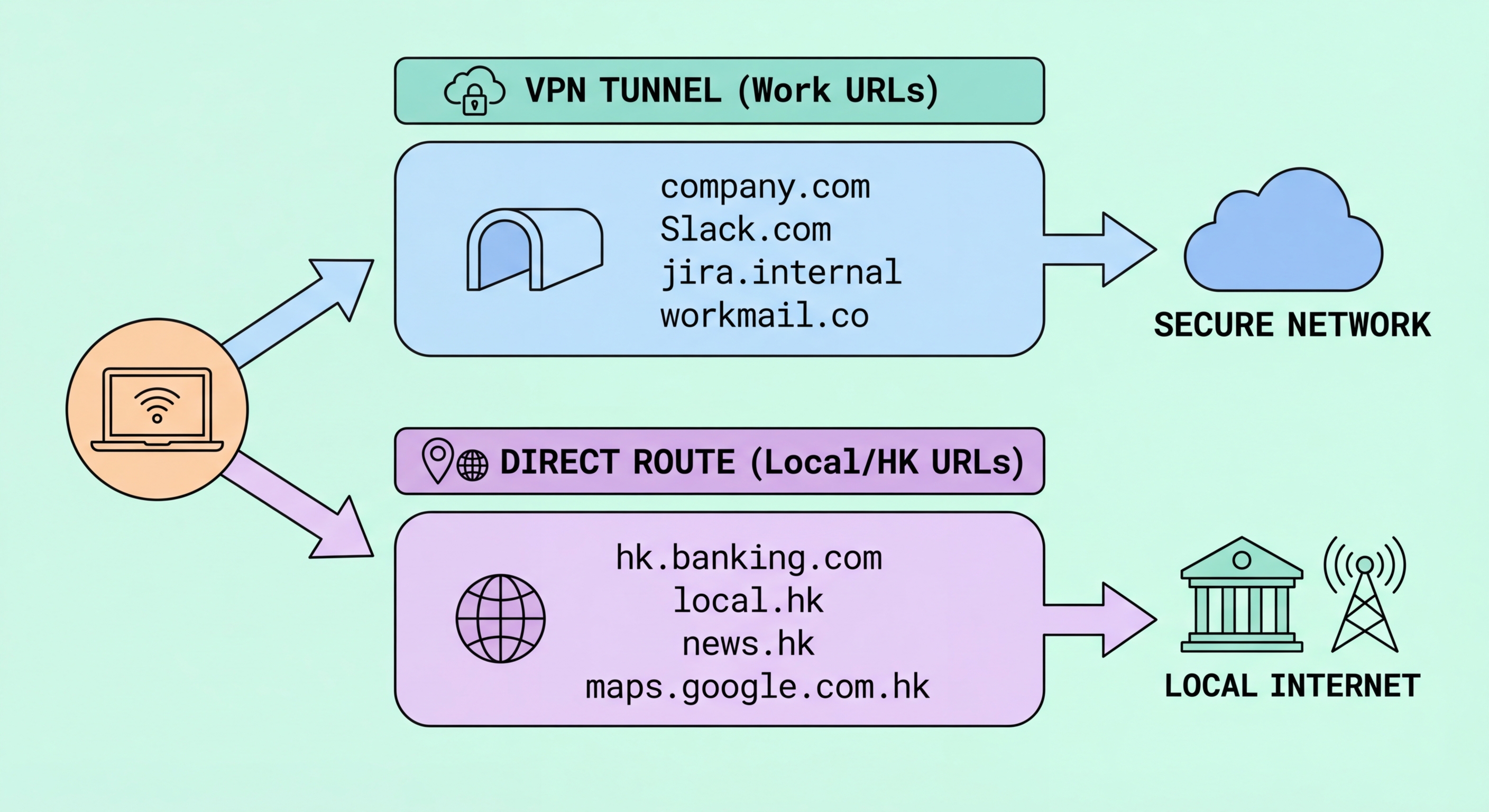
The remote work use case is where split tunnelling provides the most immediately tangible benefit. A remote employee typically needs both a corporate VPN (to access internal company systems like file servers, ERP, and intranet) and privacy protection for personal browsing. Without split tunnelling, running both VPNs simultaneously causes conflicts and routing complexity. With app-based split tunnelling, you configure your corporate VPN client (Cisco AnyConnect, GlobalProtect) and company-specific applications to route through the corporate VPN, while your personal browser routes through your personal consumer VPN (NordVPN, etc.) and streaming apps connect directly.
For streaming combined with privacy browsing, split tunnelling is ideal. You want US Netflix access — which requires a US VPN server — but you're also doing privacy-sensitive research that shouldn't be linked to a US IP. Configure your browser to route through a VPN server in a privacy-respecting jurisdiction, while the Netflix app routes through a US streaming-optimised server, and any additional downloads connect directly at full ISP speed. This multi-path configuration is only possible with split tunnelling.
Gamers benefit from split tunnelling by keeping their gaming clients (Steam, Battle.net, PS Network, Xbox Live) on a direct connection for minimum latency, while routing their browser, Discord, and voice chat through the VPN. This protects their real IP from being exposed through browser-based doxxing or Discord IP lookups, while preventing the VPN overhead from affecting game latency. If DDoS protection is the primary concern (for streamers), route the streaming software (OBS) and Discord through the VPN, while leaving the game client direct to minimise ping.
NordVPN (Windows/Android): Open NordVPN app → Settings (gear icon) → Split Tunnelling → Enable. Choose between "Enable for selected apps only" (inclusive — only listed apps use VPN) or "Disable for selected apps" (exclusive — all apps except listed ones use VPN). For the remote work configuration: select "Disable for selected apps" and add Netflix, your game launchers, and cloud backup apps to the exclusion list. Everything else — browser, email, torrent client — routes through the VPN automatically. Note: NordVPN split tunnelling is available on Windows and Android but not on macOS or iOS.
ExpressVPN (Windows/Mac/Android): Open ExpressVPN → Menu → Options/Preferences → Split Tunneling → Turn on. ExpressVPN offers three modes: "Only allow selected apps to use the VPN" (inclusive), "Do not allow selected apps to use the VPN" (exclusive), and "Do not allow selected IPs and websites to use the VPN" (URL-based on Windows). For Windows users who want URL-based split tunnelling to send company.com through the VPN while keeping everything else direct, ExpressVPN is the best consumer option for this configuration.
Surfshark (Windows/Android): Settings → VPN Settings → Split Tunneling → Enable. Surfshark uses an app whitelist/blacklist approach similar to NordVPN. One notable Surfshark feature is the ability to set different "routes" — routing specific apps through servers in different countries simultaneously. This is the most flexible split tunnelling implementation for users who need simultaneous access to content from multiple regions (e.g., US Netflix + UK iPlayer at the same time). Private Internet Access: Settings → Split Tunnel — enable and add apps to bypass list.