Browser Cookie Management for Privacy
How to manage, block, and clear cookies effectively — improving privacy without logging out of everything important or breaking sites you rely on.
Published: March 29, 2026
How to manage, block, and clear cookies effectively — improving privacy without logging out of everything important or breaking sites you rely on.
Published: March 29, 2026
Browser cookies are small text files that websites store on your device to maintain state between requests. First-party cookies are set by the domain you are directly visiting — your banking site uses first-party cookies to keep you logged in, your email client uses them to remember your preferences, and e-commerce sites use them to maintain your shopping cart. First-party cookies are generally legitimate and necessary for many core web functions. Blocking them entirely would log you out of every site on every visit, creating an unusable web experience.
Third-party cookies are set by domains other than the one you are visiting — embedded advertising networks, social media widgets, analytics scripts, and tracking pixels. When you visit a site that includes a Facebook Like button, Facebook sets a third-party cookie on your browser even if you never interact with the button. This cookie allows Facebook to track which sites you visit across the entire web, building a detailed profile of your interests and behaviour beyond the Facebook platform. The same applies to Google Ads, DoubleClick, Google Analytics, and hundreds of other third-party tracking services.
The key insight for cookie management is that first-party and third-party cookies serve fundamentally different purposes. First-party cookies provide functionality you need; third-party cookies primarily serve tracking purposes. The most eff ↗ective privacy improvement is to block third-party cookies while keeping first-party cookies — this eliminates cross-site tracking while preserving the functionality of sites you actually use. All major browsers now offer third-party cookie blocking as a built-in setting, and many privacy-focused browsers block them by default.

In Firefox, third-party cookie blocking is built into Enhanced Tracking Protection. Navigate to Settings > Privacy & Security and ensure "Custom" or "Strict" is selected. Under "Cookies," select "All third-party cookies" to block all cross-site tracking cookies. Firefox provides a site exception mechanism — if a site breaks due to third-party cookie requirements, you can add it to an exceptions list without reverting your global settings. Most sites function correctly with third-party cookies blocked; the exceptions are sites that require social login or deeply integrated third-party content.
In Chrome, go to Settings > Privacy and security > Cookies and other site data and select "Block third-party cookies." Note that Chrome's transition to Privacy Sandbox means this setting may behave differently as Google rolls out alternative tracking mechanisms. Chrome also supports an "Always clear cookies when windows are closed" option that can be combined with third-party cookie blocking to maintain a clean state between browsing sessions. Edge has similar settings under Settings > Cookies and site permissions > Manage and delete cookies and site data.
Safari's Intelligent Tracking Prevention (ITP) blocks third-party cookies automatically without requiring any manual configuration. ITP uses machine learning to identify cross-site tracking domains and prevents them from setting cookies while maintaining compatibility with sites that use third-party cookies for legitimate functions like embedded payments. Brave blocks all third-party cookies by default as part of its Shields system. If you switch to Brave, no cookie configuration is needed — the protections are active from the first launch.

Cookie AutoDelete is a browser extension available for Firefox, Chrome, and Edge that automatically deletes cookies from sites you close, preventing cookies from accumulating over time. When you close a tab, Cookie AutoDelete removes all cookies associated with that domain unless you have whitelisted the site. This approach provides cookie-based privacy without requiring you to manually clear cookies or log out of important sites — you maintain persistent login for whitelisted sites (your email, banking, and frequently used services) while all other sites start fresh each visit.
The whitelist mechanism is the key feature that makes Cookie AutoDelete practical. In the extension's settings, you can add any domain to the "Greylist" (preserves cookies until browser restart) or "Whitelist" (cookies are kept permanently). The most eff ↗icient approach is to whitelist only the sites where you genuinely want persistent login — perhaps 5–10 sites — and let everything else be cleaned automatically. Cookie AutoDelete also clears LocalStorage, IndexedDB, and other browser storage mechanisms that can be used as cookie alternatives, providing more comprehensive cleanup than simply deleting cookies.
Firefox's built-in "Delete cookies and site data when Firefox is closed" option (available in Settings > Privacy & Security) provides similar functionality to Cookie AutoDelete without requiring an extension, though it is less granular. When this setting is enabled alongside the First Party Isolation feature, Firefox treats each site's cookies completely separately, preventing cross-domain cookie sharing even between sites owned by the same company. This feature is particularly useful in combination with Firefox Multi-Account Containers, which provides per-container cookie isolation without deleting cookies at session end.

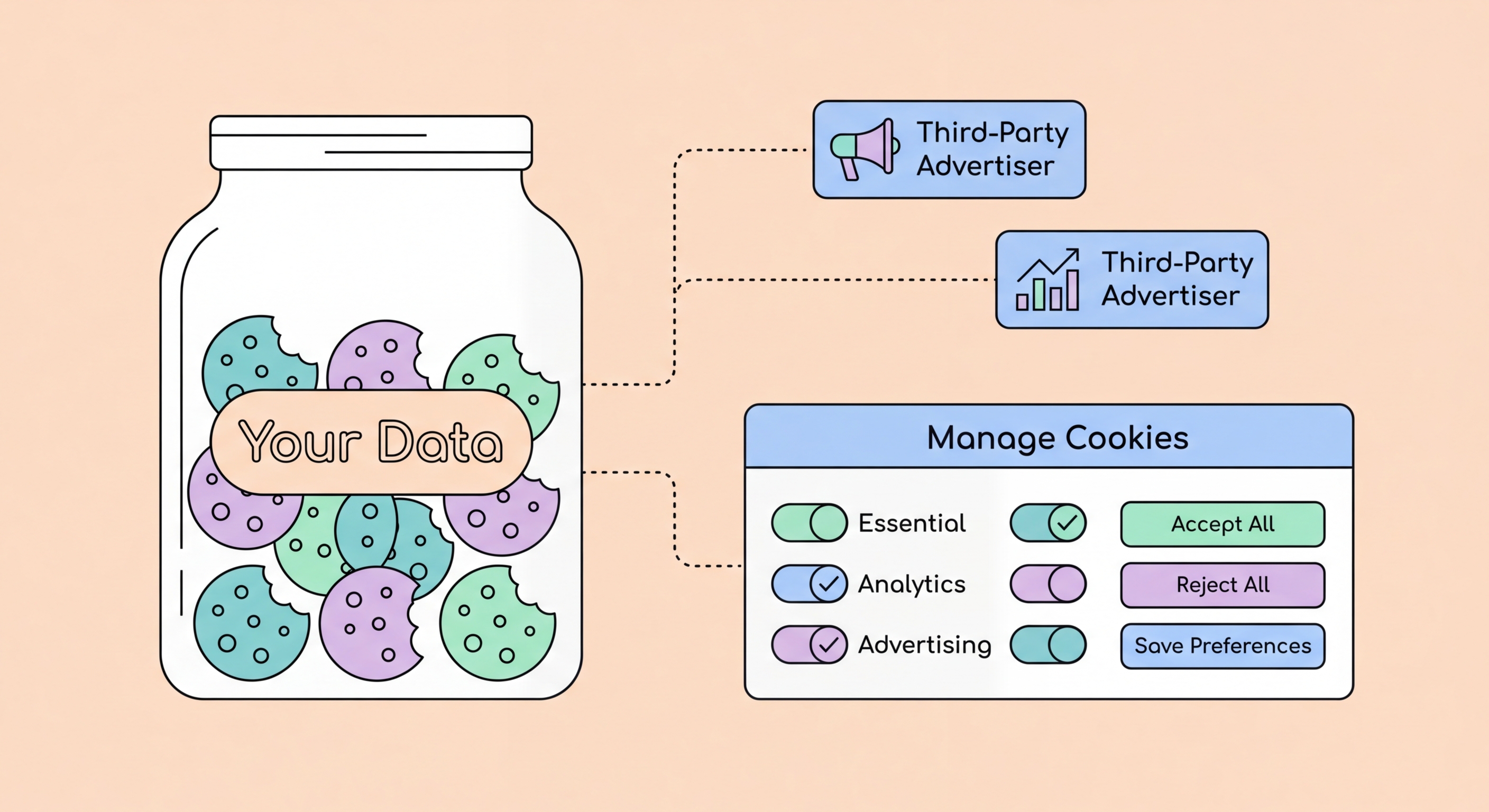
Cookie consent banners — the "Accept All" or "Manage Preferences" popups that appear on most European-regulated websites and increasingly on international sites — have become one of the most frustrating aspects of modern web browsing. These banners exist to comply with GDPR and ePrivacy Directive requirements in the EU, but many implementations are deliberately designed to make "Accept All" the easiest option while burying the "Reject All" or custom settings behind multiple clicks. Research by the Norwegian Consumer Council found that only a small percentage of users who see these banners actually navigate to the custom settings to reject advertising cookies.
uBlock Origin can block many cookie consent banners automatically through its "Annoyances" filter lists — specifically the "uBlock — Cookie Notices" and "AdGuard — Cookie Notices" lists available in uBlock Origin's filter list settings. Enabling these lists causes uBlock Origin to remove the consent banner HTML elements entirely in most cases, preventing the banner from appearing and in many cases automatically sending a "Reject All" consent signal. The "I don't care about cookies" extension (now maintained as "I still don't care about cookies") takes a similar approach, specifically targeting cookie consent banners across thousands of sites.
Brave Browser's built-in shields include a "Block cookie consent notices" option that removes these banners automatically. for Hong Kong Online Banking: What You Need to Know">for Hong Kong Online Banking: A Complete Guide">for Hong Kong SMEs: Where to Start">For Hong Kong users, cookie consent banners are less regulated than in the EU — Hong Kong's Personal Data (Privacy) Ordinance does not require cookie consent in the same way as GDPR — but many websites that serve global audiences display these banners to all visitors. Using uBlock Origin's annoyances filters or Brave's built-in banner blocker removes the friction of these constant popups while ensuring your browser settings continue to block the third-party cookies that the banners are ostensibly about.
