Password Manager vs Saving Passwords in Your Browser

Chrome, Safari, and Edge all offer to save your passwords — but how does this compare to a dedicated password manager? We break down the security, features, and limitations.

Password manager vs browser password saving comparison
1How Browser Saving Works

How Browser Password Managers Actually Work

When Chrome, Safari, Firefox, or Edge offers to "save your password," it stores your credentials in a local database tied to your browser profile. In Chrome, this data is stored in a SQLite database on your device and, if you are signed into a Google account, synced to Google's servers via your Google account. Safari stores passwords in the macOS and iOS Keychain system, which is synced across Apple devices via iCloud Keychain. This means your passwords are accessible across devices — but they are tied to specific ecosystems.

The security of browser-saved passwords varies by browser and configuration. Chrome encrypts stored passwords using the operating system's built-in credential store (DPAPI on Windows, Keychain on macOS). However, on Windows, this encryption is tied to your Windows user session — any application running as the same user can potentially decrypt your stored passwords without needing your master password or any additional authentication. This is a significant weakness compared to dedicated password managers that require explicit vault unlock.

Browser password managers have improved significantly in recent years. Google Password Manager now includes password strength checking, breach monitoring via Google's database, and the ability to generate random passwords. Apple's iCloud Keychain provides strong integration across Apple devices with biometric authentication. However, both remain meaningfully less capable and less secure than dedicated password managers when examined critically.

  • Stored locally: Passwords saved in a browser are in a local database on your device, optionally synced to cloud accounts
  • OS-level encryption: Protected by DPAPI (Windows) or Keychain (macOS/iOS) — unlocked by your OS session
  • Account sync: Chrome syncs to Google account; Safari syncs via iCloud Keychain across Apple devices
  • Ecosystem locked: Chrome passwords are not easily accessible outside Chrome; Safari passwords need Apple devices
  • Limited features: No secure notes, limited sharing options, basic password generation compared to dedicated tools
  • Improving steadily: Google and Apple have added breach monitoring and password generation in recent updates
Understand how dedicated password managers compare →
How browser password managers store credentials
2Security Gaps

The Security Weaknesses of Browser-Based Password Storage

The most serious security weakness of browser-saved passwords is that they share an attack surface with the browser itself. Malicious browser extensions — which are increasingly common and not always rigorously vetted by browser extension stores — can access the browser's password store. Several families of infostealer malware, including RedLine Stealer and Raccoon Stealer, specifically target browser-stored credentials and can exfiltrate an entire password database to attacker-controlled servers. Once they have your browser's credential store, they have everything.

Physical access is another significant risk. On Windows, accessing Chrome's stored passwords requires only access to the user's Windows session — there is no separate vault master password. If someone sits down at your unlocked computer, they can view all Chrome-saved passwords in plaintext via the browser's settings page. A dedicated password manager with a separate master password provides an additional layer of protection that requires explicit authentication to access.

Cross-platform limitations also create practical security problems. If you use Chrome on Windows at work and Safari on your iPhone, your passwords are split between two separate systems. This often leads users to save passwords in some accounts but not others, creating inconsistency that can lead to reuse or weak fallback passwords. A dedicated password manager works seamlessly across all browsers and all platforms using a single consistent vault.

  • Extension vulnerabilities: Malicious browser extensions can access and exfiltrate browser-stored passwords
  • Infostealer malware: RedLine, Raccoon, and similar malware specifically target and steal browser credential databases
  • No vault master password on Windows: Chrome passwords can be viewed without additional authentication in your Windows session
  • Physical access risk: Anyone at your unlocked computer can view all saved browser passwords via settings
  • Cross-browser fragmentation: Split storage across browsers leads to inconsistency and weak fallback passwords
  • Google/Apple account risk: A compromised Google or Apple account exposes all synced passwords simultaneously
How attackers steal passwords from devices →
Security weaknesses of browser password managers
3Dedicated Manager Advantages

Where Dedicated Password Managers Clearly Win

Dedicated password managers provide features that browser-based solutions simply cannot match. A separate, encrypted vault with its own master password means that even if your device, browser, or Google/Apple account is compromised, the attacker still cannot access your passwords without the master password. This defence-in-depth approach significantly limits the blast radius of any single compromise. The vault is encrypted at rest using AES-256 with zero-knowledge architecture — even the password manager company cannot decrypt it.

Cross-platform and cross-browser functionality is another major advantage. A dedicated password manager works with Chrome, Firefox, Safari, Edge, and Brave simultaneously. It works on Windows, macOS, iOS, Android, and Linux. It can auto-fill in mobile apps, not just browser windows. You can access your vault from any device, and switching from an iPhone to an Android phone or from macOS to Windows does not require any migration effort — your vault simply syncs to the new device via the manager's app.

Advanced features that browser managers lack include: secure note storage for sensitive information beyond passwords; encrypted file attachments; secure sharing of passwords with other people without revealing the plaintext; emergency access that allows designated trusted contacts to access your vault if you are incapacitated; and travel mode features that remove sensitive vaults from a device when crossing borders, then restore them when you are safely back.

  • Separate vault master password: Compromising your browser or cloud account does not automatically expose your passwords
  • Zero-knowledge encryption: AES-256 encrypted vault that not even the provider can decrypt
  • Cross-platform: Works across all browsers and all operating systems with a single consistent vault
  • Mobile app auto-fill: Fills passwords in apps as well as browsers — critical for banking and utility apps
  • Secure notes and file storage: Stores sensitive information beyond just passwords — credit cards, IDs, licences
  • Emergency access and sharing: Designated contacts can access your vault in emergencies; share credentials securely
Compare the best dedicated password managers →
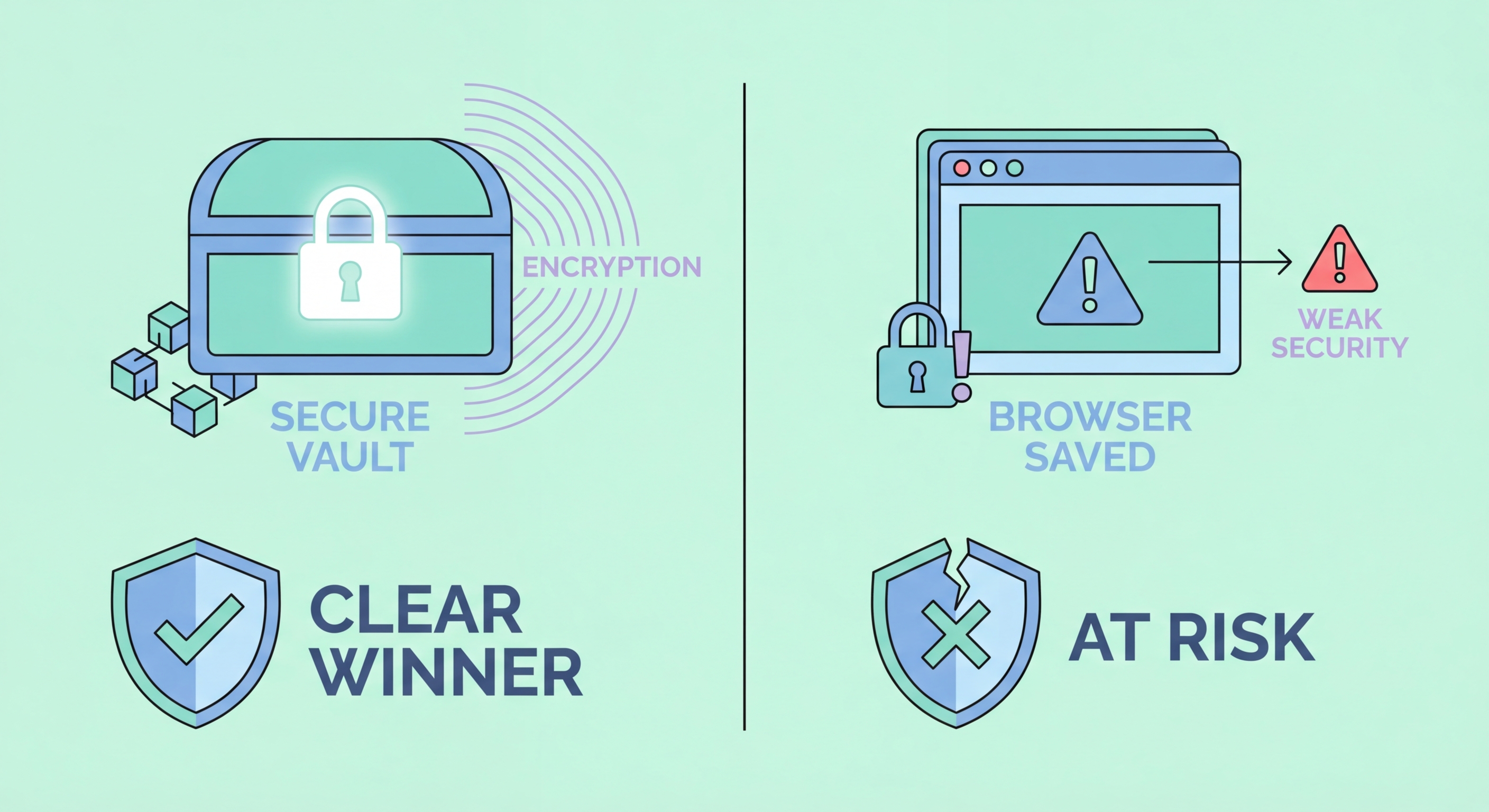
Dedicated password manager advantages over browsers
4Making the Switch

How to Move from Browser Passwords to a Dedicated Manager

Migrating from browser-saved passwords to a dedicated password manager is straightforward and takes less than an hour for most users. Both Chrome and Safari provide export options that generate a CSV file of all saved credentials — in Chrome, go to Settings → Passwords → Export; in Safari, go to Preferences → Passwords → Export. Most dedicated password managers, including Bitwarden and 1Password, have import tools that accept this CSV format and will populate your new vault in minutes.

After importing, the key step is to delete the original browser-saved passwords and disable the browser's built-in password saving. In Chrome, go to Settings → Passwords and turn off "Offer to save passwords" and delete all saved passwords from the list. This prevents the situation where passwords are stored in both places, which can create confusion and means you are maintaining two systems. Configure the browser to defer to your dedicated manager's extension for all password saving and auto-fill going forward.

You should also take the opportunity to review what was imported. Browser password managers often accumulate duplicate entries, outdated passwords for sites you no longer use, and weak reused passwords. Your new dedicated manager's security audit will flag these for review. Use the import as a trigger to do a complete password health review: remove stale accounts, change reused passwords to unique ones generated by the manager, and enable two-factor authentication on high-priority accounts.

  • Export from Chrome/Safari: Settings → Passwords → Export — generates a CSV of all stored credentials
  • Import to your manager: Bitwarden, 1Password, and others accept CSV imports from browser exports
  • Delete browser passwords: Remove all saved passwords from the browser and disable "offer to save" after importing
  • Install the manager extension: Add the dedicated manager's browser extension to handle all future auto-fill requests
  • Run security audit: Review imported passwords for duplicates, weak choices, and breached credentials
  • Update critical accounts first: Prioritise changing email, banking, and social media passwords to new unique ones
Complete password manager setup guide →
Migrating from browser to dedicated password manager

Ready to Upgrade from Your Browser?

A dedicated password manager provides significantly stronger security and more features than any browser's built-in password saving. Make the switch today.

Related VPN Articles