How to Set Up 2FA on Google: Step-by-Step Guide

Your Google account controls Gmail, Google Drive, YouTube, and potentially dozens of other services. Enabling 2-step verification takes five minutes and dramatically reduces your risk of account compromise.

Setting up Google 2-step verification on smartphone and computer
1Why It's Critical

Why Your Google Account Needs 2FA Above All Others

Your Google account is the highest-priority account for 2FA because it controls so much else. Gmail is typically used for receiving password reset emails from dozens or hundreds of other services. If an attacker gains control of your Gmail, they can methodically reset passwords and take over your accounts at banks, shopping sites, social media, streaming services, and government portals. Your Google account is effectively a master key to your digital life.

Google accounts are targeted by credential stuffing attacks daily. The combination of Google's enormous user base and the frequency of data breaches at other services — which expose email/password combinations that attackers test against Google — means your account faces constant automated attack attempts. Google's own Transparency Report data shows billions of compromised credentials being used in automated attacks against Google accounts every year. Without 2FA, a leaked password from any other service could unlock your Google account.

Google offers several 2FA options with different security levels: Google Prompts (push approval on a trusted device), authenticator app (TOTP), hardware security keys, and SMS/voice call codes. The best choice for most users is Google Prompts combined with an authenticator app as a backup. Google's Advanced Protection Programme offers hardware key enforcement for high-risk users such as journalists, activists, and executives. All of these options are vastly more secure than relying on a password alone.

  • Email controls everything: Gmail password resets cascade to all linked accounts
  • Constant attack target: Google accounts face billions of automated credential stuffing attempts
  • Google Prompts: The easiest 2FA — approve logins via push on your Android or iPhone
  • Authenticator app: TOTP backup that works even without phone signal
  • Hardware key option: Strongest protection for journalists, activists, and executives
  • Advanced Protection: Google's highest security tier — enforces hardware keys for qualifying users
Understand why 2FA protects you even when your password is leaked →
Google account security settings showing 2-step verification options
2Setup Steps

Step-by-Step: Enabling Google 2-Step Verification

Begin by visiting myaccount.google.com and signing in to your Google account. Navigate to the "Security" section in the left sidebar. Look for "How you sign in to Google" and click on "2-Step Verification." If you have never set this up before, you will see an introductory screen — click "Get started" and re-enter your password when prompted to confirm your identity.

Google will first configure Google Prompts — push notifications sent to any Android phones or iPhones where you are already signed in. You will see a list of your eligible devices. Select your primary phone and click Continue. Google will now send a test prompt to your phone; tap "Yes" when the notification appears to confirm it works. This is now your primary 2FA method. If you later need to authenticate from a new device or browser, Google will send a prompt to this phone.

To add an authenticator app as a backup: back in the 2-Step Verification settings page, scroll to "Add more second steps." Click on "Authenticator app" and follow the setup wizard. Open your preferred authenticator app (Google Authenticator, Authy, or any TOTP-compatible app), tap the "+" to add a new account, choose "Scan a QR code," and scan the QR code displayed on screen. The app will immediately show a 6-digit code — enter this code to confirm the setup works. Finally, download and save your backup codes from the same settings page before finishing.

  • Step 1: Go to myaccount.google.com → Security → 2-Step Verification → Get started
  • Step 2: Set up Google Prompts on your phone — approve the test notification
  • Step 3: Add authenticator app — scan QR code in your preferred TOTP app
  • Step 4: Verify the app works — enter the 6-digit code shown in your app
  • Step 5: Download and save backup codes — store in password manager and physical copy
  • Step 6: Test — log out and log back in to confirm 2FA is working correctly
Choose the best authenticator app before setting up →
Step by step Google 2-step verification setup process
3Advanced Options

Google's Advanced 2FA Options: Passkeys and Hardware Keys

Google was one of the earliest major adopters of FIDO security keys and passkeys. In the 2-Step Verification settings, you will find options to add passkeys and security keys. Passkeys use your device's biometric authentication — Face ID or fingerprint — combined with a device-bound cryptographic key, providing phishing-resistant authentication. Google prompts you to create a passkey on devices that support it (modern iPhones, Android phones, Windows laptops with Windows Hello, and Macs with Touch ID). Once registered, you can log in to Google with just a face scan or fingerprint, and no code entry is required.

Hardware security keys can be added under "Security keys" in the same settings section. Register your key by inserting it when prompted and touching the sensor. You can register multiple keys — it is strongly recommended to register two physical keys and store the backup at home. Google's Advanced Protection Programme goes further by requiring enrolled accounts to use only hardware keys or passkeys for sign-in — SMS and authenticator app codes are not accepted. This is designed for high-risk users who face targeted attacks.

Google's Workspace (formerly G Suite) for businesses has additional admin controls that allow administrators to enforce 2FA requirements across an entire organisation, set up security key policies, and monitor compliance. If your organisation uses Google Workspace, discuss with your IT team whether organisation-wide 2FA enforcement is in place. Employees signing in to company Google Workspace accounts without 2FA are a significant security risk for business data stored in Google Drive and Gmail.

  • Passkeys: Create in myaccount.google.com → Security → Passkeys — biometric login with phishing resistance
  • Hardware keys: Add in 2-Step Verification → Security keys — register two keys
  • Advanced Protection: Enrol at landing.google.com/advancedprotection — requires hardware keys or passkeys only
  • Multiple methods: Register passkey + authenticator app + backup codes for layered redundancy
  • Google Workspace: Admin can enforce 2FA for all accounts in the organisation
  • Trusted devices: Google allows you to skip 2FA on designated trusted computers for 30 days
Learn how passkeys provide phishing-resistant login →
Google passkeys and hardware security key setup in Google account settings
4After Setup

Managing Google 2FA: Trusted Devices, Recovery, and Troubleshooting

After enabling Google 2FA, you may be prompted on each new login to "trust" the device for 30 days. This tells Google not to require 2FA again on that device for 30 days. Use this option judiciously: trust your personal laptop and home computer, but never trust public computers at libraries, hotels, or internet cafés. You can review and revoke trusted devices in the "Manage trusted devices" section of your Google account security settings.

If you change phones, you should update your Google 2FA before losing access to the old phone. With Google Prompts, the new phone automatically becomes eligible for prompts once you sign in to your Google account on it. For your authenticator app setup, you will need to re-scan the setup QR code from Google — go to myaccount.google.com → Security → 2-Step Verification → Authenticator app → Change phone, and scan the new QR code in your new app. Alternatively, if you used Authy or Google Authenticator with backup enabled, the codes transfer with the backup.

If you are locked out — you cannot access your phone, authenticator app, or backup codes — use the Google account recovery at accounts.google.com/signin/recovery. Google will attempt to verify your identity using signals like trusted devices where you have recent login history, recovery phone number, or recovery email. Set these up now, before you need them. A recovery email address should ideally be a different email provider (not another Gmail), secured with its own 2FA.

  • Trusted devices: Only trust personal, private devices — never public computers
  • Phone change: Update authenticator app by scanning a new QR code from Google security settings
  • Recovery email: Set a non-Gmail recovery email — secured with its own 2FA
  • Recovery phone: Keep your recovery phone number current in Google settings
  • Check security settings annually: Review and update 2FA methods each year
  • Backup codes: Regenerate and resave backup codes if you lose or use your current set
See the full guide to recovering from 2FA lockout →
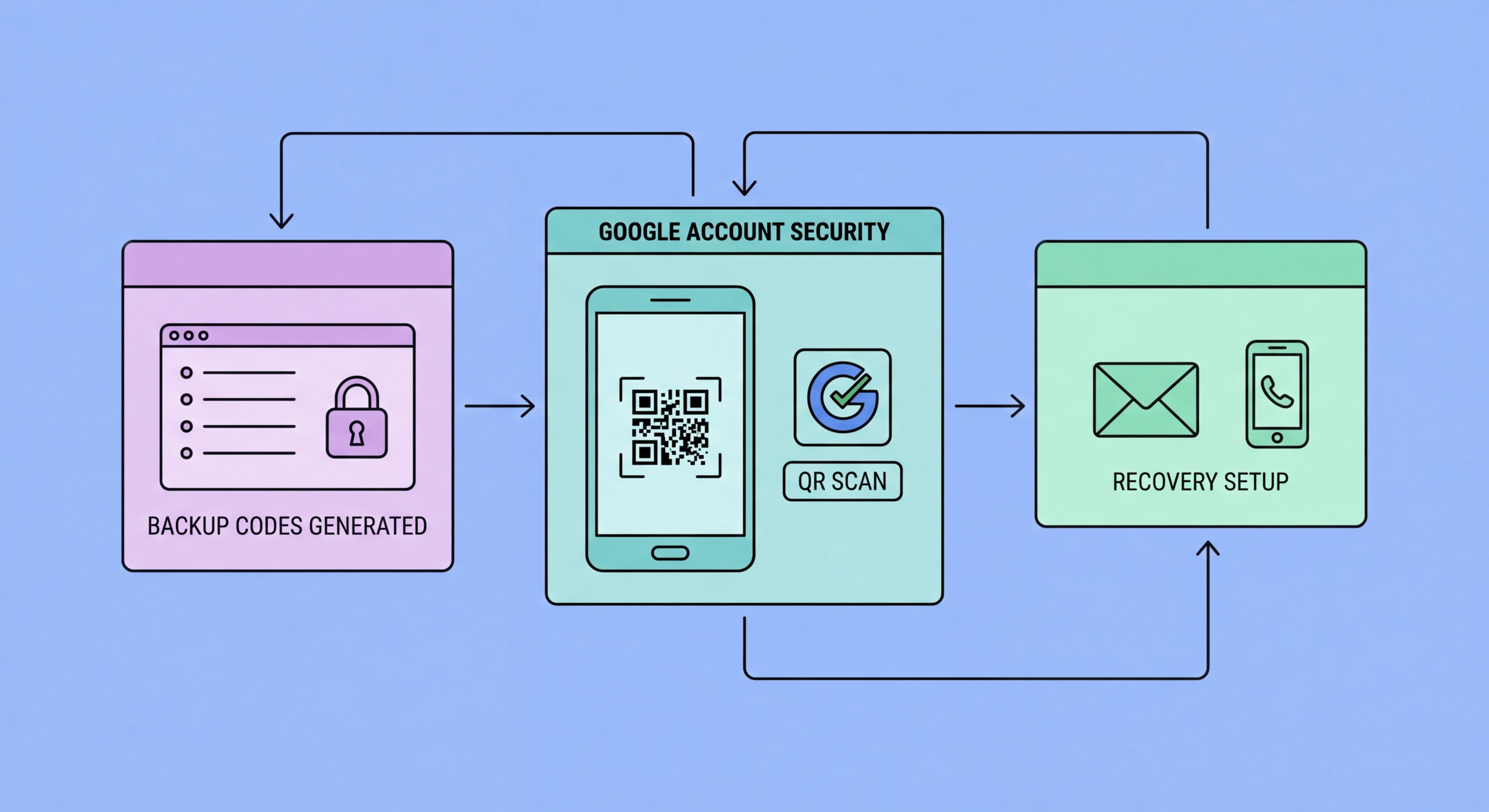
Google 2FA troubleshooting and managing trusted devices

Google 2FA Done — Now Secure Your Other Accounts

You've secured your most important account. Now enable 2FA on social media, banking, and every other service that offers it.

Related VPN Articles