How to Enable 2FA on Social Media Accounts
Social media account takeovers happen every day in Hong Kong — used for scams, impersonation, and blackmail. Enable 2FA on every platform in minutes with these step-by-step guides.
Social media account takeovers happen every day in Hong Kong — used for scams, impersonation, and blackmail. Enable 2FA on every platform in minutes with these step-by-step guides.
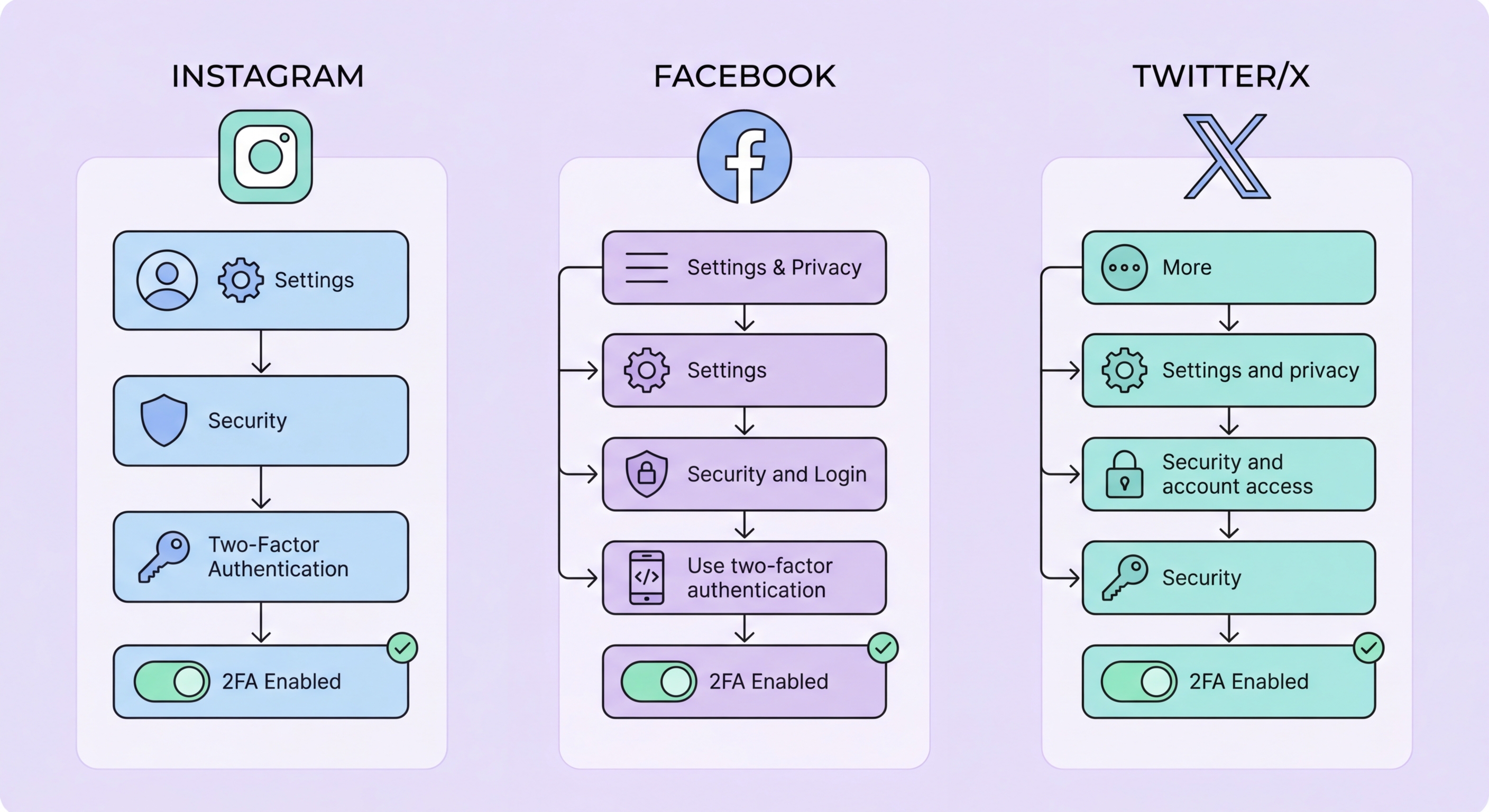
Instagram account takeovers are among the most reported social media incidents in Hong Kong, often used to scam the victim's followers using the compromised account. Attackers take over accounts, change the password and email, and then demand payment for return of the account — or simply use it to promote scams to the victim's audience. Enabling 2FA on Instagram takes less than two minutes and makes this type of attack much harder. Go to your Instagram profile, tap the hamburger menu (three lines), tap Settings, then Security, then Two-Factor Authentication, and tap Get Started. Select "Authentication app" and scan the QR code in your authenticator app. Enter the 6-digit code to confirm, then save your backup codes.
Facebook 2FA is configured separately, even though Meta owns both platforms. In Facebook, tap the three lines (Android) or profile tab (iOS), scroll to Settings & Privacy → Settings → Password and Security. Under "Two-Factor Authentication," tap "Use Two-Factor Authentication." Like Instagram, choose "Authentication App" and follow the QR code setup. Facebook also offers security key enrollment for hardware key users. If you use Facebook Login to sign in to other apps and websites, securing your Facebook account with 2FA is especially important — a compromised Facebook account could cascade to all services using Facebook Login.
Both Instagram and Facebook allow you to set trusted contacts as an account recovery option, where you can ask friends to send you recovery codes if you are locked out. While convenient, this feature can be a social engineering target — attackers can impersonate you and ask your trusted contacts for codes. Use it cautiously, and make sure your trusted contacts understand that they should only send codes when they can independently verify you are requesting them through a separate channel.

WhatsApp is one of the most used messaging apps in Hong Kong, making it a prime target for takeover attempts. WhatsApp's security model is different from other social media — it is tied to your Your Phone Number">phone number rather than a username/password combination. WhatsApp's two-step verification adds a 6-digit PIN that you set, which is required when registering your phone number with WhatsApp on any device. This means that even if an attacker obtains your SIM card (via SIM swapping) and tries to register your WhatsApp number on their phone, they will be blocked by this PIN. To enable it: WhatsApp → Settings (gear icon) → Account → Two-Step Verification → Enable. Set a 6-digit PIN and optionally add a recovery email.
The WhatsApp two-step PIN is critically important for Hong Kong users because SIM swap attacks targeting WhatsApp takeovers are a known attack pattern in the region. Once an attacker registers your number on their device, they have full access to your WhatsApp — your contacts, group memberships, and conversation history. They then impersonate you to your contacts asking for money or sensitive information. The two-step PIN completely blocks this attack even if the SIM swap succeeds. Set a PIN you can remember but that is not easily guessable — not your birthdate or sequential numbers.
Telegram's approach differs: go to Settings → Privacy and Security → Two-Step Verification. You set a password (not a 6-digit PIN) that is required in addition to the SMS verification code when logging in from a new device. Telegram also allows you to set a recovery email address. Both WhatsApp two-step and Telegram two-step verification are important to enable in Hong Kong, particularly given the widespread use of both platforms for personal and business communication.

Twitter/X has had a turbulent history with 2FA. After Elon Musk's acquisition, Twitter removed free SMS 2FA for non-Twitter Blue subscribers, citing costs — this change inadvertently pushed many users to the more secure authenticator app option, which remained free. To set up 2FA on Twitter/X: Settings → Security and account access → Security → Two-factor authentication. Choose "Authentication app" (the recommended free option), follow the QR code setup process in your authenticator app, and download backup codes. Twitter Blue/Premium subscribers also have access to SMS and security key options.
LinkedIn has become an increasingly important target for account takeovers in Hong Kong's professional environment, particularly for business identity fraud and recruitment scams. LinkedIn 2FA is enabled via: Me (profile icon) → Settings & Privacy → Sign in & security → Two-step verification → Set up. LinkedIn supports both authenticator apps and SMS verification. The path to add an authenticator app requires scanning a QR code in your app and entering the resulting code. LinkedIn also allows you to check "Trusted devices" and remove old trusted sessions, which is worth doing periodically to ensure only your current devices have retained access.
For professionals in Hong Kong, LinkedIn account security is directly tied to business reputation and career security. A compromised LinkedIn can be used to scam your professional network, send malicious links to clients or employers, or make fraudulent job offers using your professional profile. Given that LinkedIn accounts are often tied to real identity and verified employment history, the consequences of compromise are more severe and harder to reverse than for personal social media.

TikTok, enormously popular in Hong Kong, offers 2FA via Settings → Security → 2-Step Verification. TikTok supports SMS, email, or "Security methods" (which includes TOTP on some account types). Given that TikTok accounts are frequently targeted for takeover and used for scams, enabling whatever 2FA TikTok supports for your account type is worthwhile. YouTube is protected by Google 2FA — if you have followed our Google 2FA setup guide, your YouTube channel is already protected. This matters especially for content creators whose channels represent significant time investment and potential income.
WeChat deserves special mention for Hong Kong users who use it for both personal and business communication with mainland China contacts. WeChat's security model is different — it uses phone number and WeChat ID, with additional verification through trusted devices and micro-programs. Enable WeChat's "Wallet" protection (face verification or payment PIN) to protect the payment features, and ensure WeChat's device management settings show only your actual devices. Remove any devices you no longer own. WeChat does not have traditional TOTP 2FA, but it has account protection measures that serve a similar protective function.
A systematic approach to social media 2FA: create a checklist of every social media and messaging app you use. For each, check whether 2FA is enabled (look in Security or Privacy settings). Enable it using an authenticator app wherever available. Download and save backup codes for platforms that provide them. Set a recovery email or phone where available. Finally, check the list of active sessions and signed-in devices on each platform and remove any sessions you do not recognise. Do this audit at least once a year, or after any device change.
