Locked Out of Your 2FA? Here's What to Do

Losing access to your 2FA device is stressful. Whether you changed phones, lost your device, or deleted your authenticator app, this guide walks you through the recovery options for every major platform.

Account recovery process when locked out of 2FA device or codes
1First Steps

Before Contacting Support: Try These Recovery Methods First

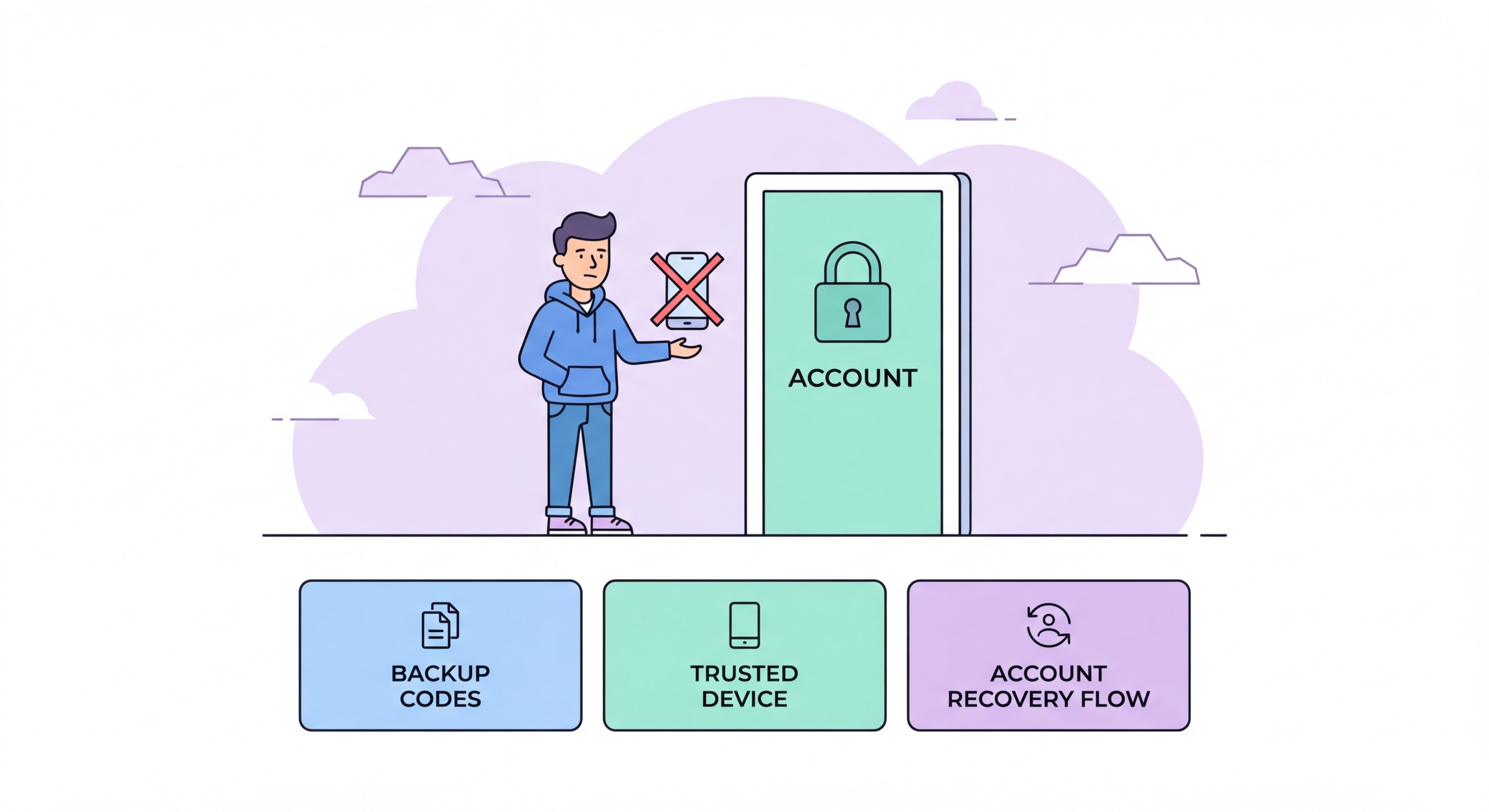
Before assuming you need to contact support, check all your available recovery options. Most services offer multiple 2FA methods, and you may have set up a secondary method when you first enrolled. At the 2FA prompt, look carefully for a "Try another way," "Use another method," or "I don't have access to this" link or button. Clicking it reveals alternative authentication options you may have set up: backup codes, a recovery to Spot and Avoid Attacks on Your Phone">Your Phone Number">phone number, a recovery email address, or a trusted device where you are already logged in.

Backup codes are your first resort. If you followed best practices and saved your backup codes in a password manager or as a physical copy, locate them now. At the 2FA screen, choose "Use backup code" or similar, and enter one of your saved codes. Each code can only be used once. After logging in successfully, immediately set up 2FA on your new device or reinstall your authenticator app, and generate a new set of backup codes to replace the one you just used.

Trusted devices are your second option. If you are already logged in to the account on another device — your tablet, an old laptop, a home computer — you may be able to access account security settings without re-entering 2FA on that already-trusted device. Use that access to reconfigure your 2FA to your new device. Many services allow you to disable 2FA and re-enrol from an already-authenticated session. If you have a trusted browser session open, act quickly — sessions expire and this window may close.

  • Try another method: Look for "Try another way" at the 2FA prompt — reveals alternative options
  • Backup codes: Your first resort — locate and use one saved backup code to log in
  • Trusted devices: Log in from another device where you're already authenticated
  • Recovery email: Many services send a recovery link to a registered backup email address
  • Recovery phone: SMS to a registered backup phone number (different from your primary)
  • Act quickly: Existing sessions may expire — use trusted device access immediately
Learn how to save backup codes before you need them →
Recovery options at 2FA screen — backup codes trusted device and recovery email
2Google and Apple

Recovering Access to Google and Apple Accounts

For a locked Google account, visit accounts.google.com/signin/recovery. Google's account recovery process attempts to verify your identity through multiple signals without requiring access to your 2FA device. The recovery system checks for trusted devices (browsers and apps where you have previously signed in), recovery phone number, recovery email, recent activity patterns, and account knowledge questions. If you have previously logged in to your Gmail on a device that remembers you, Google may be able to grant access based on that existing trust signal. The process can take 3–5 business days if identity cannot be quickly verified.

Maximise your chances of successful Google recovery by: logging in from a device you have used frequently with that account, connecting from your usual location in Hong Kong, answering any account verification questions using the most recent information you have submitted, and providing your recovery email and phone if prompted. If the automated process fails, Google does not offer direct human support for consumer accounts — you must continue trying through the automated recovery flow. This is why setting up and maintaining recovery contacts before you need them is so critical.

For Apple ID recovery, visit iforgot.apple.com. If you have a Recovery Key set up (a 28-character emergency code generated in Apple ID settings), enter it when prompted. If you have set up Account Recovery Contacts — trusted Apple device owners who can help you recover your account — initiate an account recovery request; your contacts receive a notification and can provide you with a recovery code. If neither is set up, Apple's account recovery is a lengthy identity verification process that can take weeks, involving official identification submission. Given how central Apple ID is to iPhone, iCloud, and Mac access, setting up Recovery Key or Account Recovery Contacts in Apple ID settings is highly recommended.

  • Google recovery: accounts.google.com/signin/recovery — use from a frequently used device
  • Google signals: Trusted device, recovery email, recovery phone, location, and activity history
  • Google timeline: Automated recovery; no human support for consumer accounts — up to 5 days
  • Apple recovery: iforgot.apple.com — requires Recovery Key or Account Recovery Contact
  • Apple Recovery Key: Set up now in Apple ID settings — 28-character emergency override code
  • Apple timeline: Without recovery key or contact, Apple's manual process can take weeks
Prevent this situation — transfer your 2FA before changing phones →
Google account recovery and Apple ID recovery process
3Social Media and Banking

Recovering Social Media and Banking Access

For Instagram lockouts, go to the login screen and tap "Need more help?" or "Get more help" on the 2FA screen. Instagram offers identity verification through video selfie or ID submission for account recovery when 2FA codes are unavailable. The process typically takes 1–5 days. For Facebook, use the "Get more help" option from the login screen, which initiates identity recovery via trusted contacts or photo ID. Both Instagram and Facebook are owned by Meta, so if you can recover one account, you may be able to use it to help recover the other.

For Twitter/X, the support form at help.twitter.com/forms/account-access is the primary recovery path. Twitter requires information about your account — associated email or phone, recent login locations, device types used — and may request identity verification. Response times vary considerably. For LinkedIn, visit the account recovery page and follow the identity verification steps, which typically involve confirming your employment history or submitting a LinkedIn-specific identity document. LinkedIn is generally responsive to recovery requests given the professional identity verification it performs at signup.

For Hong Kong banking accounts, the recovery process is deliberately strict and cannot be accelerated. If you lose access to your bank's mobile app authentication, call the bank's customer service line immediately. You will be asked security questions and may need to visit a branch with your HKID to restore access. For HSBC, call 2233 3000. For Hang Seng, call 2822 0228. For Bank of China HK, call 3988 2388. For Standard Chartered, call 2886 8868. Have your account number, registered phone number, and HKID ready. Branch visits are typically required for complete restoration of mobile banking authentication after access is lost.

  • Instagram: "Need more help" at login → video selfie or ID verification → 1–5 days
  • Facebook: "Get more help" at login → trusted contacts or photo ID submission
  • Twitter/X: help.twitter.com/forms/account-access — account information and identity verification
  • LinkedIn: Account recovery page with employment verification or ID document
  • HK banks: Call customer service immediately; branch visit with HKID typically required
  • Banking urgency: Report lost banking app access immediately — do not wait if you suspect fraud
Save backup codes now to avoid this recovery process →
Social media and banking account recovery when locked out of 2FA
4Prevent Future Lockouts

After Recovery: Build a Lockout-Proof 2FA Setup

Once you have recovered account access, the most important step is ensuring this never happens again. The foundation is a solid backup strategy. For each account where you enable 2FA, immediately download and save the backup codes in at least two places: a password manager entry for that account, and a physical printed copy stored with your important documents at home. Test one backup code immediately to confirm they work before closing the setup screen. This 2-minute investment prevents hours or days of recovery work.

Ensure you are using an authenticator app with reliable cloud backup. If you have been using Google Authenticator without Google account sync enabled, switch to a version with sync or migrate to Authy, Apple Passwords, or another app with automatic encrypted backup. The goal is that losing your phone should not mean losing your 2FA codes — they should be recoverable from your cloud backup on a new device within minutes. Test this by logging into your authenticator app's backup service from a different device to confirm codes are available.

Set up and verify recovery contacts on all your key services. For Google: set a recovery phone and recovery email in myaccount.google.com → Security. For Apple: configure Account Recovery Contacts or generate a Recovery Key in your Apple ID settings. For Facebook: designate 3–5 trusted friends as recovery contacts in Security and Login settings. For each service, set an alternative contact method (a different email or phone number from your primary ones) that can be used to verify your identity independently if your primary 2FA device is lost.

  • Download backup codes immediately: For every account, right after setting up 2FA
  • Two storage locations: Password manager AND physical copy at home
  • App with cloud backup: Switch to Authy, Apple Passwords, or Google Authenticator with sync
  • Test your backup: Confirm app backup works by accessing codes on a secondary device
  • Recovery contacts: Set up Google recovery contact, Apple Account Recovery Contacts, Facebook trusted contacts
  • Alternative contact details: Set a backup email and phone for each important service
Follow the complete guide to migrating 2FA codes when changing phones →
Setting up backup 2FA methods to prevent future lockouts

Set Up Your 2FA So You Can Never Be Locked Out

Spend 30 minutes now: save backup codes, enable cloud backup in your authenticator app, and set recovery contacts on your key accounts.

Related VPN Articles