10 Common 2FA Mistakes That Leave You Vulnerable

Enabling 2FA is a great start — but doing it wrong can give you a false sense of security. These are the most common mistakes that undermine two-factor authentication protection.

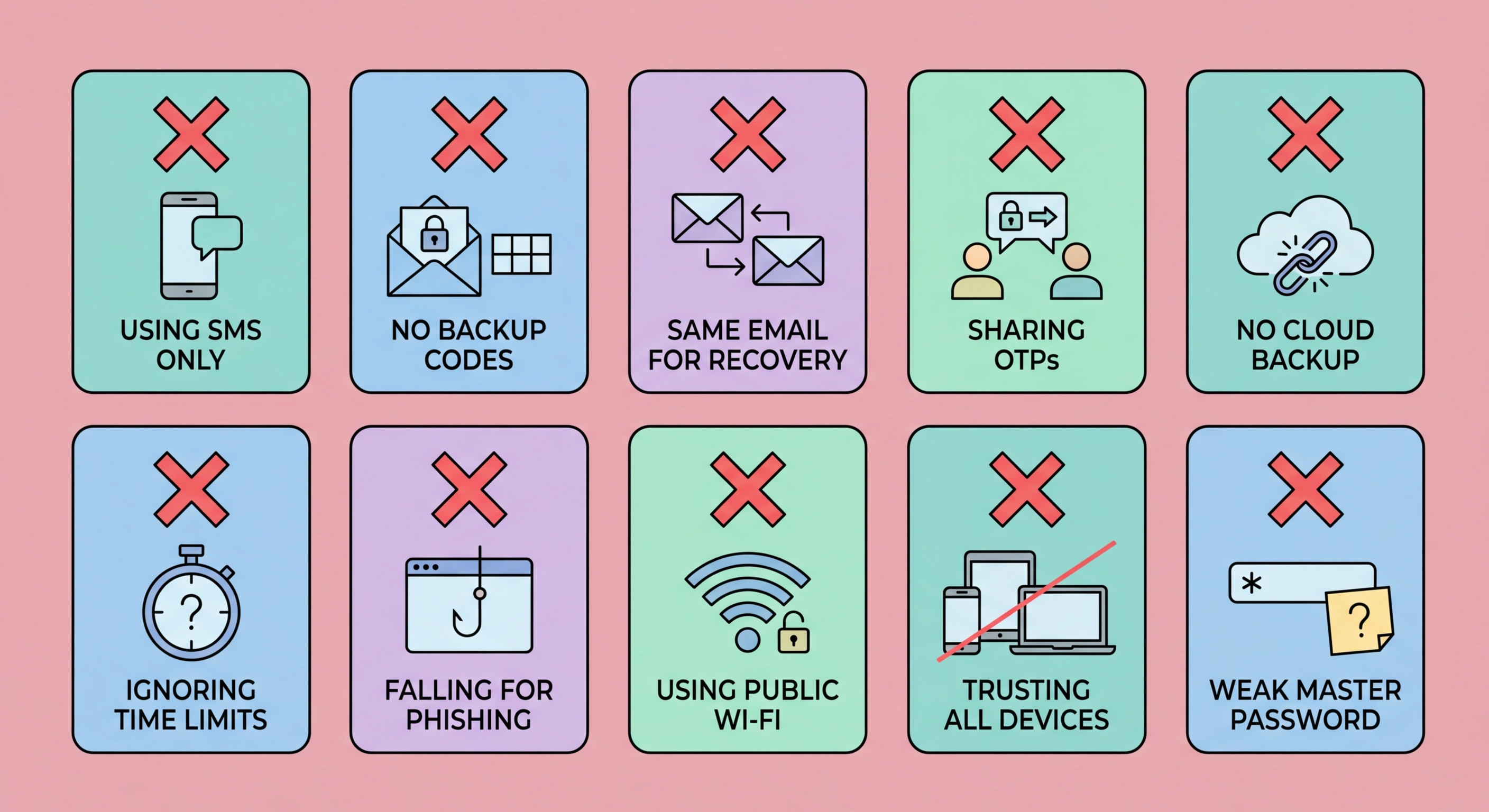
Common 2FA mistakes illustrated — SMS codes, no backup, trusting all devices
1Setup Mistakes

Mistakes 1–3: Weak Methods and No Backup

Mistake 1: Using SMS codes when better options exist. Two-Factor Authentication Is Risky">SMS two-factor authentication is vulnerable to SIM swapping and SS7 interception attacks. When you enable 2FA on a new service, you are almost always shown the SMS option by default because it is the easiest to implement. But most services also offer authenticator app (TOTP) as an option — it is just not the default because it requires more user steps. Always look for the authenticator app option and choose it. The security difference is significant, and the usability difference is minimal once the app is set up.

Mistake 2: Not saving backup codes. Every major service offers a set of one-time backup codes when you enable 2FA. These are your emergency access method if you ever lose to Spot and Avoid Attacks on Your Phone">your phone or authenticator app. Many users skip the step of downloading and saving these codes — often clicking past the screen quickly, assuming they will never need them. Then they change phones, the authenticator app fails to transfer, and they are permanently locked out. Always download, save, and store backup codes in at least two secure locations: a password manager and a physical copy. Test one code immediately to confirm they work before you close the setup screen.

Mistake 3: Using an authenticator app without backup enabled. Some authenticator apps, notably older versions of Google Authenticator, do not back up their codes automatically. If you use one of these apps without a backup strategy, losing your phone means losing all your 2FA codes. Use an app with cloud backup (Authy, Google Authenticator with Google sync, or Apple Passwords with iCloud Keychain), or maintain your own backup by saving the QR code or setup key for each account when you set up 2FA. Most setup screens show a "Can't scan the QR code?" link that reveals the text secret — save this along with your backup codes.

  • Mistake 1: Accepting the default SMS option — always look for the authenticator app alternative
  • Mistake 2: Skipping backup code download — these are your emergency access method
  • Mistake 3: Using an app without backup — ensure cloud sync or save setup secrets manually
  • Test backup codes: Use one code immediately to verify they work before finishing setup
  • Two storage locations: Password manager plus physical copy for critical accounts
  • App selection matters: Choose an app with reliable backup before setting up 2FA on important accounts
Learn how to properly store and manage 2FA backup codes →
2FA setup mistakes — SMS choice and skipping backup codes
2Device and Migration Mistakes

Mistakes 4–6: Phone Changes and Trusted Devices

Mistake 4: Changing phones without transferring 2FA first. This is the most common cause of 2FA lockouts. When you get a new phone, back up your authenticator app codes before resetting or handing over the old device. Most apps now have a migration or export function — use it. For Google Authenticator, there is an "Export accounts" feature that generates a QR code you scan on your new phone. For Authy, simply install the app on the new phone and sign in with your Authy account — your codes sync automatically. If you have already reset the old phone, use the backup codes you saved to log in to each service and re-enrol the authenticator app on your new phone.

Mistake 5: Trusting too many devices indefinitely. Most services offer to "remember this device for 30 days" when you log in with 2FA. Many users habitually click "Yes" on every device and browser, including public computers, work computers that other people use, and old computers they no longer own. Each trusted device is a bypass of your 2FA. Review trusted devices in your account security settings periodically — at least once a year, or after any device change — and revoke access from devices you no longer use or recognise. Never trust public computers, shared work computers, or temporary devices.

Mistake 6: Using the same phone for SMS 2FA and banking apps. If your phone is stolen and the thief bypasses your lock screen (or your screen lock is not enabled), they have access to both your banking apps and the SMS codes those apps send for authentication. While this is not a common attack scenario, it is worth being aware of. The solution is not to use SMS 2FA for banking — use the bank's dedicated app authentication (push approval via biometrics) rather than SMS codes where possible, and always ensure a strong biometric lock is enabled on your phone.

  • Mistake 4: Changing phones without backing up 2FA — use app export or save backup codes first
  • Mistake 5: Trusting too many devices — review and revoke trusted sessions regularly
  • Mistake 6: Combining SMS 2FA and banking on the same unprotected device
  • Before resetting: Always migrate your authenticator app before factory resetting your phone
  • Session audit: Check active sessions and trusted devices in security settings quarterly
  • Screen lock essential: Strong biometric or PIN lock is the baseline for any device with banking access
See the full guide to transferring your authenticator app safely →
Phone change and device management 2FA mistakes
3Phishing and Awareness

Mistakes 7–8: Falling for Phishing Despite Having 2FA

Mistake 7: Approving 2FA requests you did not initiate. Push notification 2FA (the kind that sends an approval request to your phone) can be defeated by a technique called "MFA fatigue" or "push bombing." Attackers who have your password send dozens of rapid approval requests to your phone, hoping you will approve one accidentally or in frustration to make the notifications stop. If you receive unexpected 2FA approval requests — especially multiple in rapid succession — do not approve them. Instead, deny them, then immediately change your password on that account, because your password has clearly been compromised by the attacker generating those requests.

Mistake 8: Entering 2FA codes on phishing sites. Even with an authenticator app, a real-time phishing relay attack can defeat your 2FA. You visit a fake site, enter your password and the current TOTP code, and the attacker's server uses both on the real site within 30 seconds. The defence against this is vigilance about which URLs you visit. Always check the exact domain before entering credentials. Use bookmarks for important services and navigate directly rather than clicking links in emails. If the URL in your browser's address bar is anything other than the exact expected domain, do not proceed. Hardware security keys prevent this attack entirely through domain binding.

The critical insight is that 2FA is not a substitute for general security hygiene — it is an additional layer that protects you when your password is compromised. It does not protect you if you voluntarily hand your credentials (including 2FA codes) to attackers through phishing or social engineering. Understand that legitimate services will never call you and ask for a code you just received, send you an email asking you to click a link and enter your 2FA code, or create urgency about immediately confirming your 2FA to avoid account suspension. These are always social engineering attacks.

  • Mistake 7: Approving push notifications you didn't initiate — deny, then change your password
  • MFA fatigue: Attackers send rapid push requests hoping for accidental or frustrated approval
  • Mistake 8: Entering 2FA codes on phishing sites — check the exact URL before any login
  • Hardware key advantage: Domain binding makes phishing of TOTP codes impossible
  • Never share codes: Legitimate services never ask for your 2FA code via call, chat, or email
  • Unexpected requests: Any unsolicited 2FA prompt means someone has your password — change it immediately
Learn how phishing-resistant MFA eliminates these attack vectors →
MFA fatigue attack and phishing of 2FA codes explained
4Coverage and Priority

Mistakes 9–10: Wrong Priorities and Incomplete Coverage

Mistake 9: Enabling 2FA on secondary accounts but not email. Many people enable 2FA on Instagram or Twitter but leave their primary email address protected by only a password. This is backwards. Your email account controls password resets for almost every other service — it is the master key. If an attacker gains access to your email, they can bypass 2FA on any service by requesting a password reset email. The absolute first priority for 2FA is your primary email account. If you only enable 2FA on one account, make it the email account used for account recovery everywhere else.

Mistake 10: Not enabling 2FA because it seems inconvenient. The friction of 2FA is real but minimal — entering a code or approving a push notification takes roughly 10–15 seconds per login. The alternative — having an account compromised — can take weeks to resolve, involve significant financial loss, and cause reputational damage that is difficult to reverse. The perceived inconvenience of 2FA is inversely proportional to the severity of what you are protecting. Once you have an authenticator app set up and have used it a few times, the process becomes automatic and barely registers as an inconvenience.

A secondary aspect of Mistake 10 is treating 2FA as a set-and-forget feature. Your 2FA setup needs periodic maintenance: check backup codes are saved and current, ensure your recovery contact details (phone and email) are up to date on each service, remove 2FA from accounts you no longer use (to avoid confusion later), and review whether better 2FA methods have become available on services you use. Reviewing your 2FA setup across all accounts once a year takes about 30 minutes and ensures your protection remains current and functional.

  • Mistake 9: Enabling 2FA on social media but not on email — email must be your first priority
  • Email controls everything: Password reset emails bypass 2FA on every linked service
  • Mistake 10: Avoiding 2FA due to perceived inconvenience — the friction is 10–15 seconds per login
  • Annual review: Check backup codes, recovery contacts, and 2FA methods on all accounts yearly
  • Remove unused: Disable 2FA from accounts you no longer use to reduce confusion
  • Upgrade when available: Move from SMS to TOTP to hardware keys as better options become available
Start with the basics — understand what 2FA is and why it matters →
Protecting unprotected email and not enabling 2FA broadly

Fix Your 2FA Setup Today

Check your authenticator app backup, save your backup codes, and ensure your email account has 2FA enabled. These three steps take 15 minutes and dramatically improve your protection.

Related VPN Articles