Upgrading your phone is one of the most common causes of 2FA lockouts. Follow this guide to safely migrate your Google Authenticator, Authy, or other app codes to your new device before you lose the old one.
The critical rule for 2FA and phone changes is: do not factory reset or trade in your old phone until you have confirmed that all your 2FA codes are accessible on your new phone. This sounds obvious, but the enthusiasm of unboxing a new device frequently leads people to reset the old one immediately — only to discover hours later that their authenticator app codes did not transfer and they are locked out of multiple accounts. Plan to Spot and Avoid Attacks on Your Phone">your phone migration as a two-step process: transfer everything and verify it works, then reset the old device.
Start by making a complete list of every account that has 2FA enabled through your authenticator app. You can do this by opening your app and scrolling through all the entries. Write down or note each service name. This list becomes your migration checklist — you will verify each entry is accessible on your new phone before you reset the old one. Some users are surprised to find they have 20 or 30 accounts in their authenticator app because they enabled 2FA gradually over years without keeping track.
Check whether each of your accounts has backup codes saved, and where they are saved. Before the migration, confirm your backup codes are accessible in your password manager. For any accounts where you do not have backup codes saved, log in to that service (while you still have your old phone and working 2FA) and download the backup codes from the security settings. This pre-migration backup ensures that even if the transfer fails for some accounts, you have a way to access them.
Google Authenticator offers two migration paths. The first is cloud sync — if you have enabled Google Account sync in the app (Settings → Sync is On), your accounts are backed up to your Google account and will automatically appear when you install Google Authenticator on your new phone and sign in with the same Google account. This is the easiest method and works seamlessly. However, some users have sync disabled or are using an older version of the app without cloud sync. Check your sync status before proceeding.
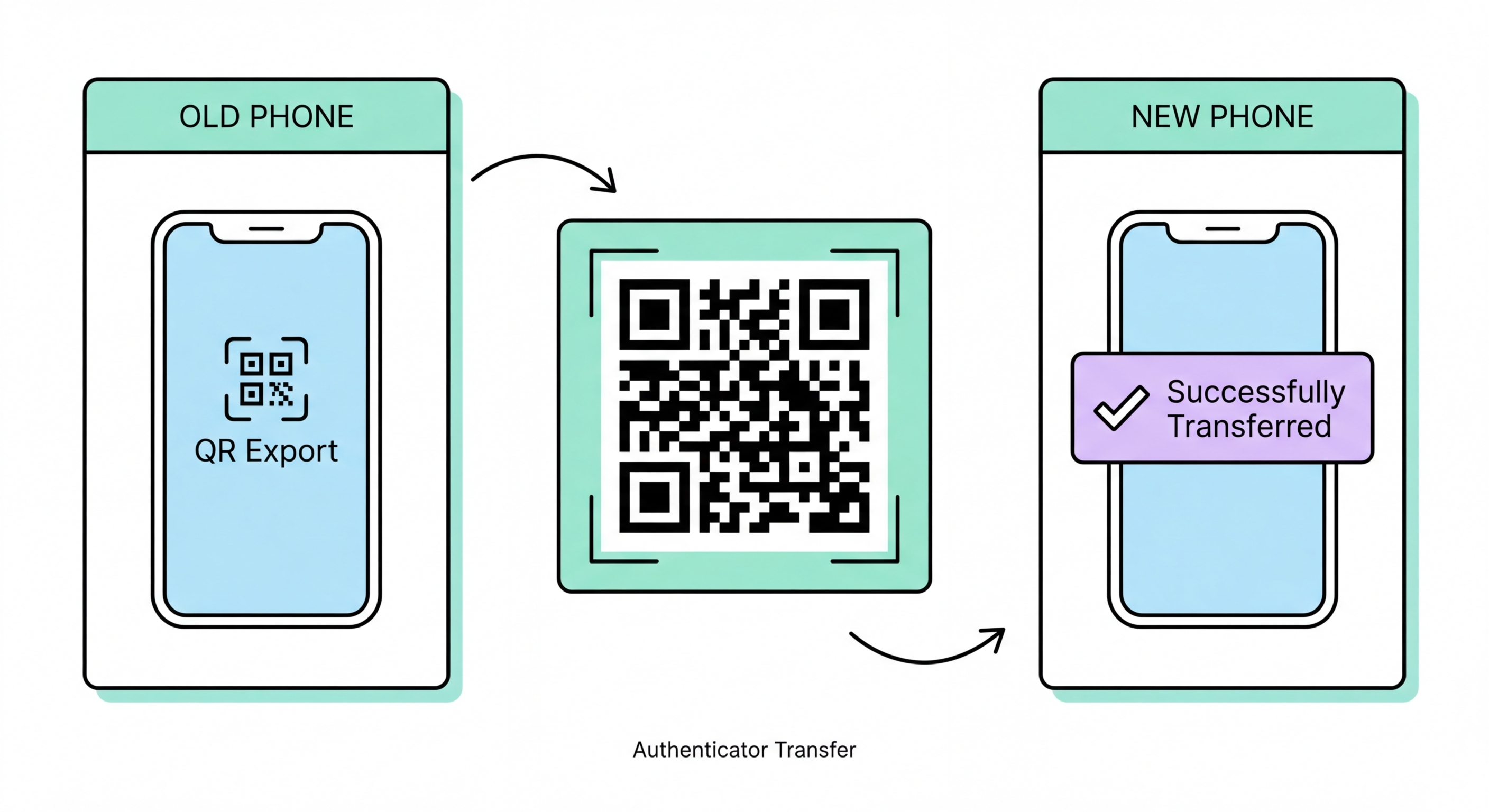
The second method is the "Transfer accounts" QR code export, which requires both phones to be present simultaneously. On your old phone, open Google Authenticator, tap the three-dot menu (top right), choose "Transfer accounts" then "Export accounts." Select the accounts you want to transfer. The app generates one or more QR codes. On your new phone, open Google Authenticator, tap the "+" button, choose "Scan a QR code" and scan the QR code(s) from your old phone's screen. After scanning, verify that all accounts appear correctly on the new phone and that the codes are generating correctly.
Immediately after the transfer, test that the new phone generates the correct codes by logging in to one or two accounts using the new phone's codes. Do not delete the old phone's app or reset the device until you have confirmed the new phone works correctly. Note that transferring accounts this way does not remove them from the old phone — both devices will generate valid codes until you manually delete the accounts from the old phone. Delete them from the old device once you have confirmed the transfer is complete and your old phone is being disposed of or traded in.
Authy is designed with phone transitions in mind. If you have enabled Authy backup (required during initial setup), your accounts are encrypted and stored in Authy's cloud. On your new phone, install Authy, enter the same phone number, and complete the account verification. You will be prompted to enter your Authy backup password — the separate password you set when first enabling backup. After entering the backup password, all your accounts restore automatically. Authy also has a multi-device feature that you can enable: in Settings → Devices, turn on "Allow Multi-Device" to let Authy run on both phones simultaneously during the transition.
Microsoft Authenticator backs up accounts (except personal Microsoft accounts and some third-party accounts) to your Microsoft account. On your new phone, install Microsoft Authenticator, sign in with your Microsoft account, and follow the cloud backup recovery prompt to restore your accounts. Some account types (particularly third-party TOTP accounts for services like Google or GitHub) may require re-enrollment rather than backup restoration. Check each account after restoring to confirm it generates valid codes. Microsoft Authenticator also includes a specific migration tool accessible via "Begin Recovery" when you set up the app on a new device.
For Raivo OTP (iOS) and Ente Auth (cross-platform), which use iCloud Keychain and end-to-end encrypted cloud backup respectively, migration is similarly handled through cloud account sign-in. Install the app on your new device, sign in to the same account (Apple ID for Raivo, Ente account for Ente Auth), and your accounts restore from the encrypted backup. Apple Passwords (iOS 18+) syncs via iCloud Keychain automatically — your passkeys and TOTP codes follow you whenever you sign in to iCloud on a new device. These apps with automatic cloud sync are the reason they are recommended over apps without backup for users who regularly change devices.
After transferring your authenticator app, test every account systematically using your migration checklist. For each account in your list, attempt a login using the new phone's codes. If a code is not working, check that the entry transferred correctly — the account name and issuer should match what you see in the web service's 2FA settings. Time drift is rarely an issue with modern apps, but if you consistently get "invalid code" errors on an entry, verify your new phone's date and time are set to automatic/network time. Most authentication failures during migration are actually incomplete transfers rather than technical errors.
For Hong Kong banking apps specifically, the 2FA is typically embedded within the banking app itself rather than in your authenticator app. Upgrading your phone means you will need to re-register your new device with each bank. This is separate from the authenticator app migration and is done within each banking app: open the app, sign in, and follow the new device registration process. Most HK banks require either a one-time SMS to your registered number or, for security-conscious registrations, a visit to a branch with your HKID. Update your banking app registrations on your new phone before deactivating the old device.
Once you have verified all accounts are working correctly on your new phone, you can safely reset the old device. Before doing so: sign out of all accounts (Google, Apple, banking apps) on the old device, remove your SIM card, and perform a factory reset through the device's settings. For iPhones, use the "Erase All Content and Settings" option in General → Transfer or Reset iPhone. For Android, use Settings → General Management → Reset → Factory Data Reset. A proper factory reset prevents the next owner from accessing your accounts even if they attempt to bypass the lock screen.