Personal Firewall on Public WiFi: Configuration and What It Protects

A personal firewall is your device's last line of defence against other users on the same public WiFi network attempting to access your device directly. Without proper firewall settings, your laptop's shared folders, network services, and open ports are visible and potentially accessible to everyone on the same café or hotel network. Here's how to configure it correctly.

Personal firewall configuration on laptop for public WiFi protection — Windows and macOS firewall settings
1What Firewalls Protect

What a Personal Firewall Protects Against on Public WiFi

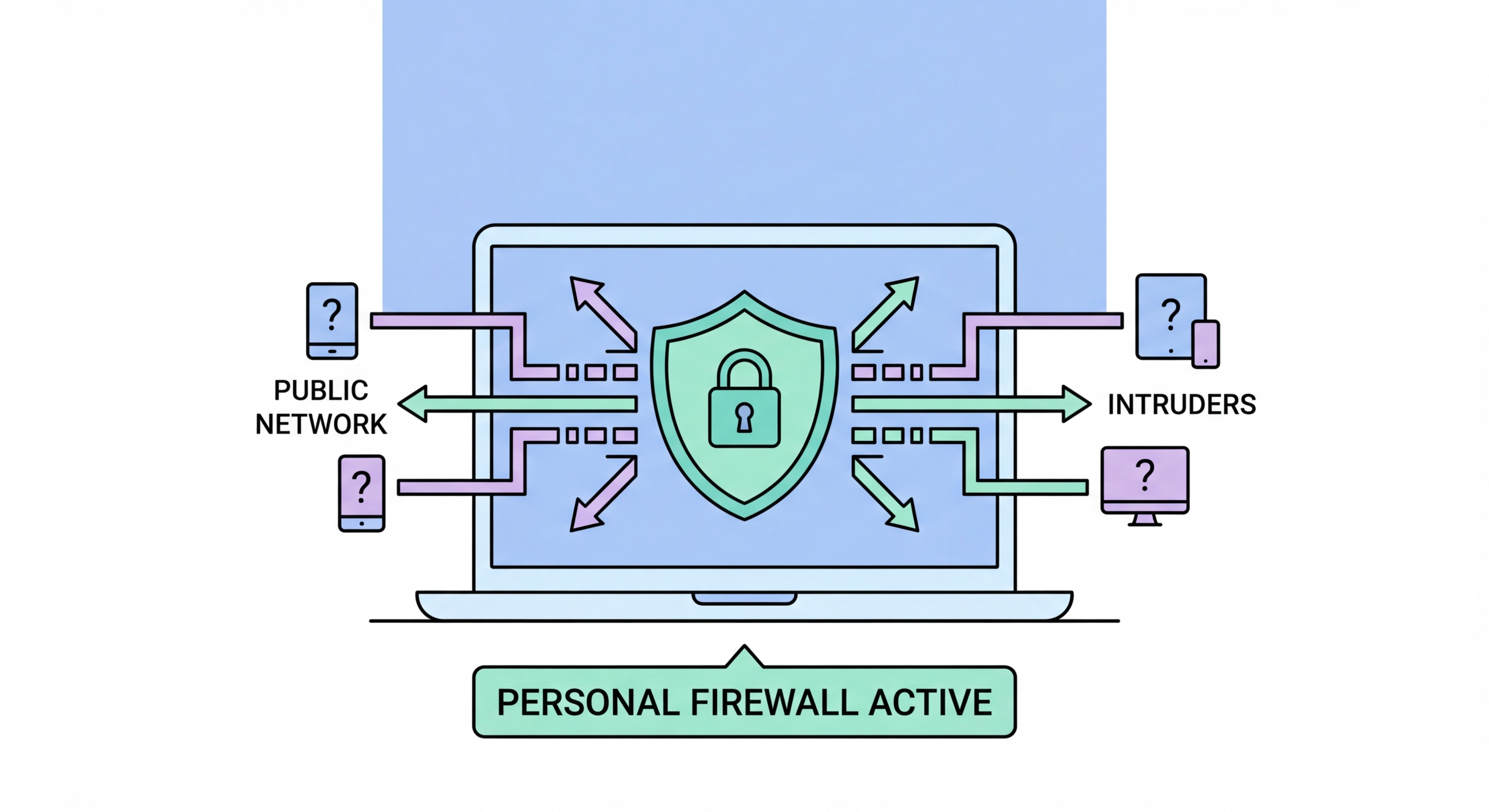
A personal (host-based) firewall controls which network connections are allowed to reach your device and which your device is allowed to initiate. On a home network, the router's firewall provides most protection against unsolicited inbound connections from the internet, and devices on the same home network are generally trusted. On a public WiFi network, this assumption breaks down: every other device on the same public network is an unknown, potentially hostile entity, and there is no router-level protection separating you from other network users. Your personal firewall fills this gap by blocking unsolicited inbound connection attempts from other devices on the same WiFi network.

Without a properly configured firewall on public WiFi, other users on the same network can attempt to connect to open network services on your device. Services that commonly run on laptops include: file sharing (SMB on Windows, AFP and SMB on macOS), screen sharing (RDP on Windows, VNC on macOS), network discovery (mDNS/Bonjour), printer sharing, and various application-specific services. On a home or corporate network, these services are intentional features used for convenience. On a public café or hotel network, they represent open ports that other network users can probe, enumerate, and potentially exploit. Many known vulnerabilities target exactly these services — Eternal Blue/WannaCry famously exploited SMB, and RDP vulnerabilities are regularly patched.

The firewall does not protect against all public WiFi threats. It does not protect against passive traffic eavesdropping (where an attacker captures your outbound traffic without initiating a connection to your device), ARP spoofing MITM attacks (which operate at the network layer below the firewall), or evil twin attacks (which occur before your device establishes any network connection). The firewall's scope is specifically inbound connection attempts from other devices — it prevents your device from being directly accessible on the network. Combined with a VPN (which protects your outbound traffic) and correct network settings (which prevent service broadcasting), a properly configured firewall provides comprehensive protection against the device-accessibility component of public WiFi risk.

  • Firewall scope: Blocks unsolicited inbound connections from other devices on the same network
  • Exposed services: File sharing, screen sharing, RDP, mDNS — all visible to other network users without firewall
  • Known exploits: SMB vulnerabilities (EternalBlue), RDP vulnerabilities regularly target these services
  • Does not protect: Passive eavesdropping, ARP spoofing, evil twin attacks — VPN handles these
  • Complementary: Firewall + VPN + correct network settings = comprehensive protection
  • Default state: Windows Defender Firewall and macOS firewall both enabled by default — verify active
Why a VPN is needed alongside your firewall to defend against ARP spoofing →
Personal firewall blocking inbound connection attempts from other public WiFi users
2Windows Configuration

Windows Firewall Configuration for Public WiFi

Windows Defender Firewall has three network profiles: Domain (for corporate networks), Private (for home networks), and Public (for public WiFi and hotspots). The Public profile has the most restrictive default settings, blocking inbound connections and disabling network discovery. When you connect to a new WiFi network on Windows, it prompts you to choose whether it is a "public" or "private" network — always choose "Public" for any non-home, non-office network. If you previously set a network as "Private" and want to change it, go to Settings → Network & Internet → WiFi → click on the connected network → set "Network profile type" to "Public." This single setting switch correctly configures network discovery, file sharing, and firewall rules for a public environment.

Verify that Windows Defender Firewall is active for the Public profile: search for "Windows Defender Firewall" in Start, click the result, and check that the green shield shows "Windows Defender Firewall is on" for the Public Networks section. Review inbound rules in the "Advanced Settings" section: click "Inbound Rules" in the left panel to see all rules that allow inbound connections. Look for rules that allow file sharing, network discovery, and remote services, and verify they are configured to apply only to Private and Domain profiles — not to Public. Disable or modify any rules that allow inbound connections on the Public profile that you do not explicitly require. The default Windows configuration correctly restricts most of these services on Public networks, but rules added by applications you have installed may be less conservative.

Windows Defender Firewall is sufficient for most users, but Windows 10 and 11 also include Windows Defender Advanced Firewall (the "Advanced Security" MMC snap-in) which provides more granular control. For technically proficient users who want to audit all firewall rules: press Win+R, type "wf.msc," and review all inbound and outbound rules with their profile applicability. You can also use PowerShell to query and modify rules: "Get-NetFirewallRule | Where-Object {$_.Direction -eq 'Inbound' -and $_.Profiles -match 'Public' -and $_.Enabled -eq $true}" lists all currently enabled inbound rules that apply to the Public profile. Reviewing and minimising these rules hardens your Windows device for public network use beyond the baseline default configuration.

  • Always choose "Public": Select Public network type when prompted on any WiFi outside home/office
  • Change existing: Settings → Network & Internet → WiFi → network → change to "Public" if previously set wrong
  • Verify firewall on: Start → "Windows Defender Firewall" → green shield for Public Networks
  • Review inbound rules: Advanced Settings → Inbound Rules → audit rules applying to Public profile
  • PowerShell audit: Query active Public-profile inbound rules for comprehensive review
  • Third-party apps: Software installations may add permissive inbound rules — review after installs
Why correct Windows network settings are especially critical on hotel networks →
Windows Defender Firewall configuration for public WiFi — public profile settings
3macOS Configuration

macOS Firewall and Stealth Mode Configuration

macOS includes a built-in application firewall that controls which applications are allowed to accept incoming connections. Unlike Windows Defender Firewall, macOS does not have separate network profiles for home vs. public networks — the firewall settings apply uniformly. However, macOS separates the firewall from the sharing settings, so configuring public WiFi security on macOS requires addressing both. To enable the firewall: System Settings → Network → Firewall → toggle on. Once enabled, click "Firewall Options" to review and configure which applications are allowed to accept incoming connections. Block all unnecessary applications from accepting inbound connections by clicking the minus button to remove them or changing their setting to "Block incoming connections."

Stealth Mode is a macOS firewall option that prevents your Mac from responding to network probe requests. Without Stealth Mode, if another device on the network pings your Mac or probes its ports, your Mac responds — confirming its existence and presence on the network. With Stealth Mode enabled, your Mac silently ignores these probes, making it much harder for attackers to detect and map your device on the network. Enable Stealth Mode: System Settings → Network → Firewall → Firewall Options → check "Enable Stealth Mode." This is highly recommended for any Mac used on public WiFi networks and adds meaningful obscurity protection at no cost to normal functionality — your outbound connections work normally, only unsolicited inbound probes are silently dropped.

The Sharing panel is equally important on macOS. File sharing, screen sharing, remote login, remote management, and AirPlay receiving are all services that make your Mac accessible to other devices on the same network. On public WiFi, none of these should be enabled. Go to System Settings → General → Sharing and verify that File Sharing, Screen Sharing, Remote Login, Remote Management, and any other sharing services are turned off. AirDrop, while a separate feature, also uses the local network for device discovery — set AirDrop to "No One" when on public WiFi through the Finder menu or Control Centre. These sharing settings are independent of the firewall; even with the firewall enabled, sharing services may accept connections on ports the firewall is configured to allow.

  • Enable firewall: System Settings → Network → Firewall → toggle on
  • Block unnecessary apps: Firewall Options → remove or block apps that don't need inbound connections
  • Stealth Mode: Firewall Options → "Enable Stealth Mode" — silently drops network probe responses
  • Disable sharing: System Settings → General → Sharing — disable File Sharing, Screen Sharing, Remote Login
  • AirDrop: Set to "No One" when on public WiFi via Finder or Control Centre
  • Verify after updates: macOS major updates occasionally reset sharing settings — re-check after updates
The complete public WiFi safe practices checklist including all device settings →
macOS firewall and Stealth Mode configuration for public WiFi protection
4Mobile and Full Stack

Mobile Device Firewall Settings and the Complete Protection Stack

iOS and Android do not provide user-accessible firewall settings — both platforms handle network access control at the application permission level rather than through a configurable firewall. However, both operating systems have strong default network security configurations. iOS runs each app in a sandboxed environment that prevents apps from accepting unsolicited inbound connections by default. The iOS system itself does not expose SMB file sharing, RDP, or similar services to the local network unless you explicitly enable them. Android has a similar application permission model. For most mobile device public WiFi use, the platform's default security is adequate for the device-exposure component of risk, and a VPN provides protection for the traffic component.

Third-party iOS and Android firewall apps (such as Lockdown Privacy on iOS, or NetGuard on Android) provide DNS-based filtering and network request monitoring but do not function as traditional firewalls for blocking unsolicited inbound connections in the way desktop firewalls do. Their primary utility is monitoring and blocking outbound connections from apps — useful for privacy (preventing apps from sending data to trackers) but not directly relevant to the public WiFi threat of inbound attacks. A VPN with DNS filtering (such as NordVPN's Threat Protection or Mullvad's DNS content blockers) combines connection encryption with DNS-based malicious domain blocking, providing a more comprehensive protection stack on mobile devices than a standalone third-party firewall app.

The complete protection stack for a laptop on public WiFi in Hong Kong combines: Windows "Public" network profile or macOS firewall + Stealth Mode + sharing disabled (device exposure protection), a VPN with auto-connect, full-tunnel routing, DNS leak protection, and kill switch enabled (traffic encryption and MITM defence), HTTPS verification and certificate error awareness (application-layer content protection), and mobile data preference for high-sensitivity tasks (network substitution for highest-risk activities). Each layer addresses a different aspect of public WiFi risk, and together they provide defence in depth that does not rely on any single mechanism. This stack requires one-time setup of approximately fifteen minutes and operates automatically thereafter with minimal ongoing maintenance.

  • iOS/Android: No user-accessible firewall — platform default sandbox is adequate for device exposure
  • Mobile VPN: NordVPN/ExpressVPN with auto-connect protects mobile traffic on public WiFi
  • DNS filtering VPNs: NordVPN Threat Protection, Mullvad DNS blockers add malicious domain blocking
  • Full stack: Firewall settings + VPN + HTTPS awareness + mobile data preference
  • Setup time: One-time 15-minute setup covers all components — automatic protection thereafter
  • Defence in depth: No single mechanism handles all threats — layered approach is essential
Complete the protection stack with a properly configured VPN →
Mobile device security on public WiFi — iOS and Android network protection settings

Firewall + VPN: The Complete Device Protection Stack

Configure your firewall correctly once, enable VPN auto-connect, and your device is protected against both direct network access attempts and traffic interception on any public WiFi network in Hong Kong.

Related VPN Articles