HTTPS vs HTTP on Public WiFi: What's Actually Protected

HTTPS encrypts the content of your web sessions, protecting passwords and data you submit. But it doesn't encrypt DNS queries, traffic metadata, or protect against SSL stripping attacks. Here's what HTTPS actually covers and what it doesn't — and when you need a VPN as well.

HTTPS padlock in browser address bar on public WiFi — what it protects and what it doesn't
1What HTTPS Protects

What HTTPS Actually Protects on Public WiFi

HTTPS (HyperText Transfer Protocol Secure) is HTTP with TLS (Transport Layer Security) encryption applied. When you connect to an HTTPS website, your browser and the web server perform a TLS handshake that establishes an encrypted session using asymmetric cryptography to exchange keys, then symmetric encryption for the actual data transfer. This means the content of the Difference and the Connection">the connection — the web page content, any form data you submit (including passwords, credit card numbers, personal information), and the server's responses — is encrypted between your device and the web server. Anyone intercepting that traffic on the WiFi network sees only encrypted ciphertext.

HTTPS protects the content of your sessions reliably when implemented correctly. When you log into your HSBC or Hang Seng banking app's web interface over HTTPS, your username and password are transmitted in encrypted form that cannot be read by a WiFi eavesdropper. When you make a purchase on an HTTPS shopping site, your credit card number is encrypted in transit. When you send a message through a web-based HTTPS messaging platform, the message content is encrypted. This is meaningful and important protection, and it is why the web's widespread adoption of HTTPS over the past decade has substantially raised the floor of security for ordinary internet users — even on open, unencrypted public WiFi networks.

The padlock icon in your browser's address bar indicates that the connection uses HTTPS with a valid certificate. The certificate serves two purposes: it proves that the private key used to establish the encrypted session belongs to the legitimate domain owner (not an attacker), and it establishes the encryption. A green padlock with no warnings means the connection is encrypted and the certificate is valid and trusted. You can click the padlock to see details about the certificate, including which Certificate Authority issued it and when it expires. For financial and sensitive services, verifying that the certificate is issued to the correct domain (e.g., "hsbc.com.hk" not "hsbc-secure.com") before submitting credentials is a useful phishing defence.

  • TLS encryption: HTTPS encrypts all content transmitted between your browser and the web server
  • Passwords protected: Login credentials submitted over HTTPS cannot be read by WiFi eavesdroppers
  • Form data protected: Credit card numbers, personal information in HTTPS forms are encrypted in transit
  • Certificate verification: Padlock icon confirms both encryption and server identity verification
  • Certificate details: Click padlock to verify domain name on certificate matches the site you intend to visit
  • Widespread adoption: Over 95% of web traffic now uses HTTPS — HTTP-only sites are increasingly rare
How MITM attackers attempt to defeat HTTPS on public WiFi →
HTTPS TLS encryption protecting web session content from WiFi eavesdropping
2What HTTPS Misses

What HTTPS Does Not Protect on Public WiFi

HTTPS has important gaps that leave information visible to network monitors even when all your web traffic uses HTTPS. The most significant gap is DNS. When you type a web address into your browser, your device first sends a DNS query to resolve the domain name (e.g., "hsbc.com.hk") to an IP address. By default, this DNS query is sent in plaintext — unencrypted — over the network. A network monitor on your public WiFi connection can see every DNS query your device sends, which reveals every website you visit, even though the content of your HTTPS sessions is encrypted. This metadata can be quite revealing: DNS queries to banking sites, medical information sites, legal services, or sensitive personal services disclose your activities even without seeing the content.

Traffic metadata is a second gap. Even with HTTPS, an attacker can observe: the IP addresses you connect to (which often map to specific services), the timing and size of data transfers (which can reveal what type of content you are accessing), and how frequently you communicate with specific servers. This metadata analysis, called traffic analysis, is used by sophisticated adversaries to infer user behaviour and identify targets even when content is encrypted. For most users, DNS query visibility is the more practically relevant concern — a network monitor logging your DNS queries builds a detailed picture of your internet activity without needing to decrypt any content.

A VPN addresses both gaps. When a VPN is active, DNS queries are routed through the encrypted VPN tunnel to the VPN provider's DNS servers (or a specified privacy-focused DNS service), making them invisible to the WiFi network. Traffic metadata — IP addresses, timing, and data volumes — is also obscured because all traffic flows through the VPN server before reaching its destination; the network monitor sees only traffic to and from the VPN server, not the actual destinations. Modern VPN apps include DNS leak protection by default, which prevents DNS queries from escaping the VPN tunnel even if the VPN connection drops momentarily. Verify this is enabled in your VPN app's settings: look for "DNS leak protection" or "Private DNS" in the security settings.

  • DNS queries: By default, DNS is plaintext — every domain you visit is visible to network monitors
  • Traffic metadata: IP addresses, timing, and data volumes visible even with HTTPS content encrypted
  • Visited sites: DNS query logs reveal your browsing behaviour even without content decryption
  • VPN closes DNS gap: VPN routes DNS through encrypted tunnel — queries hidden from WiFi network
  • DNS over HTTPS (DoH): Browser-level DoH encrypts DNS but only for browser traffic — VPN covers all apps
  • DNS leak protection: Verify this is enabled in your VPN app settings
What DNS leaks are and how to prevent them on public WiFi →
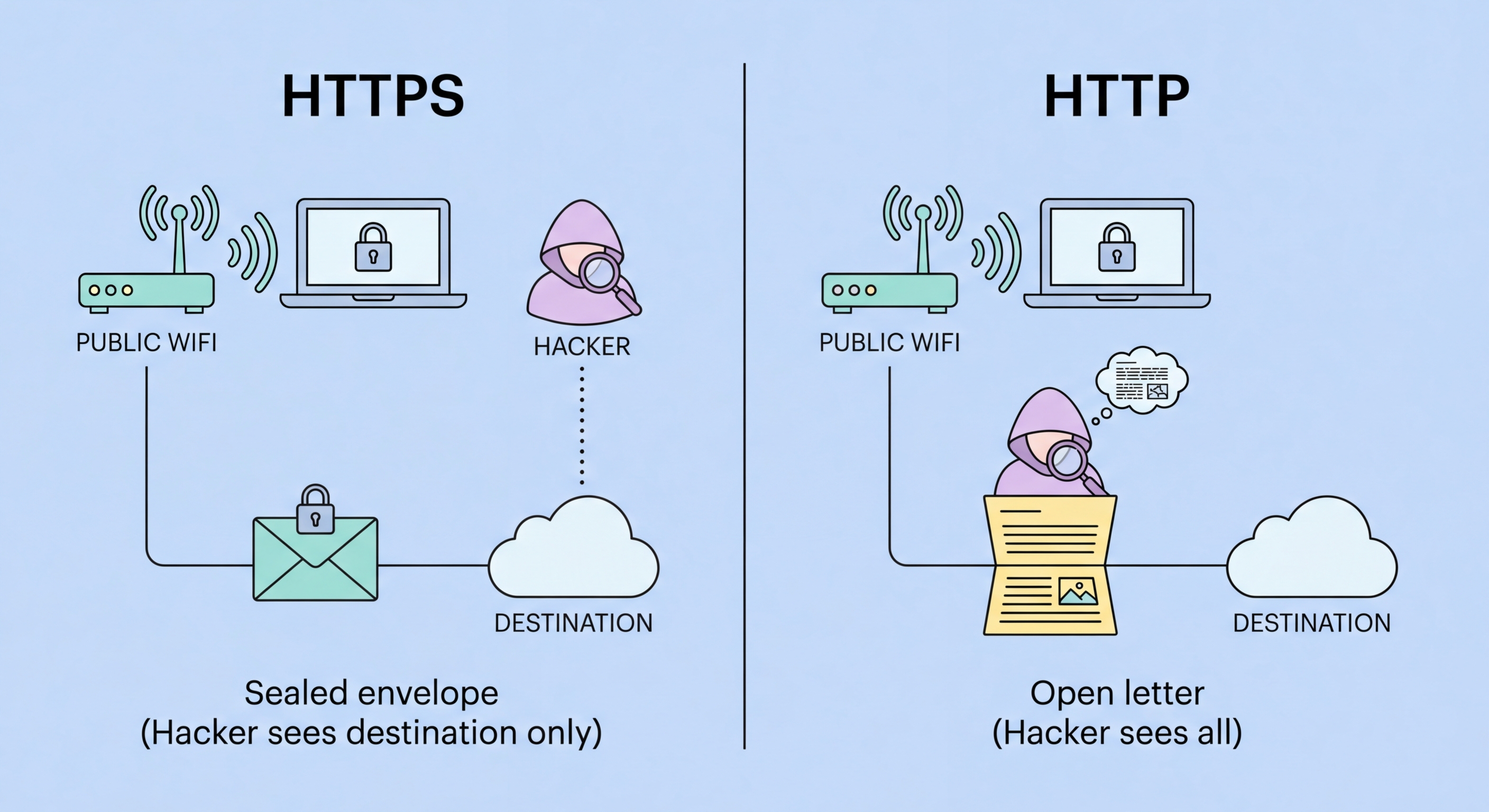
What HTTPS doesn't protect — DNS queries and traffic metadata visible on public WiFi
3SSL Stripping

SSL Stripping: How Attackers Defeat HTTPS on Public WiFi

SSL stripping is a man-in-the-middle attack technique that downgrades HTTPS connections to HTTP, allowing an attacker to read and modify your traffic. The attack exploits the initial unencrypted HTTP request that your browser makes when you type a domain name without explicitly specifying "https://". When you type "hsbc.com.hk" into your browser (without the "https://"), your browser first makes a plain HTTP request to the server. Normally, the server responds with a redirect to the HTTPS version. In an SSL stripping attack, the attacker — positioned as a MITM on the network — intercepts this initial HTTP request, makes their own HTTPS connection to the real server, and returns HTTP (not HTTPS) content to your browser. Your browser shows an HTTP connection while the attacker maintains an HTTPS connection to the real site, intercepting everything in between.

HSTS (HTTP Strict Transport Security) is the primary defence against SSL stripping. HSTS is a security header that instructs your browser to always use HTTPS for a specific domain and never accept HTTP connections. When a site sends an HSTS header, your browser stores the domain in an HSTS preload list and automatically upgrades all future connections to that domain to HTTPS — before making any HTTP request. If an attacker attempts SSL stripping on an HSTS-protected domain, your browser refuses to connect over HTTP and shows an error. HSTS preloading means even the first ever visit to an HSTS-preloaded domain starts with HTTPS — eliminating the initial HTTP request that SSL stripping exploits. Most major banking sites, Google, and many other sites use HSTS. You can check if a site uses HSTS by looking at its response headers or using an online HSTS checker.

The practical implication for public WiFi users is: always type the full "https://" URL or use bookmarks that include "https://" rather than relying on the browser's auto-redirect from HTTP. Better yet, use browser extensions that enforce HTTPS and configure your browser to block mixed content. Chrome and Firefox both display warning indicators for HTTP pages (a "Not secure" label in the address bar) — heed these warnings on public WiFi. On public WiFi, if a site you normally access securely appears in your browser as HTTP (no padlock, showing "Not secure"), consider this a serious warning sign: either the site has regressed to HTTP (uncommon for established sites) or you may be subject to an SSL stripping attack. Disconnect from the network and switch to mobile data.

  • SSL stripping: MITM attack that downgrades HTTPS to HTTP by intercepting initial HTTP redirect
  • HSTS defence: HTTP Strict Transport Security tells browser to always use HTTPS for this domain
  • HSTS preloading: Hardcoded HTTPS-only list prevents first-visit HTTP request that stripping exploits
  • Type https://: Always use full HTTPS URL or bookmarks — don't rely on HTTP-to-HTTPS redirects
  • Browser warnings: "Not secure" on normally-HTTPS sites is a serious warning sign on public WiFi
  • Response: If you see unexpected HTTP on a financial site — disconnect and switch to mobile data
How ARP spoofing enables SSL stripping and MITM attacks →
SSL stripping attack process — HTTPS downgraded to HTTP by MITM attacker
4Certificate Warnings

SSL Certificate Warnings on Public WiFi: What They Mean and What to Do

When your browser shows an SSL certificate warning — a full-page error saying "Your connection is not private," "NET::ERR_CERT_AUTHORITY_INVALID," "Certificate is not trusted," or similar — it means the certificate presented by the server does not match what your browser expects for that domain. On public WiFi, a certificate warning on a site you use regularly and normally access without errors is a significant red flag. The most likely explanations are: a MITM attacker has inserted their own certificate (which your browser doesn't trust) while intercepting your HTTPS traffic; the captive portal system is intercepting your HTTPS requests before you've authenticated (this is normal at the connection stage); or the site has a genuine certificate configuration problem (less common for major sites).

The critical rule is: never click through certificate warnings on financial, medical, email, or other sensitive sites when on public WiFi. In a non-public-WiFi context, certificate errors on major sites sometimes reflect genuine infrastructure problems and might be dismissible with caution. On public WiFi, a certificate error on a normally-trusted site should be treated as a potential attack. Do not click "Advanced" → "Proceed to site" — close the browser tab, disconnect from the WiFi network, and switch to mobile data before accessing that service. If you need to complete the captive portal login and see a certificate warning at that stage, it may be the captive portal intercepting traffic as part of the login process — the warning may disappear after you complete portal authentication.

Beyond certificate warnings, verify certificate details proactively for sensitive services. Click the padlock icon on banking and financial sites and view the certificate details — confirm the domain on the certificate matches the site you intended to visit (not a similarly spelled domain), and note the Certificate Authority. Major Hong Kong banking sites use certificates issued by well-known CAs such as DigiCert, GlobalSign, or Sectigo. If you see a certificate issued by an unfamiliar authority or a domain that doesn't match exactly, treat this as a suspicious indicator. This level of verification is not necessary for every site visit but is worthwhile for high-value services accessed on public WiFi without VPN protection.

  • Certificate warning = red flag: On public WiFi, unexpected certificate errors may indicate MITM attack
  • Never click through: Do not proceed past certificate warnings on financial or sensitive sites on public networks
  • Captive portal exception: Certificate errors before portal authentication may be normal — resolve after login
  • Response: Certificate error on familiar site → disconnect → switch to mobile data → investigate
  • Verify certificate details: For banking sites, confirm CA and exact domain in certificate details
  • VPN prevents this: An active VPN means certificate warnings on public WiFi are far less likely to be attack-related
How a VPN prevents SSL stripping and certificate-based attacks →
SSL certificate warning on public WiFi — what the browser error means and what to do

HTTPS + VPN = Complete Protection

HTTPS protects content. A VPN covers DNS, metadata, and SSL stripping risks. Together they cover every public WiFi threat that targets your traffic in transit.

Related VPN Articles