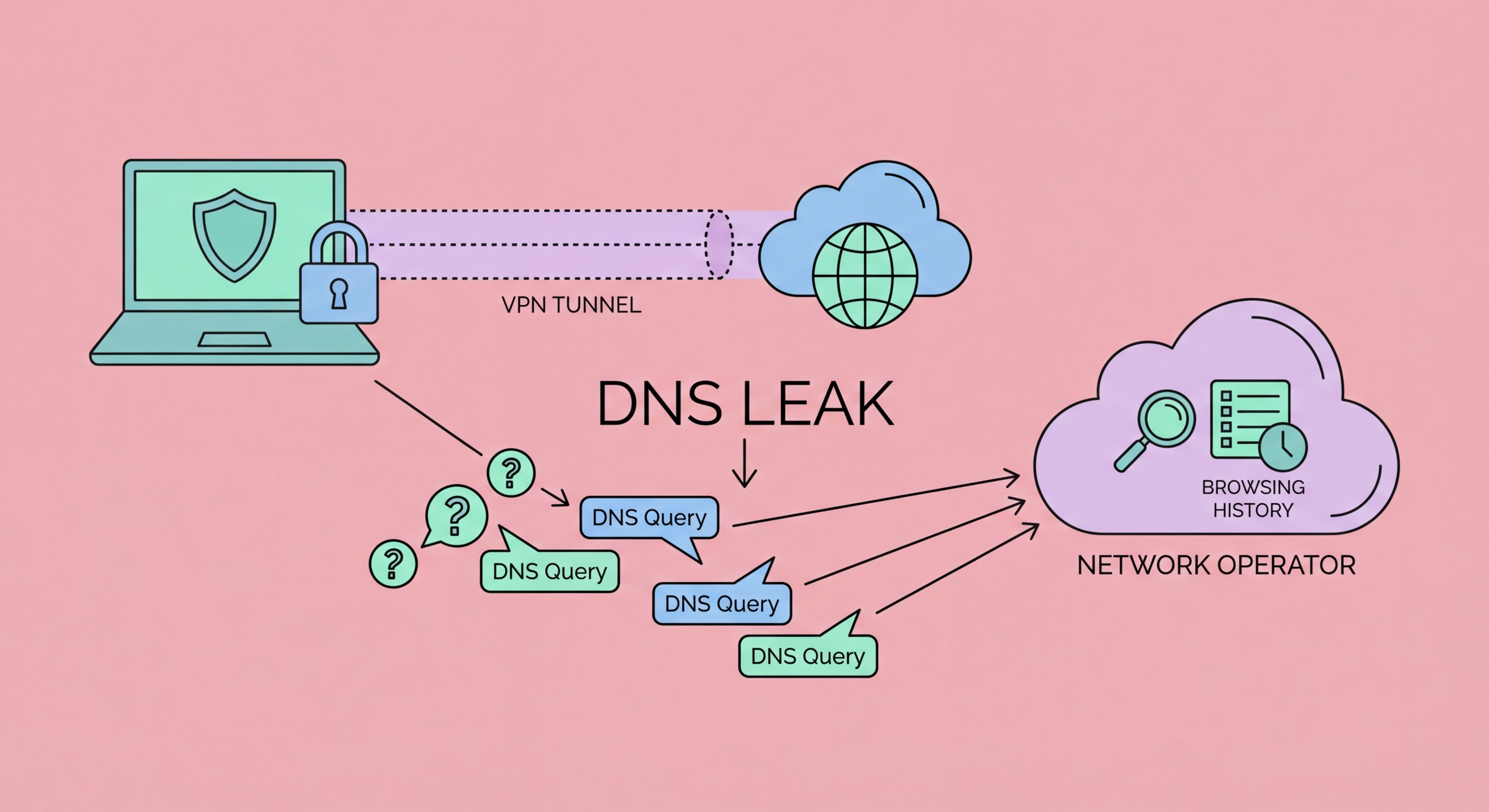
You can use HTTPS for every site you visit and still have your browsing behaviour visible to network monitors on public WiFi — through DNS leaks. Every domain name lookup your device performs may be sent in plaintext over the public network, revealing which sites you visit even when the content of your visits is encrypted. Here's what DNS leaks are and how to prevent them.
DNS (Domain Name System) is the internet's address book. When you type "google.com" or "hsbc.com.hk" into your browser, your device first sends a DNS query to resolve that domain name to an IP address (the actual network address where the server is located). Without DNS resolution, your browser cannot connect to websites by name — only by IP address, which is impractical for regular use. By default, these DNS queries are sent using a simple, unencrypted UDP protocol that travels in plaintext across the network. Any device on the same network — or any network device between you and the DNS server — can read these plaintext queries and see exactly which domain names you are looking up.
A DNS leak occurs when your DNS queries travel outside the encrypted protection of your VPN and are sent through your regular ISP or network DNS servers instead. This can happen for several reasons. When you connect to a public WiFi network, the captive portal or DHCP server may push its own DNS server configuration to your device, overriding your VPN's DNS settings. Some operating systems have a feature called "smart multi-homing" (Windows) or "prefer IPv6" (macOS) that may send DNS queries through multiple network interfaces simultaneously, with some queries bypassing the VPN tunnel. On mobile devices, the transition between WiFi and cellular data can briefly expose DNS queries outside the VPN. Even with a VPN nominally active, DNS queries may escape Does a VPN Work? Inside the Tunnel">the tunnel through these mechanisms.
The practical consequence of a DNS leak on public WiFi is that your browsing behaviour is visible to network monitors even though your connection uses HTTPS and a VPN. A network monitor logging DNS queries from your device's IP address on a hotel WiFi network can build a precise record of every website you visited: the banking site, the medical information site, the legal service, the competitor's website, the news sources consulted before a business decision. This metadata profile can be valuable for financial crime, corporate espionage, blackmail, and targeted social engineering attacks, even without any content being decrypted. DNS metadata is often more revealing than content, because it reflects all activity regardless of whether the activity itself involves transmitting sensitive content.
Testing for DNS leaks is straightforward using free online tools, and it is worth doing when you first configure a VPN and periodically thereafter. With your VPN connected and active, visit dnsleaktest.com in your browser. Click "Extended Test" and wait for the results. The test sends a series of DNS queries and reports which DNS servers responded. If your VPN is working correctly without DNS leaks, the DNS servers shown in the results should belong to your VPN provider (the servers will typically show your VPN provider's name or generic labels from their infrastructure) or a privacy DNS provider, and their location should match your VPN server's country — not your actual location or Hong Kong.
A DNS leak is confirmed if the test shows DNS servers from your actual ISP (HKBN, HKT, CMHK, SmarTone, or other Hong Kong providers) while your VPN is connected. This means your DNS queries are bypassing the VPN tunnel and going directly to your ISP's DNS servers, exposing your browsing destinations. Another way to test is using ipleak.net, which shows both your visible IP address and the DNS servers being used simultaneously. If the IP address shown is your VPN server's IP but the DNS servers shown are your ISP's, you have a DNS leak. Some VPN apps include built-in leak tests — NordVPN and ExpressVPN both offer DNS leak testing within their apps, which can be run to verify correct operation on any network you join.
DNS leak testing is particularly valuable when first configuring a new VPN on a new device or operating system, after VPN app updates (which sometimes reset settings), and when connecting from a new type of network (a hotel network that uses custom DHCP configurations, for example). Business travellers should test their VPN setup at home or in the office before relying on it for sensitive corporate access on the road. A false sense of security from a VPN that has a DNS leak is potentially worse than knowing your connection is unprotected — it may lead you to transmit sensitive information in circumstances where you believe it is protected but it is not. Run the test, verify the results, and only then proceed with confidence.
The primary fix for DNS leaks is enabling DNS leak protection in your VPN app — most quality VPN apps (NordVPN, ExpressVPN, Mullvad, ProtonVPN) include this as a configurable setting. In NordVPN: Settings → General → enable "Use only VPN DNS servers." In ExpressVPN: Settings → DNS → enable "Use ExpressVPN DNS servers while connected." In Mullvad: the app enforces DNS through the VPN by default, and the "DNS content blockers" settings allow additional configuration. Once enabled, the VPN app configures your operating system's DNS settings to use only VPN-provided DNS servers and blocks queries that attempt to reach other DNS servers. Verify the fix by running a DNS leak test after enabling the setting.
DNS over HTTPS (DoH) is a complementary protection that encrypts DNS queries at the browser level, regardless of VPN status. Both Chrome and Firefox support DoH: in Chrome, go to Settings → Privacy and security → Security → scroll to "Use secure DNS" and select a provider (Cloudflare 1.1.1.1 or Google 8.8.8.8 are the most common choices). In Firefox, go to Settings → Privacy & Security → scroll to DNS over HTTPS and enable it. DoH encrypts browser DNS queries so they cannot be read by network monitors even if they escape the VPN tunnel. However, DoH only covers browser DNS queries — DNS queries from other applications (email clients, messaging apps, productivity apps) are not covered by browser DoH and require VPN-level DNS protection for complete coverage.
IPv6 leaks are a related issue. IPv6 is the newer internet addressing protocol and many devices support it alongside IPv4. If your device has an IPv6 address and your VPN only tunnels IPv4 traffic, IPv6 DNS queries and connections may bypass the VPN entirely. Many public WiFi networks in Hong Kong now assign IPv6 addresses via DHCP. In your VPN settings, look for an IPv6 leak protection or "block IPv6" option and enable it. NordVPN and Mullvad both include IPv6 leak protection. Alternatively, you can disable IPv6 entirely on your device when using public networks: on Windows, go to Network Adapter Properties and uncheck "Internet Protocol Version 6 (TCP/IPv6)." On macOS, this requires network configuration changes or a VPN with robust IPv6 handling.
DNS leaks expose your DNS queries to passive observation; DNS hijacking goes further by actively manipulating DNS responses to redirect your traffic. In a DNS hijacking attack on public WiFi, the attacker — typically after establishing a MITM position via ARP spoofing — intercepts your DNS queries and returns forged responses. For example, when you query the DNS server for "hsbc.com.hk," the attacker responds with an IP address pointing to their own server instead of the legitimate HSBC server. Your browser connects to the attacker's server, which may present a convincing fake HSBC login page. Your credentials are captured when you log in, and you may be transparently forwarded to the real HSBC site, making the attack invisible.
DNS hijacking can target any domain name — banking, email, corporate VPN login pages, social media — and creates a convincing phishing scenario because the URL in your browser shows the correct domain name. The attack succeeds when the victim connects to the attacker's IP for a domain they trust. HTTPS and certificate validation provide a partial defence: if the attacker's fake server does not have a valid TLS certificate for the hijacked domain (which it normally cannot obtain from a trusted Certificate Authority), your browser will show an SSL certificate error. Heeding this error — especially on a network you don't control — is critical. However, sophisticated attackers may use domains with similar names (homograph attacks) or exploit misconfigured systems where certificate validation is weakened.
Complete protection against DNS hijacking on public WiFi requires a VPN with DNS leak protection, combined with strict SSL certificate verification. The VPN ensures that your DNS queries are encrypted and routed through the VPN provider's trusted DNS servers rather than being sent to potentially malicious public network DNS servers. The VPN's DNS server responses are delivered back through the encrypted tunnel, where they cannot be manipulated by an attacker on the public network. Even if the attacker has established a MITM position on the public WiFi, they cannot tamper with traffic inside the encrypted VPN tunnel. Combining VPN DNS protection with HSTS-preloaded sites and strict certificate error response provides multi-layer protection against DNS-based attacks on public WiFi.