How to Encrypt Your Phone: iOS and Android Guide

Device encryption is your last line of defence against physical theft and forensic extraction. Here's what it does, how to verify it's enabled, and what its limits are for Hong Kong users.

Phone encryption guide iOS Android
1What Encryption Does

What Phone Encryption Actually Protects You From

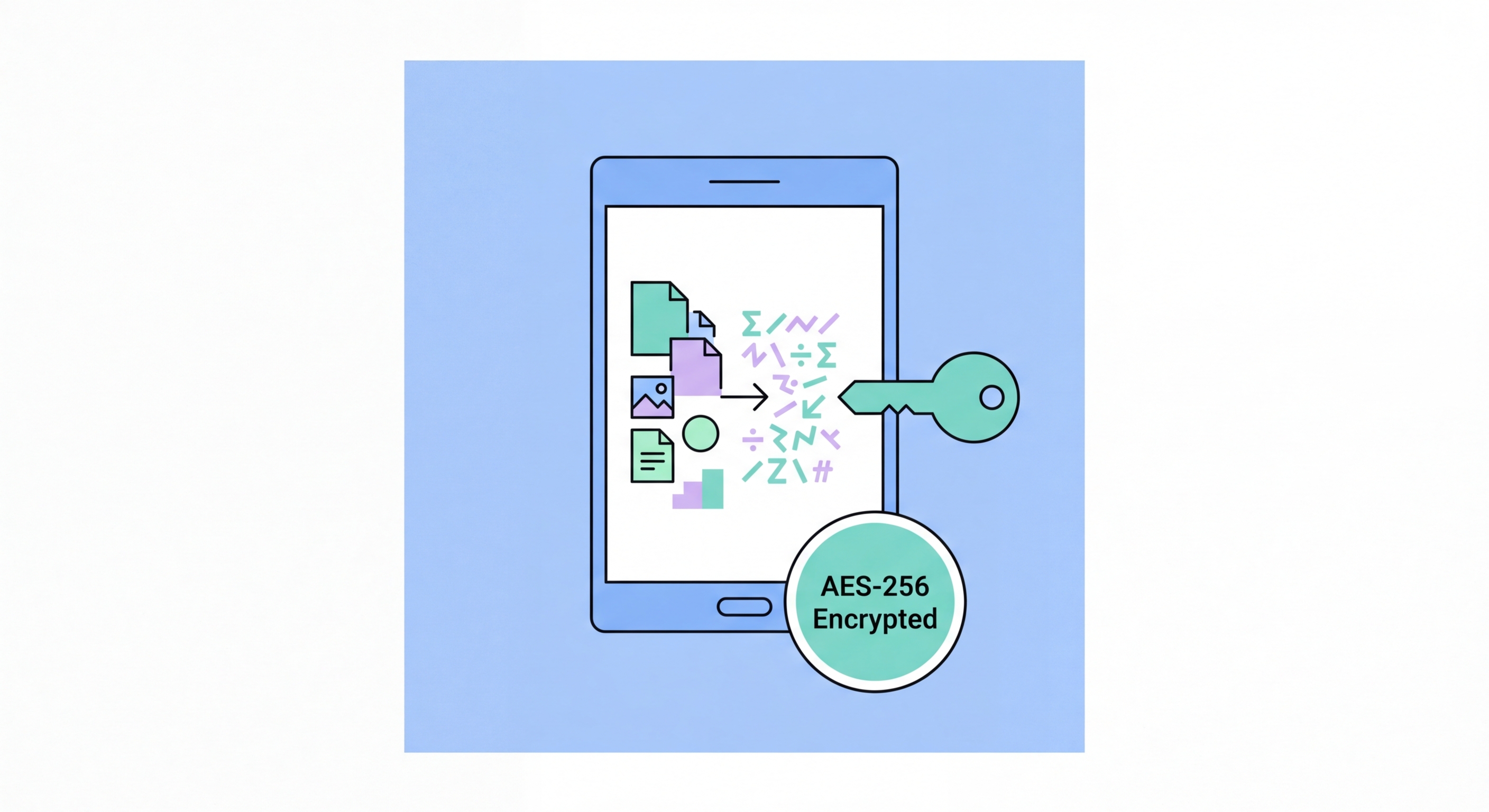
Full-device encryption transforms all data stored on your phone's internal storage into unreadable ciphertext that can only be decrypted with the correct key. If How to Spot and Avoid Attacks on Your Phone">your phone is powered off and falls into the wrong hands — whether that's a thief, a forensic examiner, or anyone else — they cannot read any of your data without the decryption key. This protection is critical because physical theft of a smartphone is a common crime in to Do If Your Phone Is Lost or Stolen in Hong Kong">Hong Kong, and the value of the personal and financial data on a modern phone far exceeds the hardware value.

Without encryption, a sophisticated attacker can connect your phone to a forensic extraction tool (like Cellebrite UFED or GrayKey) and extract the entire contents of your storage — messages, photos, passwords, banking app data, authentication tokens — even without knowing your unlock PIN. With strong encryption and a strong passcode, the extraction tool can obtain only an encrypted blob that requires the decryption key to read. The key is derived from your passcode, which is why a strong passcode is essential to the effectiveness of encryption.

It's equally important to understand what device encryption does not protect: data transmitted over the network (protected by VPN and HTTPS), data stored in cloud backups (protected by cloud encryption settings), and data visible while the phone is unlocked. Encryption is specifically a protection against physical access to an off or locked device — it is one layer of a multi-layered security strategy, not a complete solution in itself.

  • Protects against physical theft: An encrypted phone that is powered off or locked cannot be forensically extracted without the passcode.
  • Protects against forensic tools: Commercial extraction devices cannot read encrypted storage without the derived encryption key.
  • Tied to your passcode: The encryption key is derived from your passcode — a weak passcode undermines even strong encryption.
  • Does not protect in-transit data: Encryption protects stored data; network traffic requires a separate protection layer (VPN, HTTPS).
  • Does not protect cloud backups by default: You must separately enable end-to-end encryption for cloud backups (iOS Advanced Data Protection, Android encrypted backups).
  • Off or locked only: Encryption is only effective when the device is powered off or locked — once unlocked, data is accessible in decrypted form.
Pair encryption with the strongest screen lock settings →
What phone encryption protects against
2iOS Encryption

iPhone Encryption: How Apple Protects Your Data

Apple has implemented hardware-backed encryption on every iPhone since the iPhone 3GS (2009), and the encryption architecture has become significantly more sophisticated with each generation. iOS uses a unique per-device hardware key fused into the Secure Enclave processor, combined with your passcode, to derive the encryption keys for each file. This hardware-level key means that the encryption cannot be bypassed even by Apple itself — the company cannot extract your data from a locked iPhone even in response to a law enforcement request.

iOS implements multiple classes of data protection. Files in the most protected class (NSFileProtectionComplete) are encrypted with keys that are only available while the phone is unlocked — they become inaccessible the moment you lock your screen. Other data classes remain accessible while the phone is locked for functional reasons (e.g., allowing alarms to fire, email to arrive). Understanding this class system explains why a strong lock PIN and an immediate auto-lock timer are essential complements to device encryption.

To verify iOS encryption is active: go to Settings → Face ID & Passcode (or Touch ID & Passcode) and scroll to the bottom of the page. The text "Data protection is enabled" confirms that full-device encryption is active. This is enabled automatically when you set a passcode. If you've set a passcode, your iPhone is encrypted — there is nothing additional you need to do.

  • Automatic on passcode set: iOS encryption activates automatically when you set a passcode — no separate steps required.
  • Hardware-backed keys: The Secure Enclave processor fuses unique hardware keys that cannot be extracted or transferred to another device.
  • Verify encryption: Settings → Face ID & Passcode → scroll to bottom → confirm "Data protection is enabled."
  • File protection classes: Most sensitive files (passwords, credentials) use NSFileProtectionComplete — unavailable while locked.
  • Apple cannot bypass it: Apple has confirmed it cannot decrypt stored data on modern iPhones — a direct result of hardware-backed key management.
  • Enable Advanced Data Protection: For cloud backups, go to Settings → [Your Name] → iCloud → Advanced Data Protection to extend end-to-end encryption to iCloud Backup.
See all essential iPhone security settings →
iPhone iOS encryption settings
3Android Encryption

Android Encryption: What's Enabled by Default and What Isn't

Android has required full-disk encryption by default on all new devices since Android 6.0 (Marshmallow, 2015) — though enforcement has varied. From Android 7.0, Google moved to file-based encryption (FBE), which encrypts individual files with different keys rather than encrypting the entire disk with a single key. File-based encryption enables the Direct Boot mode, allowing the phone to receive calls and alarms before the user unlocks the device post-reboot, while keeping personal data files encrypted until the first unlock.

On modern Android devices running Android 10 and later with file-based encryption, two encryption states exist: Before First Unlock (BFU) and After First Unlock (AFU). In BFU state (immediately after a reboot, before you enter your PIN), almost all personal data is inaccessible — even to law enforcement with a physical device. In AFU state (after you've entered your PIN once since the last reboot), keys for credential-encrypted files are loaded in memory, making forensic extraction feasible for very sophisticated attackers with expensive tools.

To verify Android encryption: go to Settings → Security → Encryption and credentials. Look for "Phone is encrypted" or similar wording — on most modern Android devices this is enabled by default and cannot be disabled. If your device runs Android 6.0 or later and you've set a lock screen PIN, your device is encrypted. On older devices or some manufacturer implementations, check this settings path to confirm.

  • Default since Android 6.0: All Android devices from 2015 onwards should have full-device encryption enabled by default.
  • File-based encryption (FBE): Android 7.0+ uses FBE which provides stronger before-first-unlock protection than full-disk encryption.
  • Verify encryption status: Settings → Security → Encryption and credentials — confirm "Phone is encrypted."
  • Reboot regularly: Rebooting your Android phone restores BFU protection — consider rebooting overnight to maximise protection of your data at rest.
  • Encrypted SD card: If your Android uses a microSD card, go to Settings → Security → Encrypt SD Card — SD cards are not encrypted by default.
  • Titan M2 chip (Pixel): Google Pixel devices include a dedicated security chip that provides iPhone Secure Enclave-equivalent hardware key protection.
Configure all Android security settings →
Android encryption settings and verification
4Cloud Backup Encryption

Encrypting Your Cloud Backups: The Missing Layer

Device encryption protects the data on your physical phone, but it doesn't automatically protect your cloud backups. If your iCloud or Google account is compromised, or if Apple or Google receives a valid legal order for your data, your backups are accessible to them. Until recently, Apple held the keys to iCloud backups — meaning Apple (and by extension, law enforcement with a valid court order) could access your backed-up data. This situation has changed for users who enable Advanced Data Protection.

Apple's Advanced Data Protection, introduced in iOS 16.2, extends end-to-end encryption to iCloud Backup, iCloud Drive, Photos, Notes, Reminders, Safari bookmarks, Siri Shortcuts, Voice Memos, Wallet passes, and several other data categories. When enabled, only your trusted Apple devices hold the keys to decrypt your iCloud data — not Apple. This is a significant privacy improvement and should be enabled by every security-conscious iPhone user. The trade-off is that if you lose access to all your trusted devices and recovery key, Apple cannot help you recover your data.

For Android users, Google One Backup encrypts backups with your Google account credentials. Google has access to this data in the same way Apple previously had access to iCloud data. Google does offer end-to-end encrypted backups for some data categories, and Pixel devices running Android 9 and later support end-to-end encrypted Google account backups using the device's passcode as the encryption key. However, the protections are not as comprehensive as Apple's Advanced Data Protection, and the exact scope varies by Android version and manufacturer.

  • Enable Advanced Data Protection (iOS): Settings → [Your Name] → iCloud → Advanced Data Protection → Turn On Advanced Data Protection.
  • Save your recovery key: Before enabling Advanced Data Protection, generate and securely store a recovery key — if you lose all devices, this is your only way to recover data.
  • iMessage backup: With ADP enabled, iMessage in iCloud is end-to-end encrypted — Apple cannot read your backed-up messages.
  • Google backup encryption: Android 9+ Pixel devices support end-to-end encrypted Google backups using your device passcode as the key.
  • Third-party backup apps: Apps like Signal already implement their own end-to-end encrypted backup system independent of iCloud or Google.
  • Local encrypted backup: For maximum control, perform regular local iPhone backups in iTunes/Finder with the "Encrypt local backup" option enabled.
Enable Advanced Data Protection on iPhone →
Cloud backup encryption iCloud Google
Encryption Is One Part of a Complete Security Strategy

Encryption Is One Part of a Complete Security Strategy

Device encryption works best alongside strong passcodes, app permission management, and regular backups. Our complete smartphone security guide covers all of these layers together.

Related VPN Articles