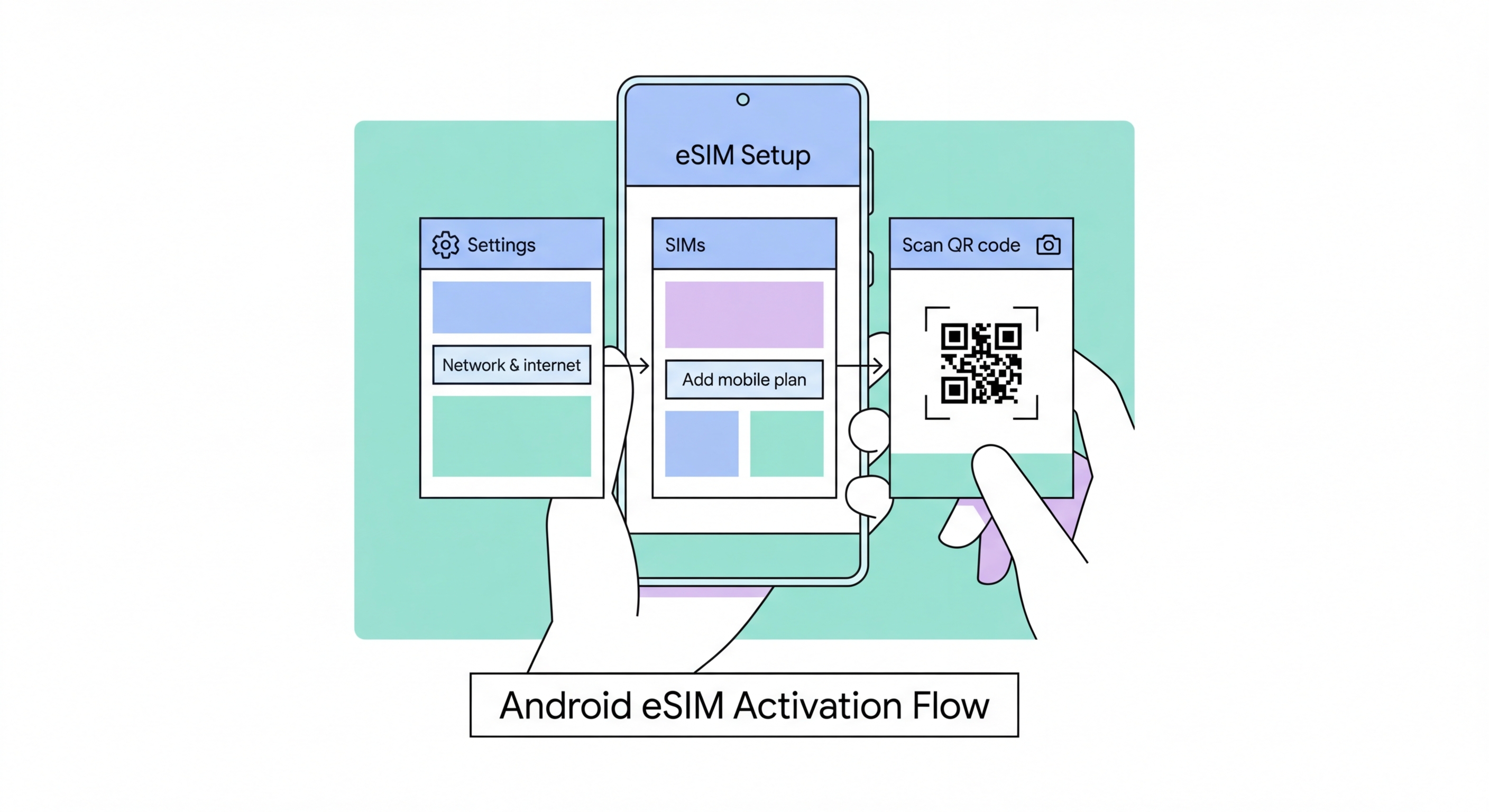
Device-specific eSIM setup instructions for Samsung Galaxy, Google Pixel, Xiaomi, and OnePlus — covering QR code activation, manual code entry, and configuring dual SIM settings for travel from Hong Kong.
Samsung Galaxy devices have supported eSIM since the Galaxy S20 series (2020), with eSIM support extending across the S, A, and Z Fold/Flip lines on models released for the Hong Kong and global markets. To verify eSIM support on your Samsung Galaxy, go to Settings > About Phone > Status Information (or SIM Card Status on some One UI versions) and look for an EID number. Some Samsung models show the EID under Settings > About Phone > EID directly. The presence of an EID confirms eSIM hardware capability. Note that Samsung Galaxy devices sold specifically for the China market (model numbers ending in CN) typically omit eSIM hardware — only global market variants support eSIM.
To activate an eSIM on Samsung Galaxy running One UI 5 or later, navigate to Settings > Connections > SIM Manager > Add eSIM. On older One UI versions (One UI 3 and 4), the path may be Settings > Connections > SIM Card Manager > Add Mobile Plan > Scan Carrier QR Code. When you reach the QR scanning interface, point your Samsung's camera at the carrier-provided QR code. Samsung's QR scanner is generally reliable and reads the code quickly. After scanning, the device displays the carrier name and plan details for confirmation. Tap "Confirm" or "Add" to proceed, and wait for the eSIM profile to download — this typically takes 30–60 seconds on a good WiFi connection. The new eSIM appears in Settings > Connections > SIM Manager after successful download.
Samsung Galaxy's SIM Manager provides granular control over dual SIM configuration. After activating your eSIM, go to Settings > Connections > SIM Manager and configure which SIM handles calls, SMS, and data. For travel use, set the travel eSIM as the Mobile Data SIM while keeping your primary HK SIM active for calls. Samsung's dual SIM interface allows you to set different ringtones and notification settings per SIM, making it easy to distinguish which line an incoming call is arriving on. Samsung also supports eSIM quick switching through the notification panel on some One UI versions — a convenient shortcut for switching active eSIM profiles without navigating through the full Settings menu.
Google Pixel devices have supported eSIM since the original Pixel (2016) — one of the earliest mainstream Android devices with eSIM hardware — though practical carrier support for eSIM activation on Pixel improved substantially from the Pixel 3 generation onwards. All Pixel phones from Pixel 3 through Pixel 9 support eSIM and can be used with Hong Kong carrier eSIMs and international travel eSIM profiles. To confirm eSIM support on a Pixel, go to Settings > About Phone > IMEI and look for an EID entry, or check Settings > Network & Internet > SIMs for a "Download a SIM instead" or similar option that indicates eSIM hardware presence.
On stock Android 12, navigate to Settings > Network & Internet > SIMs > Download a SIM instead to begin eSIM activation. On Android 13 and Android 14, the path is Settings > Network & Internet > SIM Cards > the "+" icon or "Add" button, which initiates the eSIM activation flow. Google's stock Android eSIM activation interface is clean and straightforward — it presents QR code scanning, manual code entry, and (for supported carriers) carrier app-assisted activation as options. Scan the carrier's QR code when prompted, confirm the plan details, and wait for the 30–90 second download. Pixel phones handle eSIM activation consistently across different carrier profiles, including HK local carriers and all major international travel eSIM providers.
A notable Pixel-specific eSIM capability is Google Fi integration — Google's own mobile carrier service, which operates as an eSIM-native service on Pixel devices. Google Fi is not available for Hong Kong primary numbers but is used by some HK residents as a secondary US number for international communication. For pure travel eSIM use on Pixel, the stock Android experience is excellent, with clean switching between stored eSIM profiles. After activating multiple eSIM profiles, manage them through Settings > Network & Internet > SIM Cards, where each stored profile appears with toggle controls. Pixel devices on Android 14 and later also support eSIM transfer when setting up a new Pixel via the Quick Share/nearby device transfer mechanism, which can migrate your eSIM profiles from an old Pixel to a new one without requiring new QR codes for each stored profile.
Xiaomi devices support eSIM on global market variants from approximately 2019 onwards, including the Mi 10, 11, 12, 13, and 14 series, as well as the Xiaomi 13 and 14 global editions. The critical caveat is that Xiaomi devices sold in mainland China — identifiable by model numbers ending in CN (e.g., Xiaomi 14 CN) — almost universally omit eSIM hardware due to Chinese regulatory constraints, while the global variants (Xiaomi 14 Global) include eSIM. If you purchased a Xiaomi device from a mainland China retailer or an unofficial Hong Kong grey market importer, verify your model number carefully before expecting eSIM functionality. To activate eSIM on Xiaomi, go to Settings > SIM cards and mobile networks > Add eSIM and scan the carrier QR code when prompted.
OnePlus devices support eSIM from the OnePlus 8 Pro (2020) onwards on global variants. The activation path on OxygenOS is Settings > Wi-Fi & Network > SIM & Network > Add eSIM. OnePlus devices sold in India may have different eSIM compatibility than global variants — Hong Kong residents using globally-sourced OnePlus phones should have no issues with eSIM activation from HK carriers or travel eSIM providers. OPPO (closely related to OnePlus through the BBK Electronics group) follows a similar path: Settings > Dual SIM & Cellular > Add eSIM. Huawei devices sold before 2019 support eSIM on some models, but post-2019 Huawei devices (running HarmonyOS without Google Mobile Services) have variable eSIM support depending on the specific model and firmware version.
For any Android device where the eSIM menu option is not visible in Settings, check two things before concluding the device lacks eSIM support: first, verify that the device has an EID in Settings > About Phone; second, check whether the device needs a carrier unlock before the eSIM function is exposed in Settings. Some Android manufacturers hide the eSIM UI on devices that are carrier-locked, even though the underlying hardware supports eSIM. A factory reset or carrier unlock may expose the eSIM settings. If the device genuinely has no EID and no eSIM option after these checks, the device does not have eSIM hardware and cannot be made to support it through software updates.
All Android devices that support eSIM also support manual activation code entry as an alternative to QR code scanning. This is useful when you have received an eSIM activation code by email or SMS rather than a QR code, or when the QR code is damaged or illegible. The manual activation code is an LPA (Local Profile Assistant) string in the format "LPA:1$[SM-DP+ server address]$[activation code]", sometimes referred to as an "activation code" or "enter code manually" option in the eSIM settings menu. On Samsung, the manual entry option appears in the eSIM activation flow alongside the QR scan option. On Pixel, look for a "Don't have a QR code?" or "Enter code manually" link during the eSIM activation flow.
Configuring dual SIM settings correctly on Android after eSIM activation is important for both travel use and everyday use with two active SIMs. On Samsung Galaxy (One UI), go to Settings > Connections > SIM Manager after activating your eSIM. Set the preferred SIM for calls, data, and SMS independently — for travel, set your travel eSIM as the data SIM and your HK SIM for calls and SMS. Enable "Ask every time" for call routing if you want to choose which line to use for each outgoing call. On Pixel (stock Android), go to Settings > Network & Internet > SIM Cards and tap each line to configure its role. Ensure Data Roaming is disabled on your HK carrier line and enabled on your travel eSIM line when abroad to prevent accidental HK carrier roaming charges.
For users switching between multiple stored eSIM profiles (such as different country-specific travel eSIMs), Android's handling is less streamlined than iPhone's because most Android devices do not support storing multiple dormant eSIM profiles in the same way — many Android implementations allow only one eSIM to be stored at a time, requiring deletion and re-downloading when switching between travel eSIM profiles for different destinations. Samsung Galaxy S23 and later models and Pixel 7 and later have improved multi-eSIM storage support, but the number of simultaneously stored profiles is generally lower than iPhone's 20-profile limit. For heavy travel eSIM users who want to store multiple profiles, iPhone's superior multi-profile management is a genuine advantage worth considering when choosing a device.