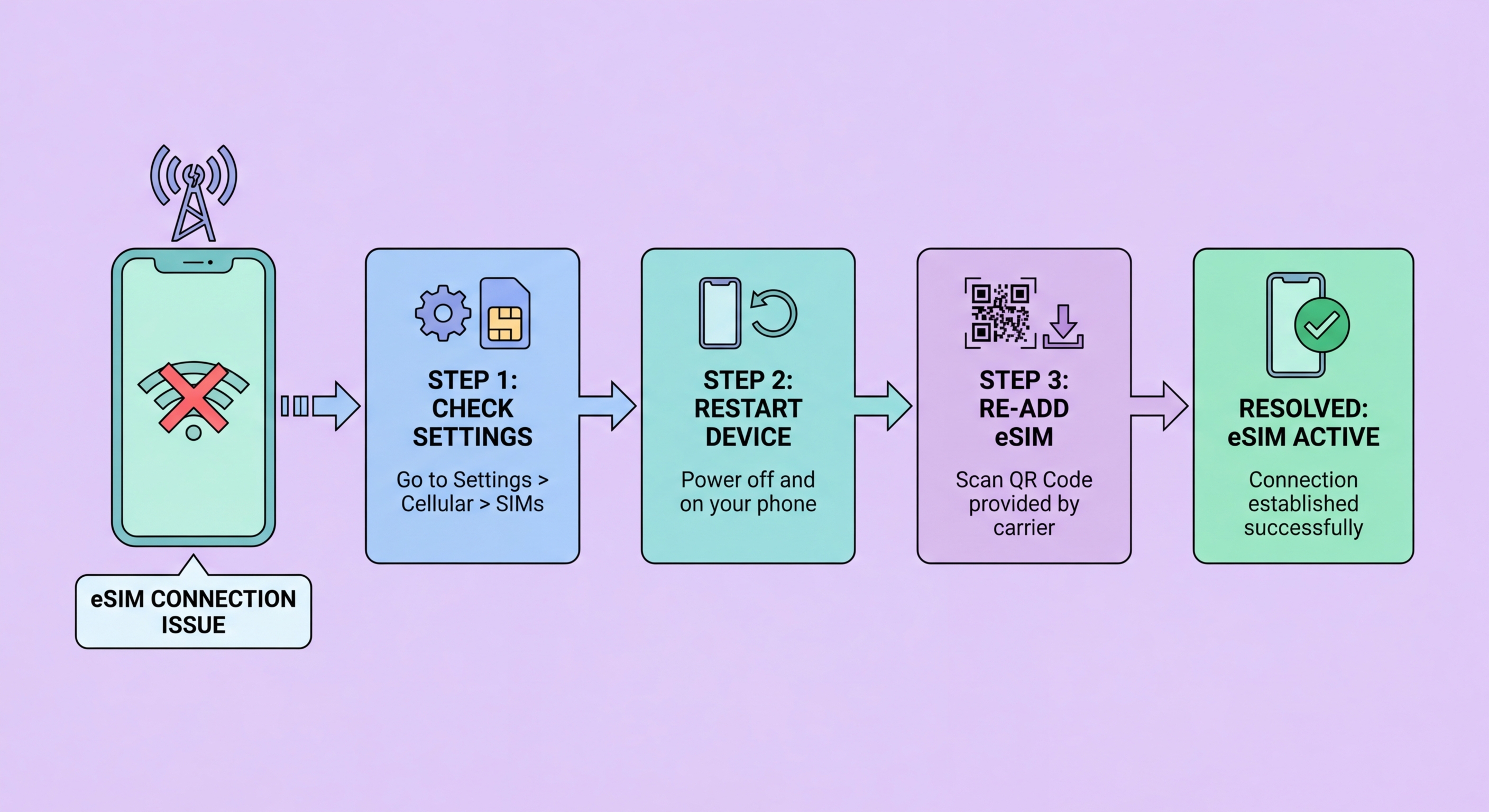
Solutions for the most common eSIM issues — failed QR code scanning, activation errors, no signal after download, travel eSIM not connecting at destination, and what to do when nothing else works.
The most common eSIM activation failure is an error message during the QR code scan step, typically reading "Unable to complete cellular plan change" on iPhone or a generic error on Android. In most cases, this error is caused by one of three things: the QR code has already been used (most carrier QR codes are single-use), the QR code has expired (providers typically set a validity window of 24–72 hours for travel eSIM QR codes), or there is a connectivity issue preventing your device from reaching the carrier's SM-DP+ provisioning server. Before concluding the QR code is faulty, first check that your WiFi connection is stable by opening a webpage in Safari or Chrome. If the page loads slowly or fails, the provisioning server connection will also fail — switch to a stronger WiFi network or try again when connectivity improves.
If the QR code was previously scanned but the download appeared to fail — the screen showed an error or the process was interrupted — the QR code may be marked as used even though the profile was not successfully installed. This is the single-use QR code problem: the carrier's server marks the QR code as redeemed upon the first scan attempt, regardless of whether the profile download completed. In this scenario, you need a new QR code from the carrier or provider. For travel eSIM providers (Airalo, Holafly, Saily), contact support through the provider's app — most reputable providers can issue a replacement QR code within 15–30 minutes when the initial activation clearly failed due to a technical error. For HK local carrier eSIMs, contact the carrier's customer service line or app support.
A less common but documented activation failure is the "Device Not Supported" or "eSIM Not Available" error, which can occur even on eSIM-capable devices. This typically means one of three things: the device is SIM-locked to a carrier that is not the one whose eSIM you are trying to activate (a locked device can only activate eSIM from the carrier it is locked to), the device's eSIM capability requires a carrier unlock before third-party eSIM activation is permitted, or the specific carrier or travel eSIM provider does not support your device model. Verify your device's SIM lock status through the carrier app or by inserting a foreign SIM — if it says "SIM Not Supported," the device is locked. Contact your current carrier to request an unlock, which may require completing a minimum service period on postpaid plans.
A common troubleshooting scenario is an eSIM profile that has successfully downloaded and appears in your phone's SIM settings, but shows "No Service," "No Signal," or "Searching" rather than connecting to a carrier network. This is distinct from an activation failure — the profile is present but the device cannot register on the network. The first and most reliable fix is a device restart. Many eSIM implementations require a restart after profile download to initialise the new eSIM credentials and perform the initial network registration — simply turning the device off and on again resolves this issue in a large proportion of cases. After restart, wait 1–2 minutes for the device to find and register on the network before concluding there is still a problem.
If restarting does not resolve the "No Signal" issue, check the following: first, verify that the eSIM is toggled on (active) in your SIM settings — on iPhone, Settings > Cellular > [the new eSIM plan] and confirm the toggle is enabled. On Samsung, Settings > Connections > SIM Manager and verify the eSIM shows as active. Second, check whether your device needs a carrier profile update — some HK carrier eSIMs require a carrier settings update on the phone before they can connect, which iPhone typically offers automatically via Settings > General > About (a "Carrier Update Available" prompt may appear). Third, try manually selecting the carrier network — on iPhone, Settings > Cellular > Network Selection > disable Automatic and wait for available networks to appear, then select your carrier from the list.
For travel eSIM-specific no-signal issues at a destination, the most common cause is that the travel eSIM requires data roaming to be enabled on the eSIM line itself before it can connect to the local network. On iPhone, go to Settings > Cellular > [travel eSIM line] > Data Roaming and ensure it is turned On. This may seem counterintuitive — why would a local travel eSIM need "roaming" enabled? — but from the device's perspective, connecting to a network in a foreign country is technically roaming regardless of whether it is your "home" travel eSIM or your HK carrier's roaming. The data roaming setting on the travel eSIM must be enabled for the device to register on the local network in the destination country.
A connected eSIM that shows carrier signal but cannot load data pages or shows very slow speeds (under 1 Mbps when you expect 4G/5G performance) typically indicates an APN (Access Point Name) configuration issue. The APN is the gateway configuration that tells your device how to connect to the carrier's data network — if the APN is incorrectly configured or missing, the device can register on the network (showing signal bars) but cannot pass data traffic. On iPhone, APN settings for eSIM are typically configured automatically when the carrier profile is downloaded — if they are incorrect, check with your carrier whether a manual APN setting is needed. On Android, go to Settings > Connections > Mobile Networks > Access Point Names to view and edit APN settings, and compare them against the APN configuration details provided by your carrier or eSIM provider.
VPN software can interfere with eSIM data connections in some configurations. If you have a VPN app configured to always-on or automatic connection, and the VPN cannot reach its server (for example, because the eSIM data is not yet fully connected), the VPN may block all outbound traffic until it establishes its tunnel. Temporarily disabling your VPN app and testing data connectivity without it can confirm whether VPN interference is the cause. If data works with VPN disabled, check your VPN app's settings for automatic connection mode and consider changing it to manual activation. Some corporate VPN configurations also apply DNS restrictions that can prevent eSIM APN resolution — consult your IT team if experiencing this issue on a corporate device.
Genuine slow eSIM data speeds (consistently slow rather than intermittently slow) may indicate that the eSIM plan has exhausted its high-speed data allowance and has switched to throttled speeds. Travel eSIM plans with fair-use policies (including Holafly's unlimited plans) throttle data speeds after a daily high-speed threshold is reached. Check your data remaining balance in the provider's app — Airalo shows remaining data in its app interface, and most providers send notification emails when data is running low or exhausted. If data is exhausted on a fixed-bundle plan, purchase a top-up through the provider's app. If on an unlimited plan with fair-use throttling, speeds typically reset at midnight local time or 24 hours from the point of throttling, depending on the provider.
If the standard troubleshooting steps — restart, verify toggle, check data roaming, test without VPN — do not resolve your eSIM issue within 10–15 minutes, contacting the provider's support is the right next step. Do not continue troubleshooting independently beyond this point, as you risk making changes that may complicate the support team's ability to diagnose the issue. Before contacting support, gather the key information they will need: your device model and OS version (Settings > General > About on iPhone, Settings > About Phone on Android), the EID of your device (found in the same location), the order or purchase ID for the eSIM plan, the QR code activation email or app purchase receipt, and a description of the specific error message or symptom you are experiencing (screenshot if possible).
For travel eSIM providers, contact methods include in-app support chat (fastest — Airalo, Saily, Holafly all have in-app chat support), email support (slower, typically 1–4 hours for reputable providers), and WhatsApp support (available from some providers including Holafly). In-app support is preferable because your account and purchase details are already available to the support agent without needing to be re-submitted. When describing your issue, be specific: "QR code scan shows 'Could not activate plan' error, device is iPhone 15 Pro HK model, iOS 17.4.1, EID is [number], tried restarting and the error persists" gives the support agent everything needed to diagnose quickly. Vague descriptions like "it doesn't work" require multiple back-and-forth exchanges that delay resolution.
For HK local carrier eSIM issues, the escalation path is: (1) carrier app self-service troubleshooting guide; (2) carrier app or website live chat; (3) carrier phone hotline (3HK: 1033, CMHK: 2948 9999, SmarTone: 2880 2688, csl: 1000); (4) in-store visit at a carrier retail outlet with valid HKID for identity verification. Phone and in-store support can access your full account records and are able to issue replacement QR codes, reset eSIM profiles, and diagnose carrier-side provisioning issues that app-based self-service cannot resolve. For in-store visits, bring your device (to demonstrate the issue), proof of identity (HKID or passport), and your carrier account details. Resolution time for in-store eSIM issues is typically 15–30 minutes.