How to Activate an eSIM: Step-by-Step Guide
Complete step-by-step instructions to activate an eSIM on iPhone, Samsung Galaxy, Google Pixel, and other supported devices — including troubleshooting common activation failures.
Published: March 29, 2026
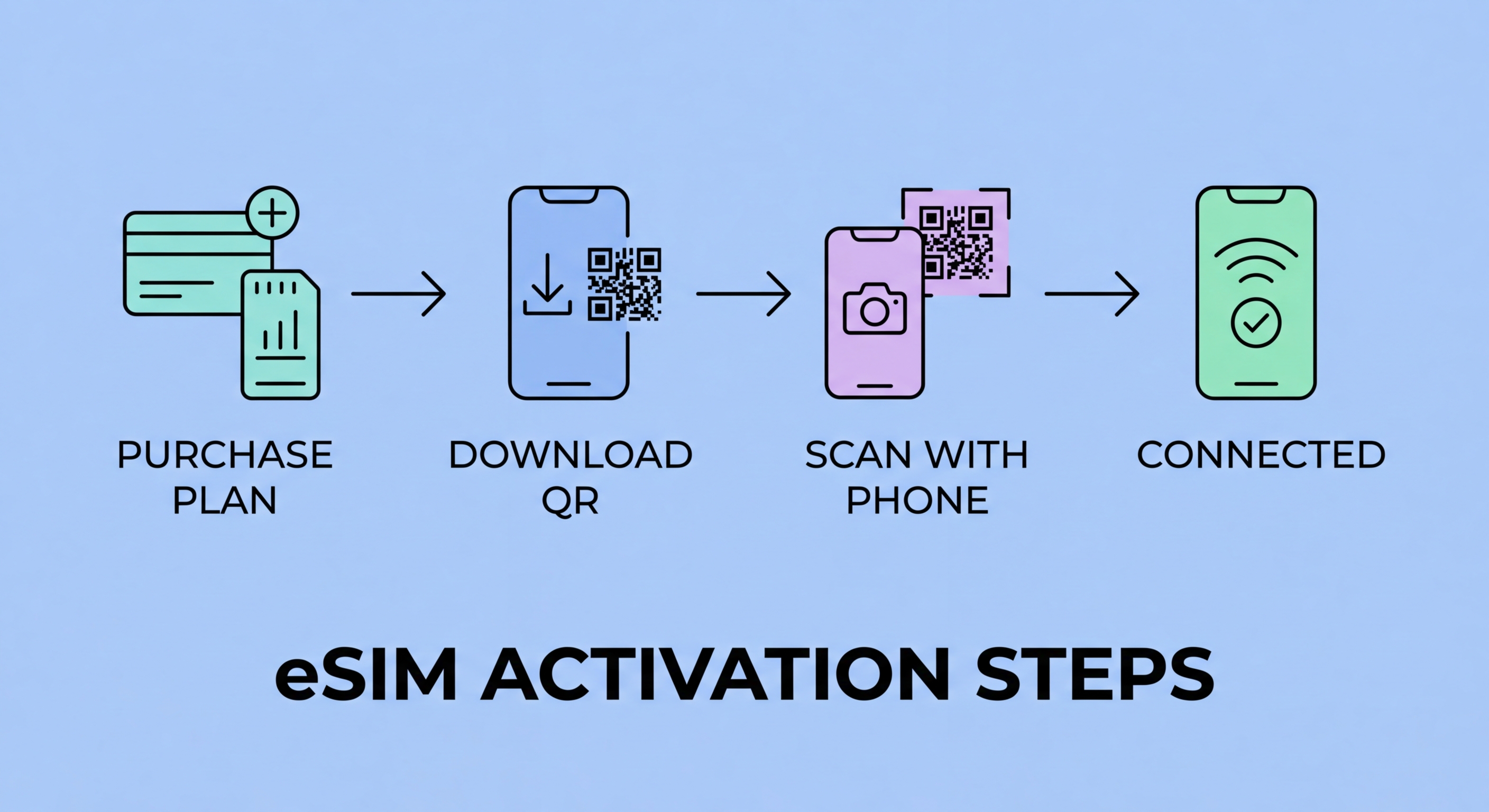
Complete step-by-step instructions to activate an eSIM on iPhone, Samsung Galaxy, Google Pixel, and other supported devices — including troubleshooting common activation failures.
Published: March 29, 2026
Before attempting eSIM activation, verify that your device supports eSIM. On iPhone, go to Settings > General > About and scroll down — if you see an "EID" number (the eSIM's equivalent of an IMEI), your device supports eSIM. On Android, go to Settings > About Phone > SIM Card Status or Network — the presence of an EID number confirms eSIM support. Alternatively, search your exact device model number (e.g., "iPhone 15 Pro Max A3293 eSIM support") to verify the specific variant you have, since some regional variants omit eSIM hardware.
You will need a reliable WiFi connection for the activation process, as the eSIM profile is downloaded over the internet from your carrier's servers. Do not attempt to activate an eSIM on a slow or unstable connection — a failed mid-download can require contacting carrier support to reset the download token. Ensure your device has at least 20% battery life before starting. Have the QR code ready — either printed or disp ↗layed on another device — and ensure you have any carrier account credentials (username, password, or account PIN) that may be required to authenticate the download.
Check that your device is not SIM-locked to a specific carrier. A device locked to HKT (csl) cannot activate an eSIM from 3HK or CMHK. Most Hong Kong devices are sold unlocked, but devices purchased through a carrier on a subsidised plan may be locked for a period. Contact your carrier to confirm lock status and request unlocking if needed — in Hong Kong, devices can typically be unlocked after 6–12 months of plan tenure. SIM lock applies equally to eSIM as to physical SIM — a locked device cannot download a third-party carrier's eSIM profile.

On iPhone running iOS 16 or later, the eSIM activation path is: Settings > Cellular > Add Cellular Plan. Tap "Use QR Code" and point the iPhone camera at the carrier-provided QR code. The phone reads the QR code and disp ↗lays the carrier name and plan details for confirmation. Tap "Continue" to proceed with the download. Enter any confirmation code the carrier requires, then tap "Add Cellular Plan" to begin the profile download. The download typically takes 30–90 seconds on a good WiFi connection, after which the carrier name appears in your Cellular settings alongside your existing SIM.
After the profile downloads, iPhone asks whether you want to use this new plan for primary cellular, data, or iMessage/FaceTime. If you are adding a travel eSIM and want to keep your HK SIM as your primary number, set the new eSIM as "Secondary" or "Travel" label and configure it as your data line while setting your HK line as the default for calls and SMS. You can change these settings at any time under Settings > Cellular > Cellular Plans. If you are converting from a physical HK SIM to an eSIM from the same carrier, the carrier's app or web portal typically guides you through the exact process for their specific plan type.
For iPhone 14 or later models using eSIM-only configurations (US market) or dual eSIM (HK market), the process is the same — Settings > Cellular > Add Cellular Plan. The iPhone supports up to 8–20 stored eSIM profiles depending on the model, with only two active simultaneously. To switch between stored eSIM profiles, go to Settings > Cellular, select the plan you want to activate, and toggle it on. Plans that are not active are stored on the device and can be reactivated at any time without re-downloading — useful for switching between your regular HK plan and a stored Japan travel eSIM when travelling.

On Samsung Galaxy devices (S20 series and later), the eSIM activation path varies slightly by One UI version but is generally: Settings > Connections > SIM Manager > Add Mobile Plan > Scan Carrier QR Code. On Samsung Galaxy running One UI 5 or later, look for Settings > Connections > SIM Manager > Add eSIM. Scan the carrier QR code when prompted, confirm the plan details, and wait for the profile download to complete. Samsung's eSIM implementation is among the most reliable on Android and typically activates without issues on major HK carrier eSIMs and international travel eSIM profiles.
On Google Pixel devices (Pixel 3 and later), navigate to Settings > Network & Internet > SIMs > Download a SIM instead (on Android 12) or Settings > Network > SIM Cards > + icon (on Android 13+). Scan the QR code or enter the activation code manually. Pixel phones support dual SIM (physical + eSIM) and handle eSIM activation through stock Android, which tends to be slightly more straightforward than manufacturer-specific implementations. Google Pixel devices also support carrier-direct activation for some Google Fi and T-Mobile plans without requiring a QR code — the carrier profile downloads directly through the carrier app after account authentication.
For Xiaomi devices, navigate to Settings > SIM cards and mobile networks > Add eSIM. On OnePlus, it is Settings > Wi-Fi & Network > SIM & network > Add eSIM. Note that Xiaomi devices sold for the China market (identified by model numbers ending in CN) typically do not include eSIM hardware — only the global variants support eSIM. Always verify your Xiaomi device's model variant before attempting eSIM activation. If the eSIM option is absent from your Settings, the device either does not have eSIM hardware or requires a carrier unlock before the eSIM functionality is exposed.

The most common eSIM activation failure is a QR code that has already been used or expired. Most carriers issue single-use QR codes — once scanned and downloaded (even if the download subsequently fails), the code may be marked as used and cannot be scanned again. If this happens, contact the carrier or eSIM provider's customer support to request a new QR code. International eSIM providers like Airalo and Holafly handle this through their app support function, typically issuing a replacement within 15–30 minutes. Carrier customer service for HK local plans can be reached through their apps, websites, or in-store.
Network connectivity issues during download can leave an eSIM in a partially downloaded state. If the activation appears to hang or fails partway through, restart your device and attempt to complete the download by navigating back to Settings > Cellular > [the partially installed plan] and tapping to complete. If the partial download cannot be completed, delete the incomplete eSIM entry from your SIM settings and contact support for a new QR code. Ensure your WiFi connection is stable and that any VPN or firewall on your network is not blocking the eSIM provisioning server (the SM-DP+ server address varies by carrier).
Device-specific activation issues are most commonly related to regional restrictions or carrier locks. If your device shows "eSIM Not Supported" but has an EID number, the device may be carrier-locked or the specific carrier's eSIM may require device whitelisting. Some Hong Kong corporate devices purchased through carriers have their eSIM functionality locked to that carrier's network only — contact your carrier's enterprise support team to have the restriction lifted. For travel eSIM issues specifically, verify that the eSIM provider supports your exact device model — some providers maintain device compatibility lists that exclude certain older or regional variants.
