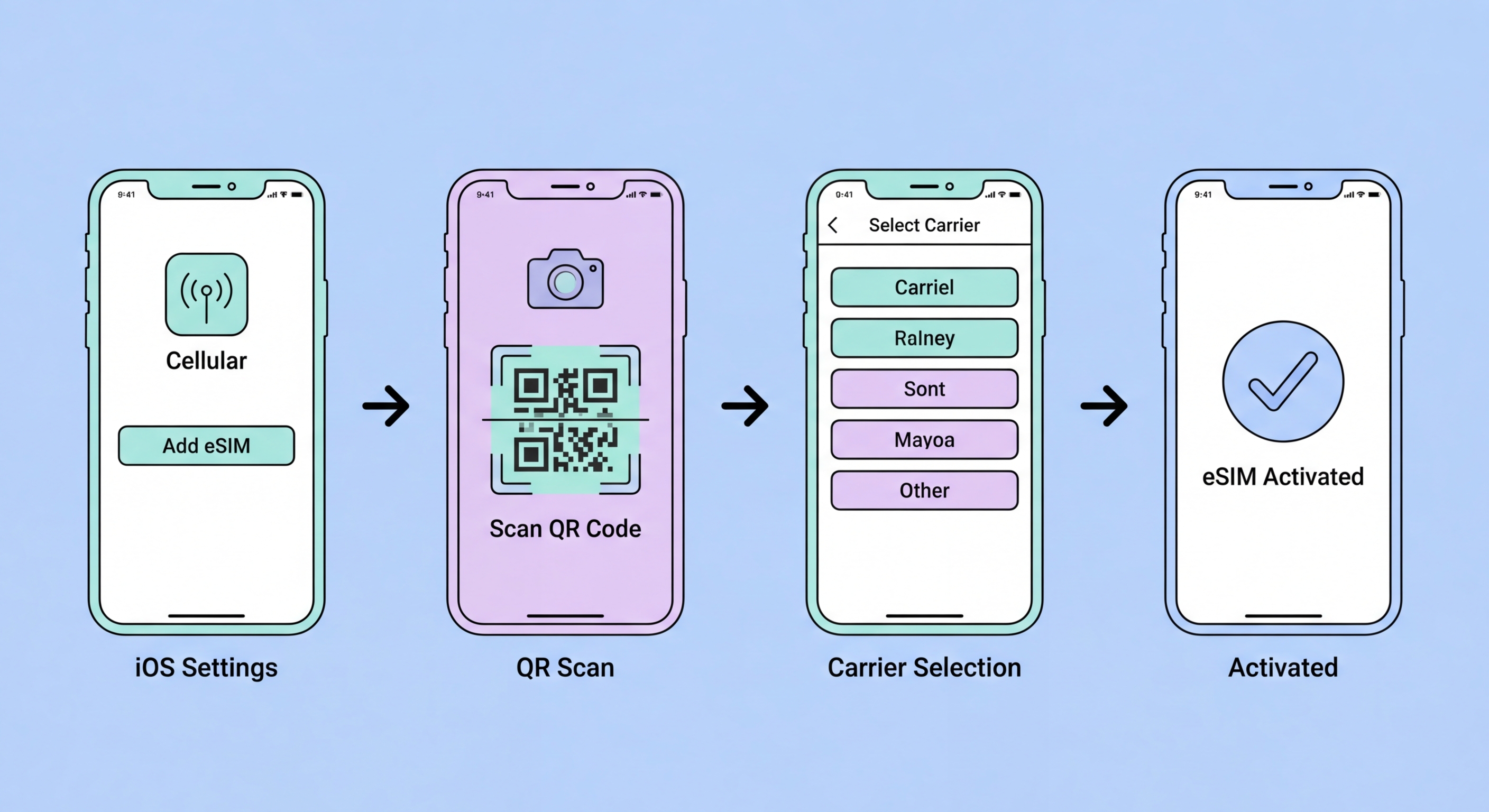
Complete setup instructions for every eSIM-capable iPhone from XS to 16 — covering QR code activation, carrier conversion, dual SIM configuration, and managing multiple stored eSIM profiles.
eSIM support on iPhone began with the iPhone XS, iPhone XS Max, and iPhone XR (all 2018 models), which introduced the first Apple-implemented eSIM alongside a physical nano-SIM slot. All subsequent iPhone models released for the Hong Kong market support eSIM, including iPhone 11 series (2019), iPhone SE 2nd generation (2020), iPhone 12 series (2020), iPhone 13 series (2021), iPhone SE 3rd generation (2022), iPhone 14 series (2022), iPhone 15 series (2023), and iPhone 16 series (2024). The Hong Kong variants of all these models support dual SIM — one physical nano-SIM plus one eSIM — allowing simultaneous use of two to Spot and Avoid Attacks on Your Phone">Your Phone Number">phone numbers on the same device.
The iPhone 14 and later models sold in the United States are eSIM-only devices with no physical SIM slot, but the Hong Kong versions retain the physical SIM slot alongside eSIM. This is a critical distinction for Hong Kong users: the locally purchased and locally sold variants of these models have the dual SIM (physical + eSIM) configuration that most Hong Kong users prefer, allowing them to maintain a physical SIM for their primary HK number while using eSIM for travel or secondary numbers. Devices purchased in the US and brought to Hong Kong will function as eSIM-only and require converting your HK carrier number to an eSIM rather than a physical SIM.
To verify whether your specific iPhone supports eSIM, go to Settings > General > About and scroll down to look for an EID (eUICC Identifier) number. The presence of an EID number confirms that your iPhone has eSIM hardware. All Hong Kong market iPhones from XS onward should show an EID. If you have an older model (iPhone X or earlier), there is no EID and no eSIM support — those devices are physical SIM only. For devices purchased outside Hong Kong, particularly some older regional variants, verify the specific model number against Apple's eSIM support page to confirm eSIM capability before attempting activation.
The standard eSIM activation process on iPhone uses a QR code provided by your carrier or eSIM provider. Before starting, ensure you are connected to a reliable WiFi network — not mobile data — and that your iPhone has at least 20% battery. Have the QR code ready on a second device or printed on paper (you cannot scan a QR code displayed on the same screen you are using for the camera). Navigate to Settings > Cellular > Add Cellular Plan. On iOS 16 and earlier this option may appear as "Add eSIM" or "Add Data Plan" depending on your iOS version. On iOS 17 and later, the path is consistently Settings > Cellular > Add Cellular Plan.
Tap "Use QR Code" and point your iPhone camera at the carrier's QR code — the camera activates in QR scanning mode automatically. The iPhone reads the QR code, connects to the carrier's SM-DP+ server, authenticates the connection, and displays the carrier name and plan details for your confirmation. Review the details shown, then tap "Continue" to proceed. If the carrier requires an additional confirmation code (a numeric code provided separately from the QR code), enter it when prompted. Tap "Add Cellular Plan" to begin the eSIM profile download. Keep your iPhone on WiFi throughout the download, which typically completes in 30–90 seconds on a stable connection. Do not lock the screen or navigate away from the Cellular settings during the download.
After the profile downloads successfully, iOS presents configuration prompts asking how you want to use the new plan. If you have an existing physical SIM and are adding a travel eSIM, iOS asks which line you want to use as the default for cellular data, calls, and iMessage/FaceTime. For a travel eSIM used alongside your primary HK SIM, set the travel eSIM as your "data" line while keeping your HK SIM as the primary for calls and SMS. You can assign custom labels to each line (such as "HK Number" and "Japan Travel") to distinguish them clearly in the interface. These settings can be changed at any time by going to Settings > Cellular and selecting each line to configure its role.
Converting your existing Hong Kong carrier number from a physical SIM to an eSIM is a distinct process from activating a new eSIM plan. The process varies by carrier but generally involves using the carrier's app or website to request a SIM-to-eSIM conversion, which generates a QR code or activation code for you to scan on your iPhone. For 3HK, the conversion is handled through the Three HK app — log in to your account, navigate to the SIM management section, and select "Convert to eSIM." The app guides you through the process and provides the QR code directly in the app interface. Because the QR code is on the same device you need to use for scanning, 3HK's app includes an option to continue the activation on the same device using an internal redirect rather than requiring a separate device for QR scanning.
CMHK, SmarTone, and csl/HKT offer similar carrier-app conversion flows, each with slightly different interface navigation. For all carriers, the conversion process deactivates your existing physical SIM and downloads an eSIM profile to your iPhone — this is a one-way process that cannot be immediately reversed without going through the carrier again to request a new physical SIM. Before initiating the conversion, ensure your iPhone is eSIM-capable (verified via EID number), that you have a stable WiFi connection, and that you have your carrier account login credentials available. Some carriers require an account PIN or OTP verification during the conversion process as a security measure to prevent unauthorised SIM transfers.
After the conversion, your physical SIM is deactivated and your number is now associated with the eSIM profile on your iPhone. Remove the physical SIM from the tray — it is no longer functional. Your iPhone will show your carrier name and signal bars through the eSIM connection within a few minutes of the conversion completing. If the eSIM connection does not appear after 5 minutes, restart your iPhone (the downloaded eSIM profile activates on restart in some cases). Verify that calls, SMS, and mobile data work correctly with the new eSIM before discarding the physical SIM card. Keep the physical SIM in a safe place for a few days as a fallback in case the eSIM conversion needs to be reversed, even though reversal requires a carrier interaction.
iPhone supports storing up to 8 eSIM profiles on iPhone XS through iPhone 12, and up to 20 profiles on iPhone 13 and later, though only two can be active simultaneously (one as primary, one as secondary). This multi-profile storage capability transforms travel connectivity for frequent Hong Kong travellers. You can pre-download eSIM profiles for Japan, South Korea, Thailand, Europe, and the US before any trip — each profile sits stored on your iPhone, ready to activate in seconds when you arrive at each destination. When you return to Hong Kong, switch your HK carrier profile back to active and the travel eSIM becomes stored again, available for your next visit without requiring a new QR code scan.
To manage your stored eSIM profiles, go to Settings > Cellular. All stored eSIM plans appear in the list below your active lines. Tap any stored plan to view its details and toggle it on or off. To activate a stored travel eSIM, toggle it on — iOS will ask which line role it should take (primary data, secondary line) and configure accordingly. If you already have two active eSIMs, you will be prompted to deactivate one before activating a third. Plans that are turned off remain stored on the device and do not consume any cellular resources or billing — they are simply dormant until reactivated. To delete a stored plan you no longer need, tap it in Settings > Cellular and select "Delete eSIM" — note that deletion is permanent and re-downloading requires a new QR code from the provider.
For travel-specific eSIM management best practices, activate your destination eSIM while still on WiFi in Hong Kong before your flight. Verify it appears as a stored plan in Settings > Cellular. Configure your iPhone to automatically switch to the travel eSIM for data when your HK SIM is not on a WiFi network by setting the travel eSIM as the preferred data line. On arrival at your destination, toggle off your HK SIM's data roaming (Settings > Cellular > [HK SIM line] > Data Roaming: off) and ensure the travel eSIM's data roaming is enabled. This configuration ensures all mobile data uses your travel eSIM at local rates while your HK number remains reachable for calls and SMS through WiFi calling or when temporarily enabling your HK SIM's data.