Best Browser Security Settings to Enable Right Now
The exact security and privacy settings to change in Chrome, Firefox, Brave, and Safari — a practical checklist for Hong Kong users who want maximum protection with minimal effort.
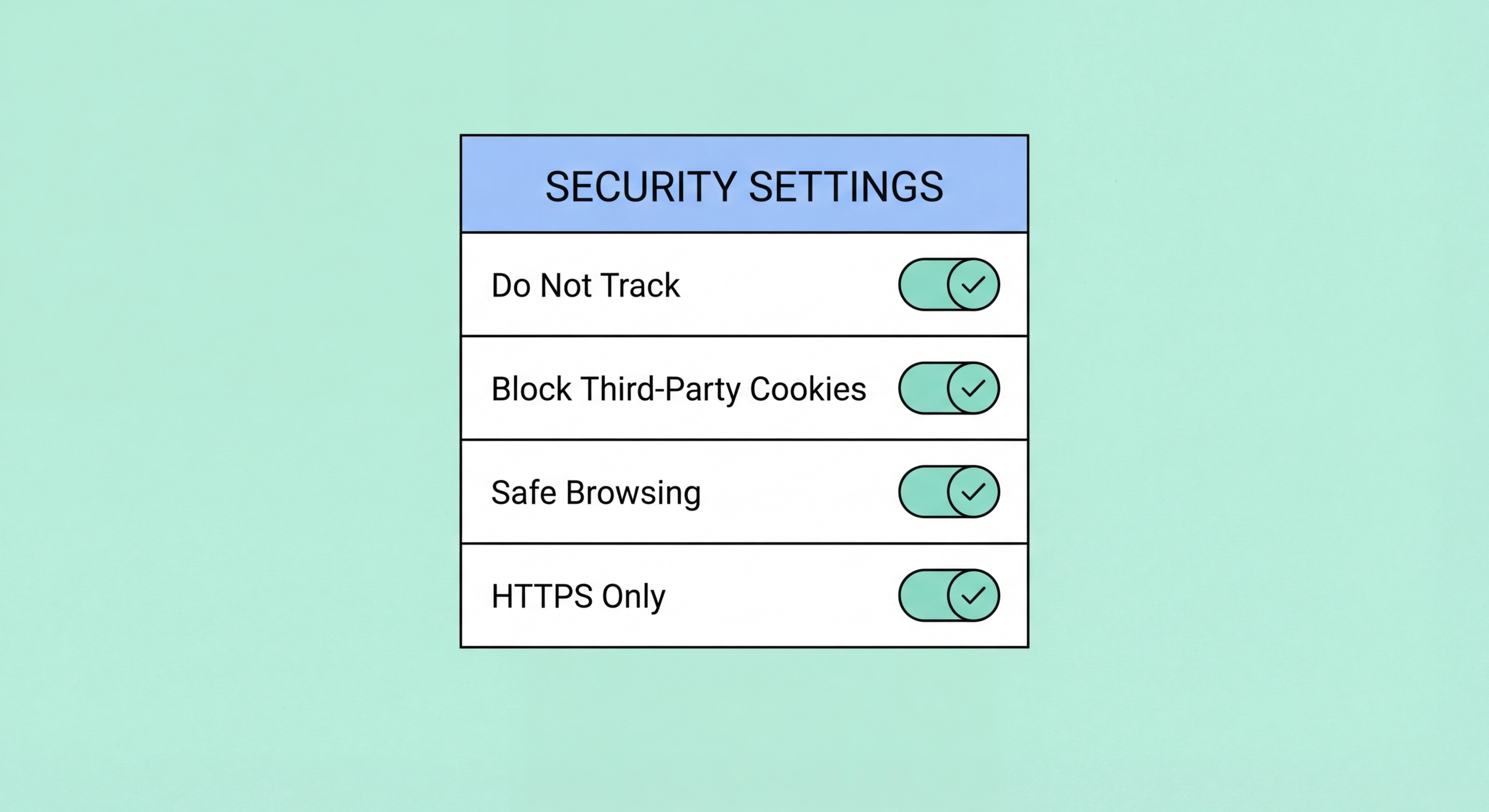
The exact security and privacy settings to change in Chrome, Firefox, Brave, and Safari — a practical checklist for Hong Kong users who want maximum protection with minimal effort.
Firefox provides the most granular privacy and security settings of any major browser, and most of the important ones are accessible through the standard Settings interface without needing to use about:config. Start with Settings > Privacy & Security and set Enhanced Tracking Protection to "Strict." This single change blocks third-party tracking cookies, social media trackers, fingerprinting scripts, and cryptomining scripts across all websites. The strict mode may occasionally cause site issues — if it does, you can disable protection per-site via the shield icon in the address bar.
Enable HTTPS-Only Mode in Settings > Privacy & Security > HTTPS-Only Mode. Set it to "Enable HTTPS-Only Mode in all windows" rather than just private windows. This ensures Firefox upgrades all HTTP connections to HTTPS where supported and shows a warning before loading any site that only supports HTTP. Enable DNS over HTTPS in Settings > General > Network Settings > Settings > Enable DNS over HTTPS, and set the provider to Cloudflare or NextDNS. Under the same Privacy & Security section, disable "Allow Firefox to send technical and interaction data to Mozilla" and "Allow Firefox to install and run studies" to reduce telemetry.
In the "Logins and Passwords" section, enable the built-in password manager if you do not use a dedicated one, and ensure "Show alerts about passwords for breached websites" is enabled — this alerts you when sites you have saved passwords for have been involved in publicly disclosed data breaches. Enable "Block dangerous and deceptive content" under Security to activate Firefox's Safe Browsing integration, which warns you before you visit known phishing and malware sites. Finally, check that "Warn you when websites try to install add-ons" is enabled to prevent drive-by extension installations.

Chrome's default settings are optimised for Google's business interests rather than user privacy, but a systematic settings review can substantially improve protection. Navigate to Settings > Privacy and security > Cookies and other site data and select "Block third-party cookies." Also enable "Clear cookies and site data when you close all windows" — this removes accumulated tracking cookies between sessions while keeping you logged in during active sessions. Under the same section, disable "Preload pages for faster browsing and searching" as this feature makes DNS queries for links you have not clicked, leaking your potential browsing behaviour.
In Settings > Privacy and security > Security, enable "Always use secure connections" (equivalent to HTTPS-only mode) and turn on "Use secure DNS" with Cloudflare (1.1.1.1) as the provider. The Safe Browsing setting has three options — keep it on "Enhanced protection" which sends page URLs to Google for phishing analysis, as the privacy trade-off is outweighed by the security benefit for most users. Disable "Help improve Chrome's features and performance" and "Make searches and browsing better" in Settings > Privacy and security > Privacy guide to reduce telemetry.
Chrome's permissions system deserves careful attention. Navigate to Settings > Privacy and security > Site settings and review the permissions granted to individual sites. Check Location, Camera, Microphone, and Notifications — revoke any permissions that seem excessive or unexpected. Set the default for Location to "Don't allow sites to see your location" and Notifications to "Don't allow sites to send notifications" to prevent sites from requesting these without explicit per-site approval. Regularly reviewing and pruning site permissions is a good security habit that prevents accumulated permission grants from becoming security liabilities.

Brave comes with strong privacy defaults, but a few additional settings push its protection to the maximum level. In Settings > Shields, the default settings block ads and trackers in standard mode. Change "Trackers & ads blocking" to "Aggressive" for the highest level of protection — this enables CNAME cloaking detection and blocks first-party trackers as well as third-party ones. Enable "Upgrade connections to HTTPS" if not already active, and set "Block fingerprinting" to "Strict, may break sites" for the strongest fingerprinting resistance. Some sites may behave unexpectedly with strict fingerprinting blocking, but this is easily fixed by clicking the Brave lion icon in the address bar and adjusting per-site.
In Brave's Privacy and security settings, enable "Prevent sites from fingerprinting me based on my language preferences" and disable "Allow privacy-preserving product analytics (P3A)" — Brave's own telemetry system. Set "Web Discovery Project" to off if you prefer not to contribute anonymous browsing data to Brave Search improvement. Under "Security," enable "Always use secure connections" and configure "Use secure DNS" with your preferred private resolver. Brave's DNS configuration applies to the entire browser including private windows, unlike some browsers where DoH settings only apply to normal windows.
Brave's private browsing with Tor integration provides an additional anonymity layer for specific sensitive tasks. When you open a "Private Window with Tor," all traffic is routed through the Tor network without requiring separate Tor Browser installation. This is accessible from File > New Private Window with Tor or from the menu in the top right. For everyday browsing, standard Brave with aggressive Shields provides excellent protection. For tasks where you want stronger anonymity — researching sensitive topics, communicating with sources, or accessing services where you prefer Tor-level anonymity — the Tor private window is immediately available without any additional setup.

Safari on iOS and macOS has improved significantly in privacy over recent years, driven by Apple's marketing focus on privacy as a product differentiator. On iPhone, navigate to Settings > Safari and enable "Prevent Cross-Site Tracking" (should be on by default) and "Hide IP Address" (set to "From Trackers and Websites" for maximum protection — this routes Safari connections through Apple's iCloud Private Relay infrastructure, masking your IP). Disable "Safari Suggestions" and "Preload Top Hit" to prevent Safari from making background requests for your browsing before you have finished typing.
In the Advanced section of Safari's settings on iOS, enable "Block All Cookies" for maximum privacy — note this will require you to log in again on most sites and may break some functionality. A more balanced approach is to leave first-party cookies enabled (the default "Prevent Cross-Site Tracking" setting handles third-party blocking) and manage login persistence through Safari's "Website Data" settings, which allows you to see and delete cookies for specific sites. Enable "Fraudulent Website Warning" under Phishing and Myths Debunked: Common Misconceptions About Malware Protection">Malware protection if not already active.
On macOS, Safari's privacy settings are available under Safari > Preferences > Privacy. The "Prevent cross-site tracking" checkbox enables Intelligent Tracking Prevention — ensure this is checked. "Hide IP address" should be enabled. For experimental privacy features available in Safari Technology Preview, the "Advanced Tracking and Fingerprinting Protection" feature — still rolling out — provides more aggressive fingerprinting protection closer to Brave's level. Install content blocker extensions from the Mac App Store to add uBlock-style filtering to Safari, as Safari's native extension API supports effective content blocking on both iOS and macOS.
