How to Stop Websites Tracking You Online
A complete guide to blocking trackers, third-party cookies, pixel tracking, and behavioural profiling — practical steps for Hong Kong internet users in 2026.
Published: March 29, 2026
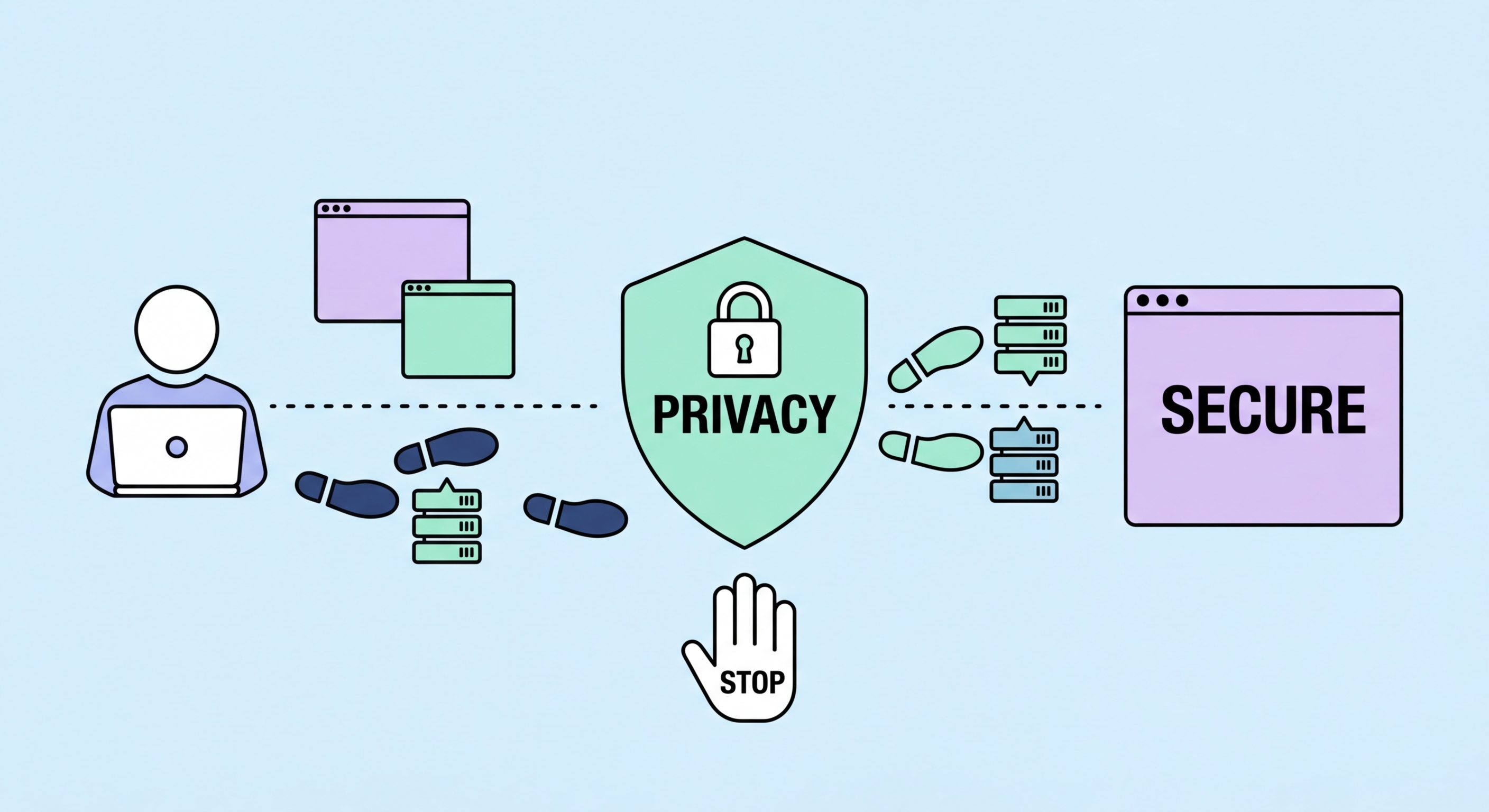
A complete guide to blocking trackers, third-party cookies, pixel tracking, and behavioural profiling — practical steps for Hong Kong internet users in 2026.
Published: March 29, 2026
Online tracking takes many forms, and understanding each type is the first step to stopping it eff ↗ectively. Third-party cookies are the most well-known mechanism — these are cookies set by domains other than the site you are visiting, placed by advertising networks, analytics services, and social media widgets to follow your activity across websites. When you visit a news site, a fashion retailer, and a travel booking site on the same day, the third-party advertising network that has a presence on all three sites can link all three visits together into a profile of your interests.
Tracking pixels are 1x1 transparent images embedded in web pages and emails. When your browser loads the pixel, it sends a request to the tracker's server that includes your IP address, browser information, and the URL of the page that loaded the pixel. Email tracking pixels tell senders whether and when you opened an email, your approximate location, and what device you used. Marketing companies use this data to measure campaign performance and to score leads based on engagement. Simply loading an email in your email client can transmit this data without any action on your part beyond opening the message.
Behavioural profiling aggregates data from multiple tracking sources to build a detailed model of who you are, what your interests are, and what you are likely to buy. This profile is built and refined continuously across every website you visit that participates in the advertising ecosystem. The profile is used not just for advertising but increasingly for content personalisation, credit scoring, insurance pricing, and employment screening. Data brokers purchase these profiles and sell them to companies you have never interacted with, creating a shadow economy of personal data that most people have no visibility into.

All major browsers include settings to block third-party cookies and enable enhanced tracking protection. In Firefox, navigate to Settings > Privacy & Security and select "Strict" under Enhanced Tracking Protection. This setting blocks all third-party tracking cookies, cross-site tracking cookies, social media tracker ↗s, fingerprinting scripts, and cryptomining scripts. Strict mode may occasionally break some site functionality — if a site behaves unexpectedly, you can click the shield icon in the address bar to disable protection for that specific site temporarily.
In Chrome, third-party cookie blocking can be enabled in Settings > Privacy and security > Cookies and other site data > Block third-party cookies. Chrome has been transitioning to a replacement system called Privacy Sandbox, but user testing and regulatory scrutiny have slowed this rollout significantly. As of 2026, manually blocking third-party cookies in Chrome settings provides meaningful protection while the advertising industry's transition to alternative tracking mechanisms continues. In Safari, Intelligent Tracking Prevention (ITP) is enabled by default and aggressively limits cross-site tracking cookies without requiring any manual configuration.
Brave takes the most aggressive default stance — all third-party cookies are blocked by default, tracking scripts are blocked, fingerprinting is randomised, and CNAME cloaking attempts are detected. Hong Kong Businesses: Implementation Guide">for Hong Kong Online Banking: What You Need to Know">for Hong Kong Online Banking: A Complete Guide">for Hong Kong SMEs: Where to Start">For Hong Kong users who want strong anti-tracking with minimal configuration, switching to Brave requires zero settings changes and immediately provides protection that would take numerous manual steps to replicate in other browsers. The tradeoff is that some sites with aggressive CNAME-based tracking may behave differently when their scripts are blocked, though Brave's aggressive mode handles this better than previous versions.

uBlock Origin remains the most effective anti-tracking extension available. In addition to blocking ads, it blocks tracking scripts from thousands of known domains including Google Analytics, Facebook Pixel, DoubleClick, and hundreds of smaller ad networks. The EasyPrivacy filter list, enabled by default in uBlock Origin, is specifically focused on privacy and blocks tracking scripts that may not be advertising-related. For users who want to go further, enabling the "Privacy — AdGuard" filter list in uBlock Origin's Filter Lists settings adds additional privacy-focused blocking coverage.
Privacy Badger by the EFF learns which third-party domains are following you across multiple sites and automatically blocks them based on observed behaviour rather than a static list. This makes it particularly effective against newer tracking scripts that have not yet been catalogued in traditional filter lists. Privacy Badger and uBlock Origin work well together — uBlock Origin catches known trackers instantly while Privacy Badger catches novel ones over time. Both extensions are free and available on Firefox, Chrome, and Edge.
Email tracking is addressed by different tools. In Apple Mail, enabling "Protect Mail Activity" in Settings > Mail > Privacy Protection loads all images through Apple's proxy servers, masking your real IP address and preventing tracking pixels from reporting your open status. In Gmail, there is no built-in tracking protection — if email privacy is important to you, consider switching to a privacy-focused email service like ProtonMail or Tutanota, or use a desktop client like Thunderbird with the uBlock Origin extension which can block tracking pixels in web-based email views.

The most effective anti-tracking setup combines layers of protection at the browser, extension, DNS, and network levels. At the browser level, switching to Brave or Firefox with Strict ETP provides a strong foundation. Adding uBlock Origin and Privacy Badger addresses tracking scripts that browser-level controls miss. Enabling DNS-over-HTTPS with Cloudflare or NextDNS prevents your ISP from seeing which domains you query. A reputable VPN masks your IP address from all sites you visit, removing one of the most persistent tracking signals.
For Hong Kong users who use Google services — Gmail, Google Drive, YouTube — a significant portion of tracking occurs within Google's own ecosystem rather than through third-party scripts. Google builds detailed profiles from search queries, YouTube viewing history, Gmail content analysis, and location data. Reducing this exposure requires either switching to privacy-respecting alternatives (DuckDuckGo for search, ProtonMail for email, Invidious for YouTube) or carefully managing Google account settings to limit data collection. Google's My Activity page allows you to review and delete stored data, and account settings allow you to disable certain types of personalisation.
Social media platforms are another major tracking vector. Facebook tracks you across millions of third-party websites through its pixel, even if you are not logged into Facebook and have never created an account. Installing Firefox's Facebook Container or Brave's built-in social blocking eliminates this specific tracking pathway. More broadly, being mindful about which apps you authorise to connect to your social media accounts, regularly reviewing app permissions, and avoiding "Login with Facebook/Google" on third-party sites reduces the data sharing that occurs through these integrations. The complete anti-tracking setup is not a single product but a layered approach that significantly raises the cost and reduces the accuracy of tracking across your digital life.
