WebRTC Leaks Explained: How to Prevent IP Address Exposure
How the WebRTC protocol can bypass your VPN and reveal your real IP address to websites — and the browser settings and extensions that eliminate this risk.
How the WebRTC protocol can bypass your VPN and reveal your real IP address to websites — and the browser settings and extensions that eliminate this risk.
WebRTC (Web Real-Time Communication) is a browser technology that enables direct peer-to-peer connections between browsers for audio, video, and data transfer — used by Google Meet, Zoom's web client, and numerous other video conferencing and file-sharing applications. To establish these direct connections, WebRTC uses a mechanism called ICE (Interactive Connectivity Establishment) that discovers and tests multiple IP addresses your device is reachable on, including your public IP, local network IP, and VPN IP. The problem is that this IP discovery process can be triggered by any website through JavaScript, not just legitimate video calling applications.
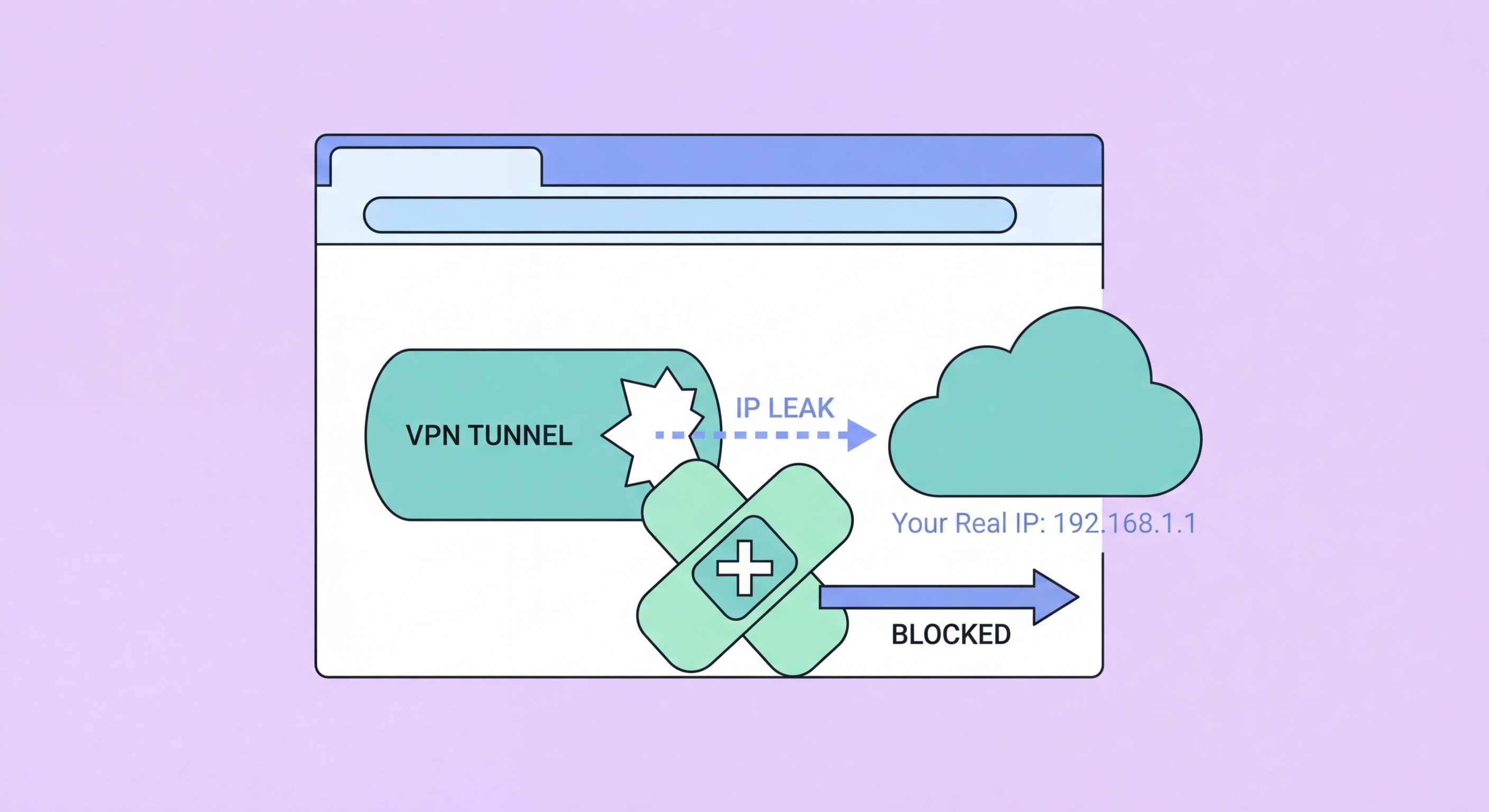
When a VPN is active, WebRTC's ICE negotiation can discover and expose both your VPN's IP address and your real public IP address simultaneously. The real IP appears because WebRTC communicates through the STUN (Session Traversal Utilities for NAT) protocol to discover the IP address assigned by your ISP — and this STUN request can bypass the VPN tunnel, going directly to the STUN server through your real ISP connection. A malicious or simply tracking-motivated website can run a WebRTC STUN request through JavaScript and receive your real IP address without any browser warning or user prompt.
WebRTC leaks affect Chrome, Firefox, and Edge by default. Safari and Brave have both implemented WebRTC leak prevention in their default configurations — Safari blocks local IP address disclosure, and Brave routes WebRTC traffic through the VPN tunnel. However, Chrome and Firefox require either a browser setting change or an extension to prevent WebRTC leaks. This is one of the most common privacy vulnerabilities that VPN users are unaware of — they may have a fully functional, properly connected VPN and still have their real IP address visible to any site that checks for it via WebRTC.

Testing for WebRTC leaks takes about 30 seconds using free online tools. With your VPN connected and active, navigate to browserleaks.com/webrtc or ipleak.net. These sites automatically run WebRTC STUN requests from your browser and display any IP addresses that are revealed. If the page shows only IP addresses belonging to your VPN provider — typically a foreign IP matching your chosen VPN server location — there is no WebRTC leak. If the page also displays an IP address from Hong Kong belonging to your actual ISP (HKT, CMHK, SmarTone, etc.), your real IP is leaking through WebRTC.
It is important to test with your VPN connected, not without. Without a VPN, seeing your real IP through WebRTC is expected and not a concern. The leak test is specifically checking whether WebRTC bypasses the VPN — so the test is only meaningful when you believe the VPN should be masking your IP. Run the test in your main browser, then compare results in Brave (which should show no leak by default) to understand the difference between a properly protected and unprotected WebRTC configuration.
Some WebRTC tests differentiate between different types of IP disclosure. Local IP disclosure shows your internal network IP (e.g., 192.168.x.x) — this is generally less concerning than public IP disclosure but can still reveal information about your network configuration. Public IP disclosure through WebRTC is the more serious privacy issue, as it reveals the IP address your ISP has assigned to your connection. IPv6 addresses are also disclosed through WebRTC and should be checked — VPNs that only protect IPv4 may still allow IPv6 WebRTC leaks even when IPv4 is properly tunnelled.

Firefox provides a built-in setting to disable WebRTC leak protection through about:config. Type about:config in the Firefox address bar and press Enter. Click "Accept the Risk and Continue" when prompted. In the search box, type media.peerconnection.enabled and press Enter. Double-click the result to change its value from "true" to "false." This completely disables WebRTC in Firefox, preventing any site from initiating WebRTC connections including STUN requests. Verify the fix by revisiting browserleaks.com/webrtc — the WebRTC section should now show no data.
Disabling WebRTC entirely in Firefox will break video calling features in web applications that rely on WebRTC, including the web version of Google Meet, Zoom, and Discord. If you use these services through Firefox, consider using a more targeted approach: instead of disabling WebRTC entirely, install the "WebRTC Control" extension, which provides a browser toolbar button to quickly enable and disable WebRTC per-session. This allows you to disable WebRTC for general browsing and re-enable it only when you specifically need a video call application.
An alternative Firefox approach that prevents IP leaks while keeping WebRTC functional is to set media.peerconnection.ice.no_host to true in about:config — this prevents WebRTC from disclosing your local network IP addresses while still allowing WebRTC connections that route through your VPN IP. Additionally, setting media.peerconnection.ice.default_address_only to true restricts ICE candidates to the VPN interface only, preventing the real IP from being discovered through STUN. These more surgical settings allow video calling to continue while preventing IP exposure.

Chrome does not provide a built-in setting to disable or restrict WebRTC. The only way to prevent WebRTC leaks in Chrome is to install a browser extension. The most reliable options are "WebRTC Network Limiter" by Google itself, which restricts ICE candidate generation, and "uBlock Origin" which can be configured to block WebRTC by enabling the option in its advanced settings. The WebRTC Network Limiter extension is simple to configure — after installation, open its options and set to "Disable non-proxied UDP" to prevent STUN requests from bypassing the VPN. This is the recommended approach for Chrome users who cannot switch browsers.
Brave Browser handles WebRTC correctly out of the box. Brave routes WebRTC traffic through the VPN tunnel when a VPN is in use and prevents WebRTC from discovering real IP addresses through STUN. Brave's privacy settings include a "WebRTC IP Handling Policy" option under Settings > Privacy and security > Security which is set to "Default" but can be changed to "Disable non-proxied UDP" for additional protection on networks where you want maximum IP hiding. Brave users should verify WebRTC protection is working by running the browserleaks test, but in most cases no configuration changes are needed.
Safari on iOS and macOS handles WebRTC differently from Chrome and Firefox. Safari restricts WebRTC's ability to discover local IP addresses by default, which prevents the most common form of IP disclosure. However, Safari may still disclose the VPN IP in some configurations. The cleanest solution for iOS users concerned about WebRTC is to use Brave for iOS, which provides comprehensive WebRTC protection alongside all of Brave's other privacy features. For macOS users, both Safari's native restrictions and Brave's hardened WebRTC configuration provide strong protection without requiring any extension management.
