HTTPS Explained: Why It Matters for Your Online Security
What HTTPS is, how the SSL/TLS handshake protects your data, and how to verify that the padlock in your browser actually means what you think it does.
What HTTPS is, how the SSL/TLS handshake protects your data, and how to verify that the padlock in your browser actually means what you think it does.
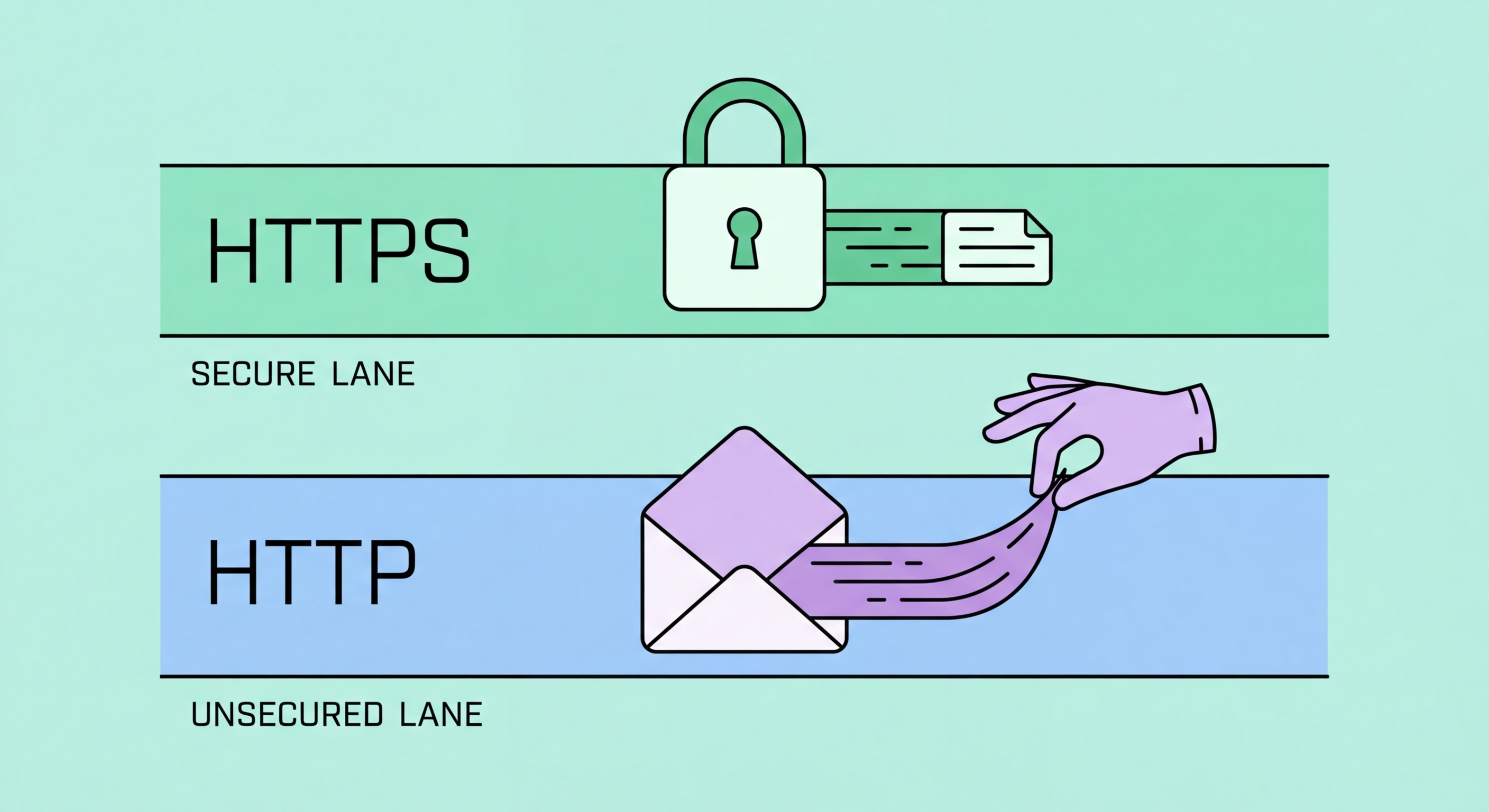
HTTPS (HyperText Transfer Protocol Secure) is the encrypted version of HTTP, the protocol used to transfer data between your browser and web servers. When you connect to a site over plain HTTP, all data — including login credentials, form submissions, and page content — is transmitted in plain text. Anyone on the same network as you, including your ISP, café WiFi operator, or an attacker running a packet sniffer, can read this data in full. Before HTTPS became the web standard, intercepting HTTP traffic was a routine technique used in corporate network monitoring, government surveillance, and criminal data theft.
HTTPS solves this problem by adding a TLS (Transport Layer Security) encryption layer between your browser and the web server. The TLS handshake — the process by which your browser and the server establish an encrypted connection — occurs automatically and invisibly when you connect to an HTTPS site. Once the handshake is complete, all data exchanged between your browser and the server is encrypted using symmetric encryption keys negotiated during the handshake. Even if an attacker intercepts the encrypted traffic, they see only meaningless ciphertext without the corresponding private keys.
The adoption of HTTPS has accelerated dramatically since 2015, driven by Google's decision to use HTTPS as a search ranking signal and Let's Encrypt's provision of free SSL/TLS certificates. As of 2026, over 98% of web traffic on Chrome is loaded over HTTPS, up from approximately 40% in 2014. Despite this progress, HTTP sites still exist, and many HTTPS sites have mixed content issues where some elements load over HTTP. Understanding how to identify genuine HTTPS connections and what the browser's security indicators actually mean is essential for making safe decisions online.

The TLS handshake is the process by which your browser and a web server establish a secure, authenticated connection. It begins with your browser sending a "ClientHello" message to the server, listing the TLS versions and cipher suites it supports. The server responds with a "ServerHello" confirming the agreed parameters and sends its digital certificate — a file signed by a trusted Certificate Authority (CA) that proves the server is who it claims to be. Your browser validates this certificate against its built-in list of trusted CAs before proceeding.
After certificate validation, the browser and server perform a key exchange — typically using a method called ECDHE (Elliptic Curve Diffie-Hellman Ephemeral) in modern TLS 1.3 connections. This exchange allows both parties to independently compute an identical symmetric encryption key without ever transmitting the key itself across the network. An eavesdropper who captures all the handshake traffic cannot derive the key because the computation requires private key material that never leaves each party's device. The "Ephemeral" part of ECDHE ensures that each session uses a fresh key pair, providing "forward secrecy" — compromise of the server's long-term private key does not allow decryption of past sessions.
TLS 1.3, the current standard deployed across most of the web, significantly streamlines this handshake process compared to older versions, reducing connection latency while improving security. It eliminates several legacy cipher suites that had known weaknesses, makes forward secrecy mandatory rather than optional, and encrypts more of the handshake itself to reduce metadata leakage. Hong Kong Businesses: Implementation Guide">for Hong Kong Online Banking: What You Need to Know">for Hong Kong Online Banking: A Complete Guide">for Hong Kong SMEs: Where to Start">For Hong Kong users on mobile networks where latency matters, TLS 1.3's reduced round-trip requirement is a practical benefit in addition to its security improvements. Always ensure your browser is updated to use TLS 1.3 — outdated browsers relying on TLS 1.0 or 1.1 are vulnerable to downgrade attacks.

The padlock icon in your browser's address bar has become synonymous with "this site is safe" in popular understanding, but this is a dangerously misleading interpretation. The padlock indicates only that your connection to the site is encrypted — it says nothing about the content or intentions of the site itself. Phishing sites, malware distribution sites, and fraudulent shops can all obtain valid TLS certificates and display a green padlock. Let's Encrypt provides free certificates to anyone, with minimal identity verification, meaning even clearly criminal sites can have HTTPS certificates.
Modern browsers have moved away from displaying the padlock icon prominently, instead showing only a warning icon for HTTP sites. This shift reflects the recognition that the padlock was being misused as a trust signal rather than understood as an encryption indicator. In Chrome, Firefox, and Edge, clicking on the padlock (now shown as a lock or site information icon) reveals the certificate details — including who the certificate was issued to, which Certificate Authority signed it, and when it expires. For high-value sites like your bank or government services, it is worth clicking through to verify the organisation name matches what you expect.
Extended Validation (EV) certificates, which historically caused browsers to display the organisation's name in the address bar alongside a green padlock, have been largely deprecated by major browsers as a trust signal. Research showed that most users did not understand the distinction between EV and DV (Domain Validation) certificates, and that phishing attackers could obtain EV certificates for convincingly named entities. Today, the most reliable way to verify you are on a legitimate site is to check the exact domain name in the address bar matches the site you intend to visit — not to rely on any padlock indicator.

All major browsers now include an HTTPS-only mode that refuses to load sites over plain HTTP without a warning. In Firefox, this setting is called "HTTPS-Only Mode" and is available in Settings > Privacy & Security. When enabled, Firefox automatically upgrades HTTP links to HTTPS where possible and shows a clear warning page for sites that cannot be accessed over HTTPS, allowing you to make an informed choice about proceeding. This is strongly recommended as a default setting for all Firefox users.
Chrome and Edge enforce HTTPS through a feature called "Always use secure connections" in their security settings, which behaves similarly to Firefox's HTTPS-Only Mode. Brave enables HTTPS upgrading by default through its Brave Shields system. HTTP Strict Transport Security (HSTS) is a complementary mechanism where websites tell browsers to only ever connect to them over HTTPS — this instruction is cached in the browser so that even if you type the HTTP version of a URL, the browser connects over HTTPS automatically without making an initial HTTP request.
For Hong Kong users accessing sensitive services — banking portals, government services, email, healthcare — verifying that HTTPS is properly enforced should be a routine habit. Before entering any credentials or personal information on a site, check the address bar: confirm the protocol is https://, verify the domain name is exactly correct (checking carefully for typosquatting domains), and ensure there is no browser certificate warning. If you receive a certificate error or a site is loading over HTTP for something sensitive, close the tab immediately and access the service through a known-good bookmark or by typing the URL directly.
