How to Set Up a Proxy Server: Complete Guide
Step-by-step proxy configuration instructions for Windows, macOS, iOS, Android, Chrome, Firefox, and developer tools — covering every major platform and use case.
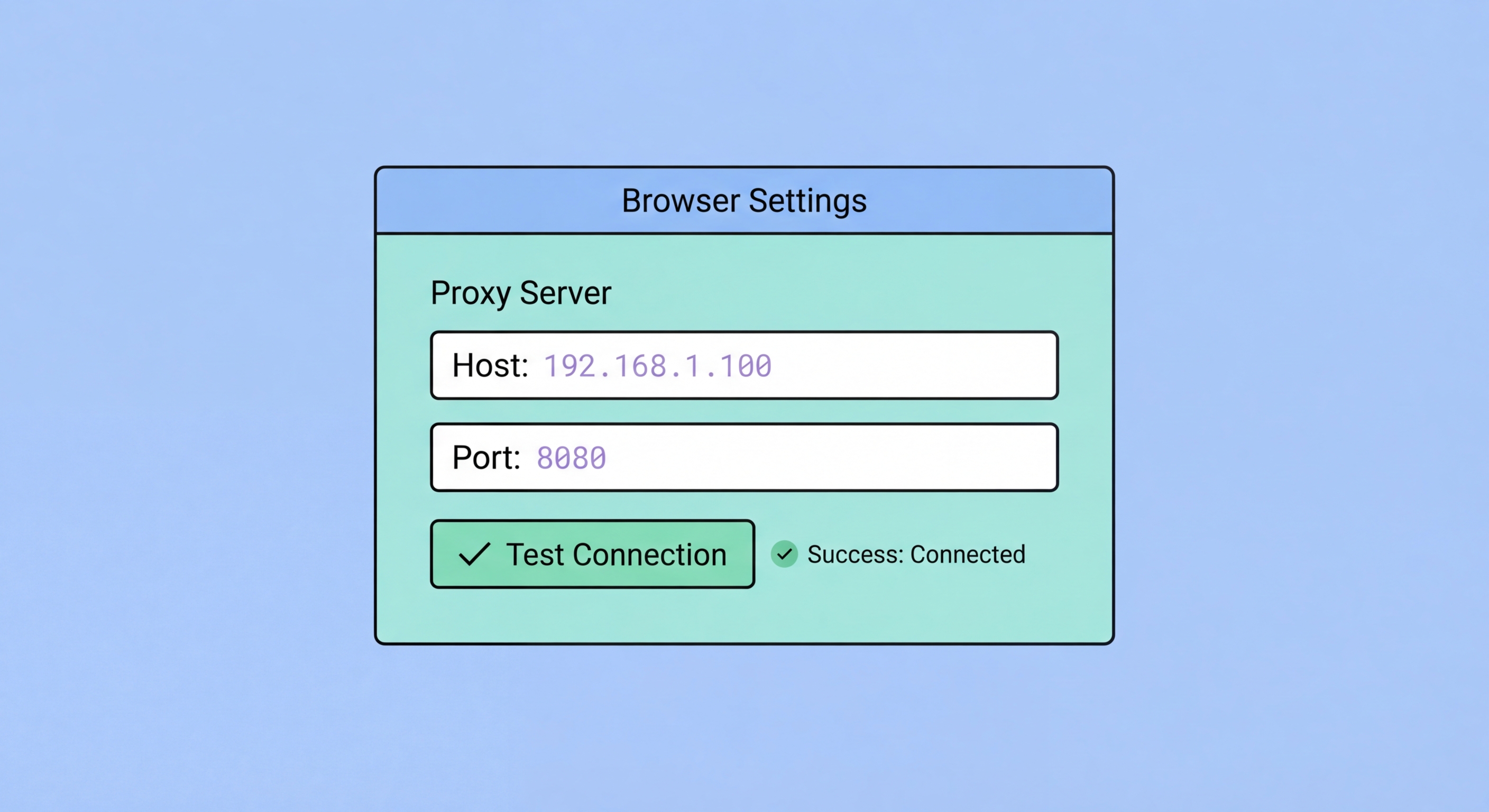
Step-by-step proxy configuration instructions for Windows, macOS, iOS, Android, Chrome, Firefox, and developer tools — covering every major platform and use case.
On Windows 11 and Windows 10, the system-wide proxy is configured through Settings → Network and Internet → Proxy. Scroll down to the Manual proxy setup section, toggle "Use a proxy server" to On, and enter the proxy server's IP address and port number. Windows allows you to specify exceptions — IP addresses or domain patterns that should bypass the proxy. Click Save when done. This system proxy setting applies to most apps including Internet Explorer, Edge, and apps that respect system network settings.
On macOS, navigate to System Settings (or System Preferences on older versions) → Network → select your active network interface (Wi-Fi or Ethernet) → click Details → Proxies. You'll see separate entries for different proxy types: Web Proxy (HTTP), Secure Web Proxy (HTTPS), and SOCKS Proxy. Enter the proxy server address and port for each type you want to configure. macOS allows per-interface proxy settings, so you can have different proxy configurations for Wi-Fi and wired connections. Click OK and Apply to save the settings.
Both Windows and macOS support proxy auto-configuration (PAC) files, which are JavaScript files hosted on a web server that dynamically determine which requests should be proxied and through which proxy. Corporate deployments use PAC files to route only internal traffic through the corporate proxy while sending external traffic directly. If your organisation uses a PAC file, you'll be given a URL (usually http://proxy.yourcompany.com/proxy.pac) to enter in the Automatic proxy configuration field rather than configuring individual proxy addresses.

On iPhone and iPad (iOS/iPadOS), proxy settings are configured per Wi-Fi network rather than globally. Go to Settings → Wi-Fi → tap the (i) information icon next to your connected network → scroll down to HTTP Proxy → tap Configure Proxy. Choose Manual and enter the proxy server address and port. iOS also supports PAC file URLs via the Automatic option. Note that iOS proxy settings apply only to Wi-Fi connections and only to the specific network you configure — cellular data connections do not use these proxy settings, nor do VPN-based connections.
On Android, proxy settings are also configured per Wi-Fi network. Go to Settings → Network and Internet → Internet → tap your connected Wi-Fi network → tap the pencil/edit icon → expand Advanced options → change Proxy from None to Manual, then enter the proxy hostname and port. Android 10 and later versions handle this similarly. Like iOS, Android proxy settings configured this way apply only to Wi-Fi, not mobile data. Android also does not natively expose a SOCKS proxy setting through the standard Wi-Fi settings — SOCKS5 on Android requires either a compatible application with built-in proxy settings or a third-party proxy client app.
Both platforms have an important limitation: system-level proxy settings don't necessarily affect all apps. Many modern mobile apps, particularly those with sensitive content like banking or corporate email, bypass system proxy settings and establish direct connections. Apps built with certain networking libraries may not respect the system proxy at all. If you need all mobile app traffic proxied, a VPN is more reliable — VPN traffic capture at the OS level is more comprehensive than proxy settings for mobile applications.

Chrome and Edge don't have their own independent proxy settings — they use the operating system's system proxy settings configured in Windows or macOS. If you want browser-specific proxy routing without affecting all device traffic, the most practical approach is installing a proxy management extension. Proxy SwitchyOmega is the most popular choice for both Chrome and Edge: it allows you to define multiple proxy profiles and switch between them easily via a toolbar icon, or set up rules to automatically route specific websites through specific proxies while sending other traffic directly.
Firefox is the exception among major browsers — it maintains its own independent proxy settings separate from the operating system. In Firefox, go to Settings → General → scroll to Network Settings → click Settings. Choose Manual proxy configuration and enter HTTP Proxy and SOCKS Host separately. Firefox also has a critical option: "Proxy DNS when using SOCKS v5" — enabling this sends DNS queries through the SOCKS5 proxy rather than resolving them locally, preventing DNS leaks. This Firefox-specific option makes it a preferred browser for privacy-conscious proxy users.
Browser extensions for proxy management offer several advantages over system-level proxy settings. They allow per-website proxy rules — for example, routing only example.com through a US proxy while all other sites use a direct connection. They support easy switching between proxy profiles, which is useful when testing multiple proxies or switching between work and personal contexts. The Proxy SwitchyOmega extension is open source and well-maintained, making it a trustworthy choice for proxy management in Chrome and Edge.

Developers and data engineers who use proxies in scripts and automated tools have several configuration approaches. In Python with the requests library, proxies are specified per-session: pass a proxies dictionary to your requests.get() or requests.Session() calls with keys like "http", "https", and "socks5". For SOCKS5 specifically, install the requests[socks] package (which includes the PySocks dependency) and use the socks5h:// scheme (note the h suffix) to enable remote DNS resolution at the proxy, preventing DNS leaks from your script.
For Node.js development, the https-proxy-agent and socks-proxy-agent packages allow injecting proxy settings into HTTP/HTTPS requests made with Node's built-in http/https modules or Axios. The global-agent package can set a system-wide proxy for all Node.js HTTP requests in a process without modifying each request individually — useful for proxying an entire application. Environment variables HTTP_PROXY, HTTPS_PROXY, and NO_PROXY are also respected by many CLI tools (curl, wget, npm, git) and can be set in your shell profile for persistent proxy configuration in development environments.
For testing and debugging proxy configurations, tools like Proxyman (macOS) and Charles Proxy are invaluable. These tools act as local proxy servers and display all HTTP/HTTPS traffic passing through them in a readable format, allowing you to inspect requests, modify headers, simulate errors, and verify that applications are correctly routing traffic through your intended proxy. Burp Suite Community Edition, primarily a security testing tool, also functions as an intercepting proxy and is widely used by security researchers and penetration testers for traffic analysis.
