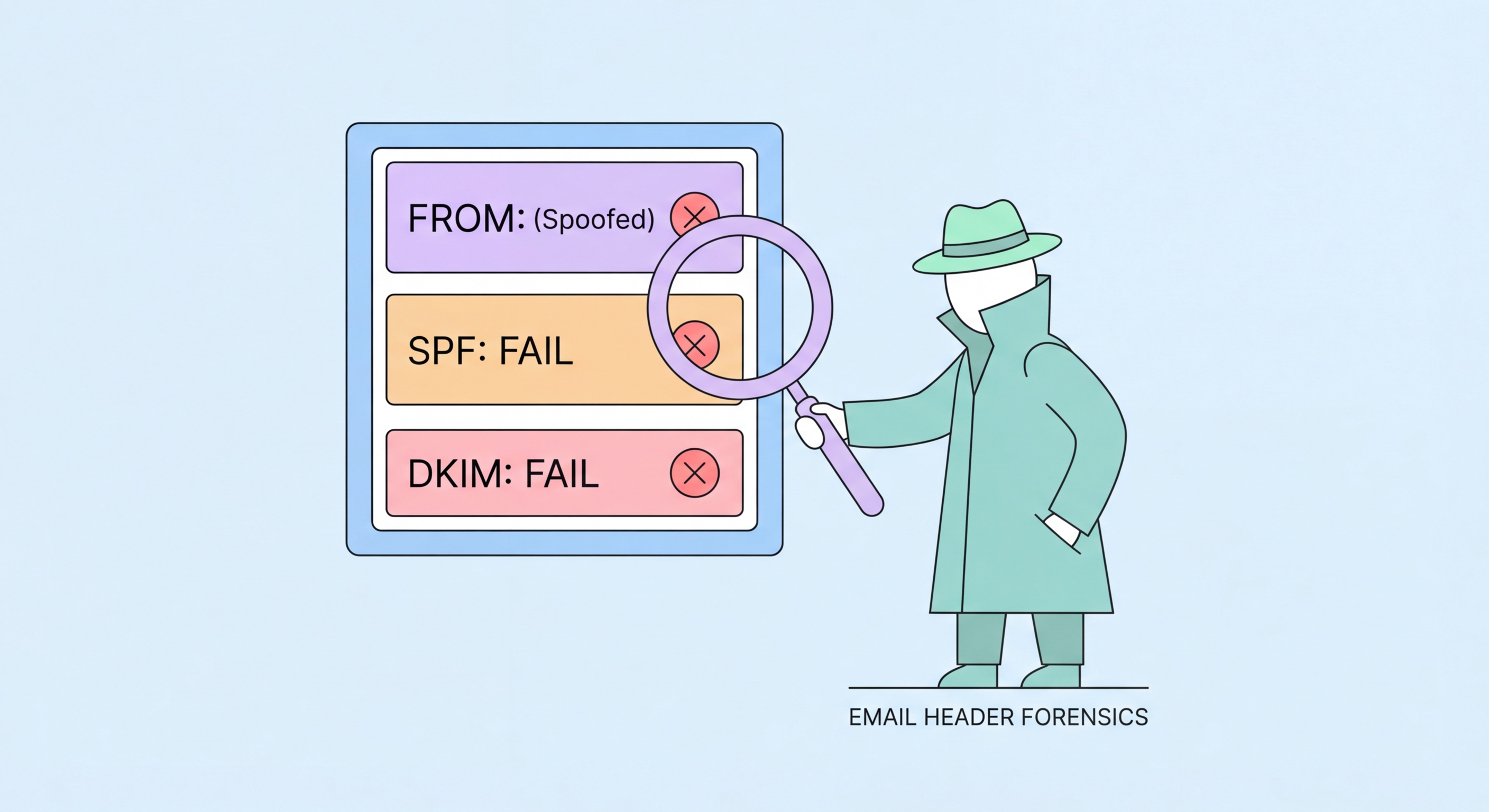
When a phishing email looks real but something feels off, the email headers hold the truth. This practical guide shows you how to access and read headers in Gmail, Outlook, and Apple Mail to identify spoofed senders and confirm phishing.
Every email contains two parts: the visible message body and headers, and the hidden technical headers that record the email's journey from sender to recipient. These hidden headers contain information about the actual sending server, the authentication checks performed, the original sender's IP address, and whether the message passed or failed DKIM and SPF verification. This information is not shown in the normal email view because most users do not need it — but when you suspect an email is fraudulent, headers can definitively confirm or disprove the claimed sender's authenticity in ways that the visible email interface cannot.
The "From" field that you see in your email client — the address displayed as the sender — can be set to any value by the person sending the email. This is called display name or From header spoofing, and it is the mechanism behind phishing emails that appear to come from your bank, government agencies, or known contacts. However, the email's actual routing information — which server it came from, what IP address was used, what authentication the sending domain configured — cannot be falsified in the same way. By reading the headers, you can compare the claimed "From" address against the actual sending infrastructure to identify the discrepancy that confirms spoofing.
Authentication result headers — SPF, DKIM, and DMARC — provide a structured summary of whether the email passed the sender domain's configured authentication checks. SPF verifies that the sending IP address is authorised to send email for the claimed domain. DKIM verifies that the message body and key headers were not modified in transit using a cryptographic signature. DMARC combines these, and a DMARC "fail" result on an email claiming to be from HSBC or a government department is strong technical confirmation that the email did not originate from the legitimate organisation. Major email providers including Gmail add these authentication result headers to every received message, making them accessible without any special tools.
In Gmail on desktop, open the suspicious email and click the three-dot menu (More) in the top right corner of the message. Select "Show original" from the dropdown. This opens a new tab displaying the complete raw message including all headers. Gmail also provides a "Copy to clipboard" button on this page, and the view includes a summary at the top showing the SPF, DKIM, and DMARC results clearly highlighted — "PASS" in green or "FAIL" in red. This summary view is the quickest way to check authentication results in Gmail without reading the raw headers manually. Alternatively, use the "Message Header Analyzer" tool at toolbox.googleapps.com — paste the raw headers and receive a structured breakdown.
In Outlook on desktop (Windows), open the email and click "File" in the ribbon, then "Properties". The Internet headers are displayed in a text box at the bottom of the Properties window. In Outlook on the web (OWA), open the message, click the three-dot menu (More actions), and select "View message source" or "View message details" depending on your OWA version. In Apple Mail on macOS, open the message and select View → Message → All Headers from the menu bar. On iPhone or iPad, Apple Mail does not provide native header access — use a third-party email client like Outlook for iOS or access the message via webmail on a desktop browser where headers are accessible through the provider's interface.
Once you have the raw headers, the key fields to examine are: "From:" (the claimed sender), "Return-Path:" (where delivery failure notices go — should match or be closely related to From domain for legitimate email), "Received:" headers (the chain of servers the message transited — read from bottom to top, the bottommost is the originating server), and "Authentication-Results:" (the SPF, DKIM, and DMARC results). For a message claiming to be from HSBC, the Received headers should show hsbc.com servers, and the Authentication-Results should show SPF=pass and DKIM=pass for the hsbc.com domain. Any discrepancy — a Received header from a random IP, an SPF fail, a DKIM fail — confirms the email is not genuinely from HSBC.
The Authentication-Results header is the most immediately useful header for phishing detection. It appears near the top of the headers (added by the receiving mail server) and contains a structured summary of the authentication checks performed. Look for lines beginning with "spf=", "dkim=", and "dmarc=". The value following the equals sign will be "pass", "fail", "softfail", "neutral", or "none". For an email legitimately from a major bank or government organisation, all three should show "pass". A "fail" result on any of these for an email claiming to be from an organisation with published SPF/DKIM/DMARC records is strong evidence of spoofing or forgery.
The "Received:" headers trace the email's journey and reveal the originating server. Headers are added at each hop, with the newest at the top and the original sending server at the bottom. The bottommost "Received: from" line should show a server belonging to the claimed sending organisation — for a genuine HSBC email, this should be a server on an HSBC-operated domain or IP range. If the bottommost Received header shows an IP address or server name bearing no relationship to HSBC (a random hosting provider, a residential IP address, or a server in an unexpected geography), this confirms the message did not originate from HSBC's mail infrastructure. IP-to-organisation lookups can be performed free of charge at tools like MXToolbox or AbuseIPDB.
The "Reply-To:" header is sometimes used in phishing to ensure replies go to an attacker-controlled address even when the From address has been spoofed to appear legitimate. If the From address appears to be from a bank but the Reply-To shows a Gmail or generic email address, the attacker wants any reply you send to reach their inbox rather than the legitimate organisation. Similarly, the "Return-Path:" header (which controls where bounces are sent) that differs significantly from the From domain suggests the email was sent through infrastructure unrelated to the claimed sender. These are subtler indicators than a clear DMARC fail, but they add to the overall assessment when evaluating a suspicious message.
Header analysis has meaningful limitations that are important to understand. The most significant limitation is that DKIM and SPF pass results do not guarantee the email is not phishing — they confirm the email was sent from infrastructure authorised for the domain, but that domain might itself be a lookalike domain registered by an attacker. An email from "[email protected]" might pass SPF and DKIM perfectly because the attacker configured SPF and DKIM for their own fraudulent domain — the authentication is technically valid, but the domain is fraudulent. In these cases, the From domain examination (not just authentication results) remains the critical check.
Account compromise-based attacks — where an attacker gains legitimate access to a real account and sends phishing messages from it — will pass all authentication checks because the email genuinely originates from the legitimate domain. A compromised HSBC employee's email account sending phishing to HSBC customers will show DMARC pass because it was genuinely sent from HSBC infrastructure. Against this attack type, header analysis provides no useful signal; the relevant detection method is examining the request itself — does this email ask for something a legitimate HSBC communication would ask for? — rather than analysing the technical sending infrastructure.
For most Hong Hong Kong Users">Kong users in most situations, the more accessible and practical detection approach is examining the visible sender address carefully and evaluating the nature of the request — both of which are described in the phishing email detection guide. Header analysis is most valuable as a confirmation tool when you have already assessed a message as suspicious and want to confirm this technically before reporting it, or when you are compiling evidence to include in a report to HKCERT or HKPF. Including the full headers in a report to HKCERT significantly improves the intelligence value of the report and helps the technical team identify the phishing infrastructure for takedown.