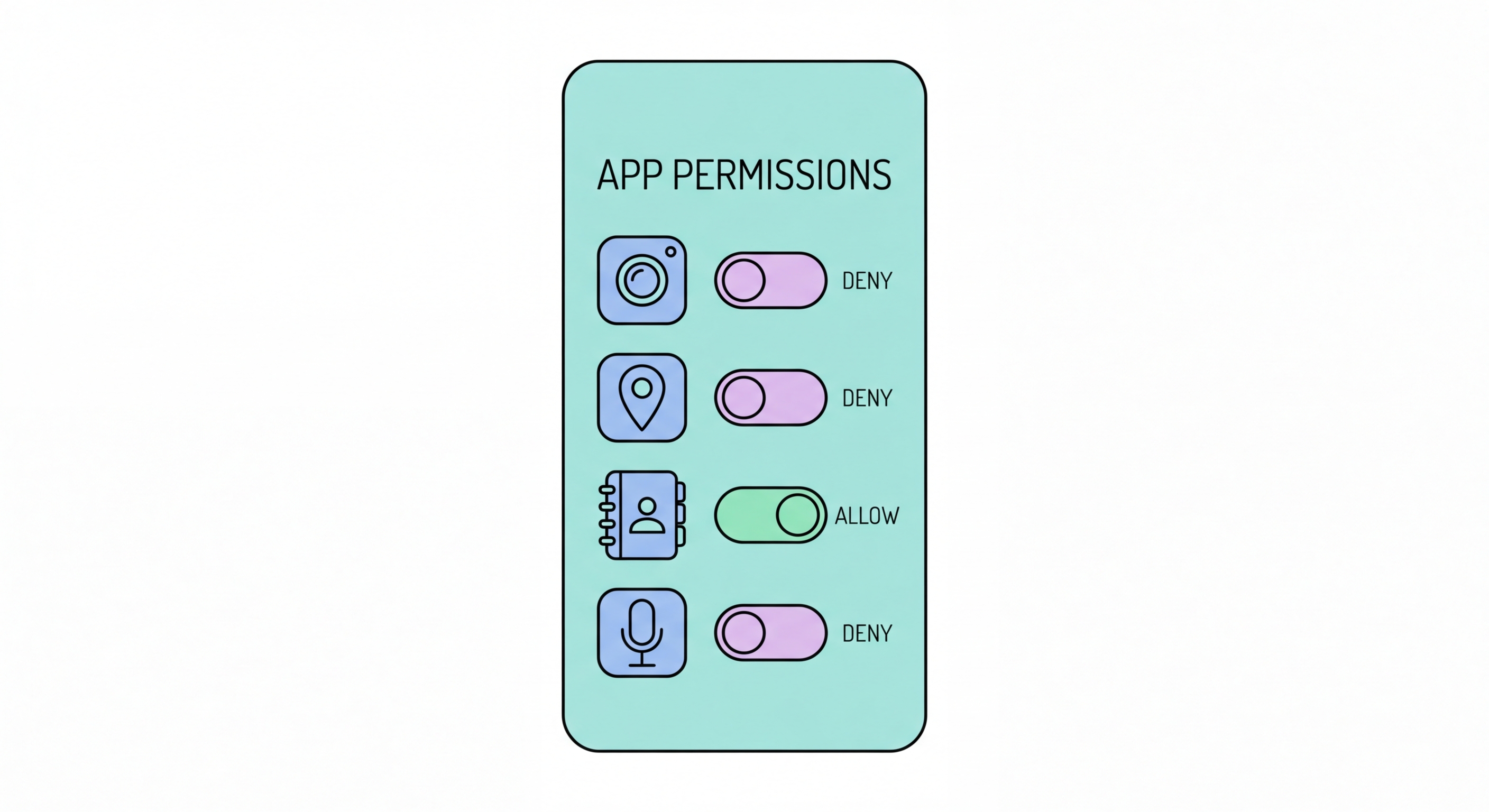
A complete guide to app permissions on iPhone and Android — what each permission means, which are genuinely necessary, and the warning signs that an app is overstepping its legitimate needs.
App permissions are the gateway through which applications access the sensitive capabilities of your smartphone — your camera, microphone, location, contacts, health data, and more. Every permission you grant extends trust to the app developer and, indirectly, to every third-party SDK, analytics library, and advertising network embedded in that app. In the modern app ecosystem, granting a single app access to your location may mean sharing that data with dozens of third-party companies you've never heard of.
The problem is compounded by permission creep — the gradual accumulation of access rights that apps accumulate over time, often without users realising. An app that legitimately needed your location when you first installed it three years ago may have since changed its privacy policy, been acquired by a data broker, or had a rogue SDK added in an update. Without regular audits, you may be continuously sharing data with apps that you no longer even actively use.
iOS provides the App Privacy Report — accessible at Settings → Privacy & Security → App Privacy Report — which shows exactly which apps accessed your microphone, camera, contacts, location, and photos in the past seven days. Android's Privacy Dashboard (Settings → Privacy → Privacy Dashboard) provides similar visibility. These tools make it straightforward to identify apps that are accessing sensitive data far more frequently than expected based on how you use them.
Not all permissions carry equal risk. Location, microphone, camera, contacts, and health data are the highest-sensitivity permissions — their misuse can expose your physical whereabouts, enable covert surveillance, facilitate social engineering using your contacts list, and compromise your health privacy. Each of these should be granted only when there is a clear, legitimate justification for the specific app requesting it.
Location permission deserves particular scrutiny. On both iOS and Android, you can now grant location access "only while using the app" rather than "always" — use this more restrictive option for every app that doesn't have a genuine always-on use case (navigation, fitness tracking). Review whether apps are requesting "precise location" or "approximate location" — most apps can function with approximate location, and you should deny precise location to any app that cannot justify the need for it.
Microphone and camera access can enable covert recording. While both iOS (with its orange and green indicator dots) and Android (with its privacy indicator) show visible alerts when an app accesses these sensors, a compromised or malicious app could potentially access them without triggering these indicators. Restrict microphone and camera to only the apps — video calling, voice recorder, camera — that demonstrably require them, and review access regularly in your privacy report.
Legitimate apps request only the permissions they need to function. Malicious apps and privacy-invasive adware typically request far more permissions than necessary — sometimes requesting every available permission — because their purpose is data collection rather than the functionality advertised. Recognising these red flags at install time can prevent a problematic app from gaining access to your device in the first place.
The clearest red flag is a utility app — flashlight, QR code scanner, calculator, weather app, or system cleaner — requesting access to your microphone, camera, contacts, or location. There is no functional justification for a flashlight app accessing your contacts. These requests are universally a sign either of aggressive data collection for advertising purposes or, in the worst case, a malicious app designed to harvest personal data.
Accessibility permissions on Android deserve special scrutiny. These permissions — designed to help users with disabilities by giving apps the ability to observe and control other apps — are routinely abused by banking trojans. An app requesting accessibility permissions can read and intercept everything displayed on your screen, including banking apps, password managers, and authentication codes. Never grant accessibility permissions to any app other than explicitly designed accessibility tools and reputable screen readers.
Conducting a permission audit takes less than 15 minutes and can dramatically reduce your app-based privacy and security exposure. The goal is to review every sensitive permission on your device — location, camera, microphone, contacts, photos, health, financial — and revoke access for any app that doesn't genuinely require it. This should be done at least quarterly and whenever you install a significant number of new apps.
On iPhone, the most efficient approach is to review permissions by type: go to Settings → Privacy & Security and work through each category — Location Services, Contacts, Calendars, Reminders, Photos, Microphone, Speech Recognition, Camera, Health, Tracking, and so on. For each category, you'll see a list of apps with access and the level of access granted. Revoke access for any app where the permission isn't clearly justified by the app's function.
On Android, the Permission Manager (Settings → Privacy → Permission Manager) provides a similar category-by-category view. Android also shows the "last used" timestamp for some permissions, making it easy to identify apps that accessed a sensitive sensor recently. For a more detailed view, Android's Privacy Dashboard shows a 24-hour timeline of permission usage, allowing you to identify unexpected access events and the specific apps responsible.