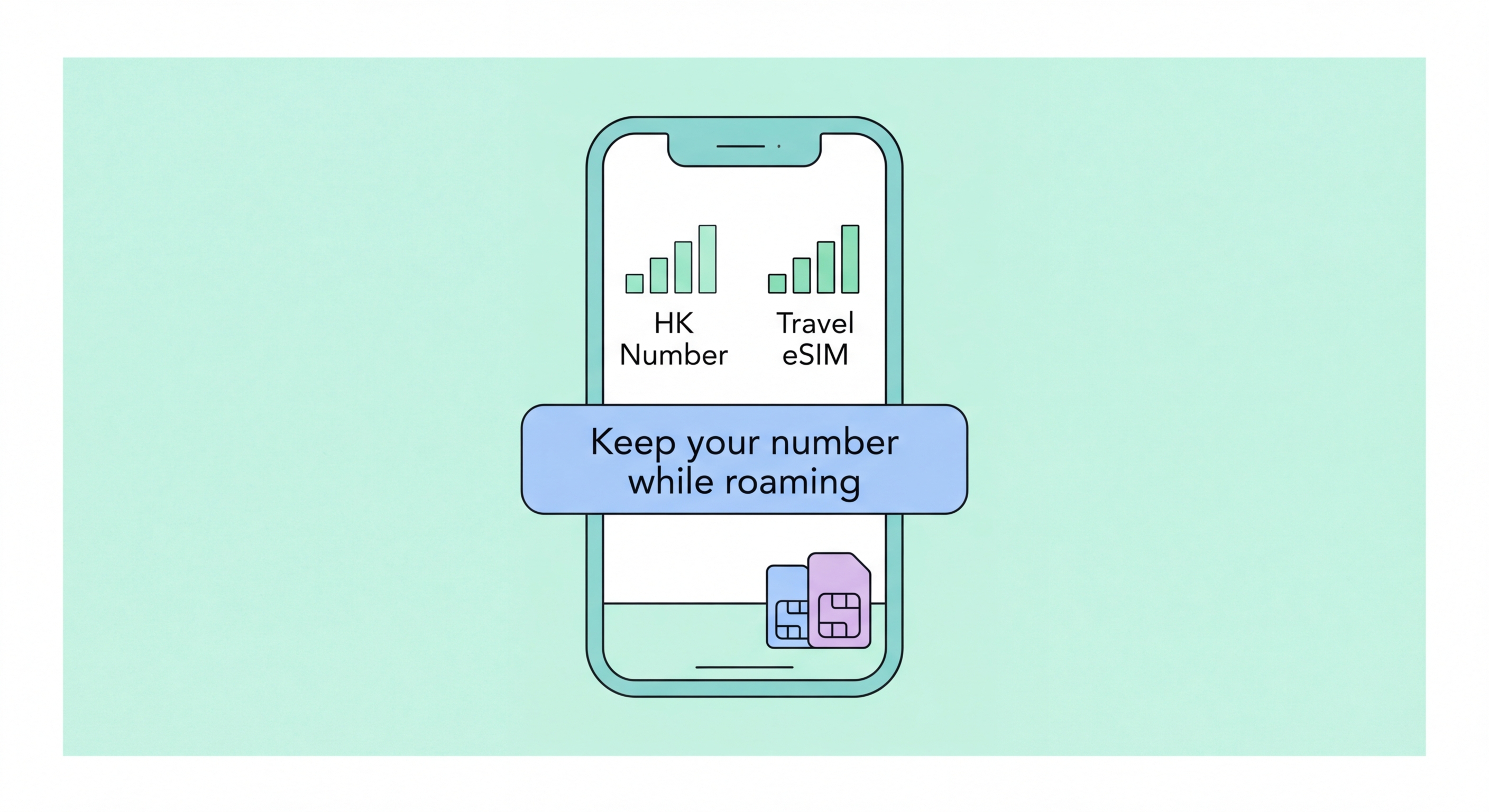
How to combine your Hong Kong SIM with a travel eSIM to stay reachable on your HK number while using affordable local data abroad — configuration steps for iPhone and Android, and managing multiple active lines.
Dual SIM functionality allows a single smartphone to operate two to Spot and Avoid Attacks on Your Phone">Your Phone Number">phone numbers simultaneously, drawing on two separate carrier connections. On modern smartphones, the most common dual SIM configuration for Hong Kong users is one physical nano-SIM (for your primary HK carrier number) plus one eSIM (for a second line — either a secondary HK number, a mainland China data line, or a travel eSIM). Both SIMs are independently registered on their respective carrier networks, and the device manages incoming and outgoing communication on each line independently. The device uses one radio for both SIMs through a process called Dual SIM Dual Standby (DSDS), meaning both lines are receiving calls and messages simultaneously even though only one can be actively transmitting data at a time.
The key advantage of dual SIM for Hong Kong travellers is the ability to maintain your primary HK number (for calls, SMS, banking 2FA, and HK contacts) while simultaneously using a local travel eSIM for data at destination prices. Without dual SIM, a traveller choosing to use a local destination SIM for affordable data would need to swap out their HK SIM and lose HK number reachability for the duration of the trip. With dual SIM, both are active simultaneously — your HK number receives incoming calls (which you can optionally route to WiFi calling to avoid roaming charges) while your travel eSIM provides affordable local data. This combination is the optimal setup for most HK travellers and is the primary driver of eSIM adoption for travel use cases.
Modern smartphones support dual SIM in several configurations: (1) Dual physical SIM — two physical nano-SIM cards, common on older and budget Android devices; (2) Physical SIM + eSIM — one physical nano-SIM and one eSIM, the most common configuration for current flagship Android and iPhone XS-16 HK market devices; (3) Dual eSIM — two eSIM profiles simultaneously active, available on some newer devices including iPhone 13 and later with two active eSIM profiles and Samsung Galaxy S23 and later. The physical SIM + eSIM configuration is the most practically useful for HK travellers because it allows the primary HK carrier physical SIM to remain untouched while adding travel eSIM capabilities on top.
After activating a travel eSIM on iPhone alongside your existing physical HK SIM (or HK eSIM), iOS presents a setup wizard asking how you want to configure each line's role. The key settings are: which line is Primary (used for calls by default), which line is Secondary (your HK number if using a travel eSIM as primary data, or vice versa), and which line is the Cellular Data line. For the optimal travel configuration, set your HK SIM as the Primary line for calls and SMS, and set the travel eSIM as the Cellular Data line. This ensures incoming calls ring on your HK number, outgoing calls by default use your HK number, and all mobile data uses your travel eSIM at local destination pricing rather than your HK carrier's roaming rates.
The critical additional setting is Data Roaming on each line. On your HK SIM line, go to Settings > Cellular > [HK SIM line] > Data Roaming and set this to Off. This is the single most important step to prevent accidental roaming charges — even with the travel eSIM set as the data line, having Data Roaming enabled on your HK SIM can result in your HK carrier charging roaming fees if data routes through the wrong line due to signal handoff. On your travel eSIM line, ensure Data Roaming is set to On — this allows the travel eSIM to use local carrier data in the destination country. With this configuration, your HK carrier cannot charge roaming fees regardless of what happens with signal switching between the two lines.
For iMessage and FaceTime configuration with dual SIM, go to Settings > Messages > Send & Receive to configure which phone number(s) are used for iMessage delivery. If you want all iMessages to arrive on your HK number (so senders do not need to know about your travel eSIM), ensure only your HK number is listed as a receive address. For FaceTime, go to Settings > FaceTime > You Can Be Reached At FaceTime At and configure similarly. iPhone's WiFi Calling feature (Settings > Phone > Wi-Fi Calling) allows your HK number to receive calls over WiFi when roaming — enable this to receive HK calls at no charge when connected to hotel or café WiFi abroad, rather than routing them through your HK SIM's international call forwarding.
On Samsung Galaxy devices with dual SIM capability (physical SIM + eSIM), navigate to Settings > Connections > SIM Manager after activating your travel eSIM. The SIM Manager screen shows both active SIMs with their carrier names and provides settings for Calls, Messages, and Mobile Data. Set Mobile Data to your travel eSIM line — this routes all data through the travel eSIM. For Calls, set your HK SIM as the preferred calling line so outgoing calls use your HK number. For Messages, configure your HK number as the preferred SMS line to ensure outgoing messages appear from your HK number to your contacts. The "Ask every time" option for calls allows you to choose which line to use for each individual outgoing call, useful if you need to occasionally place calls through the travel eSIM.
The data roaming configuration on Samsung is critical. After configuring the travel eSIM as the Mobile Data SIM, go to Settings > Connections > Mobile Networks and select your HK SIM card entry. Verify that Data Roaming is disabled for the HK SIM. Then select the travel eSIM entry and verify that Data Roaming is enabled. On some Samsung One UI versions, the roaming setting appears within the SIM Manager rather than under a separate Mobile Networks menu — the location varies slightly between One UI versions, but the setting exists and must be configured correctly to prevent accidental HK carrier roaming charges while abroad. After these settings are configured, only the travel eSIM will use cellular data — your HK SIM remains active for calls and SMS but will not use data.
Stock Android (Google Pixel) dual SIM management is handled through Settings > Network & Internet > SIM Cards. After activating a travel eSIM, the SIM Cards screen shows both lines with toggle controls and settings for each. Tap the Preferred SIM section to configure which line handles calls, texts, and data. Set the travel eSIM as the Preferred SIM for data and your HK line for calls. Under each SIM's individual settings, ensure Roaming is disabled for your HK line and enabled for the travel eSIM. Pixel's dual SIM management interface is cleaner than Samsung's but offers the same underlying configuration options. Both Samsung and Pixel Android phones support setting different ringtones per SIM to distinguish which number an incoming call is arriving on — a useful feature when carrying two active numbers simultaneously.
For frequent travellers who maintain multiple stored travel eSIM profiles — a Japan profile, a Europe profile, a US profile — switching between active travel eSIM profiles on return to Hong Kong is important for cost management. A travel eSIM that remains active and has data roaming enabled on your HK phone after returning from Japan could potentially use data on the Japanese network if the device connects to Japanese networks during a subsequent Japan visit without manually switching profiles. More practically, keeping the Japan travel eSIM active in Hong Kong does no harm (it shows no Japanese network signal) but maintaining good habits about switching to your HK profile as the active data line after each trip is important.
On iPhone, switching between stored eSIM profiles takes seconds through Settings > Cellular — toggle the Japan travel eSIM off and your HK profile (whether eSIM or physical SIM) back to the active data line. On Samsung Android, go to Settings > Connections > SIM Manager and adjust the Mobile Data assignment back to your HK SIM. Creating a shortcut or using Control Centre quick settings (available on iPhone and some Samsung configurations) can make this switch faster for frequent travellers who regularly cycle between their HK daily line and various travel eSIMs. The switching itself has no cost — stored inactive eSIM profiles are simply dormant and will not reactivate until you manually toggle them on, so you are not at risk of accidentally roaming on an old travel eSIM.
For Hong Kong residents with more complex multiple-line setups — a primary HK number for personal use, a secondary work number on a different carrier, and travel eSIM capability — the dual SIM architecture of modern smartphones supports this well. Using eSIM for the secondary work number (keeping the primary HK personal number on physical SIM or a primary eSIM) and then adding travel eSIMs as a third line (stored, not simultaneously active) provides maximum flexibility. The practical limit is the device's two simultaneous active lines, but managing when each line is active through the SIM settings menu gives substantial control over how the device operates in different contexts — HK home use, cross-border work use, and international travel use each configured optimally.