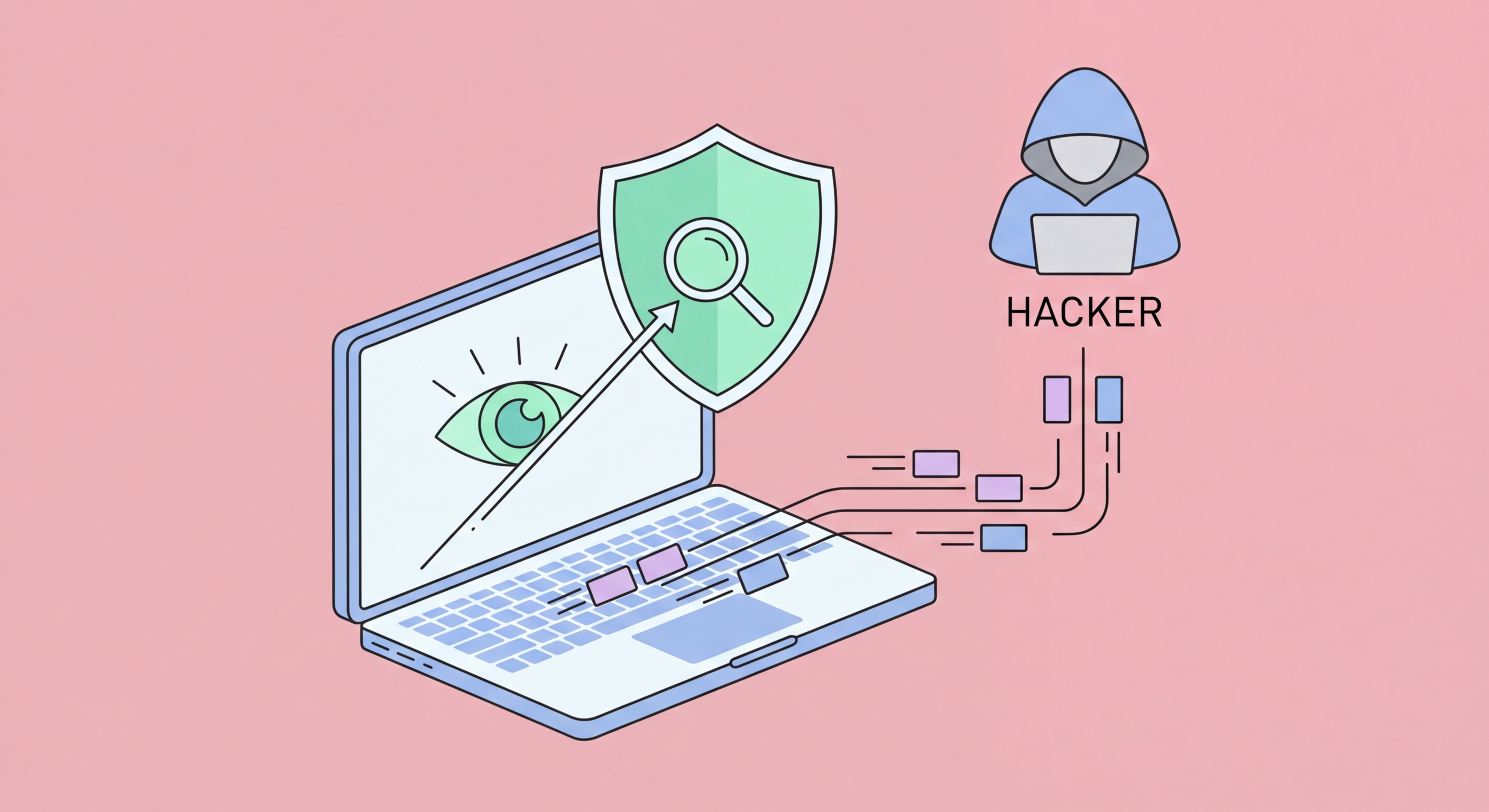
Spyware silently monitors your activity, steals credentials, and transmits your personal data to third parties. This guide covers how to detect it, remove it completely, and prevent reinfection.
Spyware is malicious software designed to covertly monitor a device's activity and transmit collected information to an attacker without the user's knowledge or consent. The information gathered varies by spyware type: keyloggers record every keystroke (capturing passwords, banking credentials, and private communications); screen capture spyware periodically takes screenshots of the user's display; credential stealers extract saved passwords from browsers and password managers; banking trojans intercept financial transactions in the browser; and stalkerware (a particularly invasive category) tracks GPS location, call logs, messages, and microphone/camera access, typically installed by an abusive partner or employer on a target's device.
Spyware reaches devices through several delivery mechanisms. Bundled installation is common — legitimate-seeming free software installs spyware components during setup, often disclosed in lengthy terms of service agreements that users don't read. Drive-by downloads from malicious or compromised websites install spyware through browser vulnerabilities when a user simply visits a page. Phishing emails deliver spyware as email attachments disguised as invoices, shipping notifications, or government documents. In targeted attacks against individuals, physical access to the device (by a partner or employer installing stalkerware) or sophisticated exploit chains (like the Pegasus spyware that compromised iPhones through zero-click iMessage exploits) are also vectors.
Spyware is particularly insidious because it's designed to be invisible. Unlike ransomware which announces itself, well-designed spyware operates entirely in the background. It typically uses low system resource consumption to avoid detection, disguises itself with names similar to legitimate system processes, and uses encrypted communications to avoid network-based detection. Commercial stalkerware products marketed as "parental monitoring" or "employee monitoring" tools are especially sophisticated, with features specifically designed to hide the monitoring app icon and prevent discovery. The line between legitimate monitoring software and stalkerware is defined primarily by consent — monitoring with the knowledge of the monitored person differs fundamentally from covert surveillance.
Several warning signs indicate possible spyware infection, though many symptoms overlap with normal performance issues. Unexplained performance degradation — a device that has become noticeably slower without a clear reason — can indicate spyware consuming background resources for data collection and transmission. Increased data usage beyond what your normal app activity explains may indicate a process transmitting captured data. Battery drain significantly faster than normal on a mobile device can indicate a monitoring app running continuously in the background. Browser homepage or search engine changes you didn't make, new toolbar extensions appearing, or persistent redirects to unexpected sites indicate browser-focused spyware or adware.
More concrete indicators include: unfamiliar processes in Task Manager (Windows) or Activity Monitor (Mac) that use CPU or network resources; new user accounts you didn't create; security software being disabled or refusing to update; accounts showing login activity from unfamiliar locations or times; and, in the case of stalkerware, unexplained warm phone when in standby (background app active), microphone or camera indicator light activating without your app activity, or receiving messages indicating the sender knows information they shouldn't. For Android devices, check Settings > Apps for applications with suspicious names, excessive permissions (camera, microphone, location, contacts access together without a clear use case), or apps installed from unknown sources.
On Windows, review the startup programs list (Task Manager > Startup tab) for unfamiliar entries that run at boot — spyware typically installs a persistence mechanism here. Check installed programs for software you don't recognise. Review browser extensions across all installed browsers — malicious extensions are a common spyware delivery vehicle that users often install voluntarily thinking they're productivity tools. On Mac, check System Settings > Privacy & Security and review which applications have access to Location, Microphone, Camera, and Contacts — legitimate applications have reasonable explanations for these permissions; spyware typically doesn't. For smartphones, performing a factory reset is often the most reliable complete removal method when thorough spyware infection is suspected.
For Windows spyware removal, begin by booting into Safe Mode with Networking (hold Shift while clicking Restart > Troubleshoot > Advanced Options > Startup Settings > Restart > F5). Safe Mode loads only essential system components, preventing most spyware from running during the scan. Download and run Malwarebytes Free (even if you have another antivirus — for suspected active infections, the second-opinion scanner approach is valuable). Run a full scan and quarantine all detected threats. After Malwarebytes, run your primary antivirus full scan as well. Check and clean browser extensions across every installed browser, resetting each browser to default settings if extensions are found. Restart into normal mode and verify suspicious processes are gone.
For Mac spyware removal, check Applications folder for unfamiliar apps and drag any you don't recognise to Trash. Check Login Items (System Settings > General > Login Items) for unfamiliar startup programs. Use Malwarebytes for Mac (free version available) to scan for known malware including spyware. Review Safari Extensions (Safari > Settings > Extensions) and do the same for Chrome and Firefox if installed. Check System Settings > Privacy & Security and revoke permissions from any application with access it shouldn't need. If you suspect a sophisticated infection (particularly if you believe you may be a target of surveillance), consider reinstalling macOS via Recovery Mode to guarantee a clean state.
For Android spyware removal, start by reviewing Settings > Apps > See All Apps and look for apps you don't recognise or that have unusually broad permissions. Specifically check apps with Device Administrator access (Settings > Security > Device Admin Apps) — stalkerware often grants itself administrator status to prevent removal. Revoke administrator status before attempting to uninstall. Check Settings > Apps > (three-dot menu) > Special App Access > Install Unknown Apps — this shows if the device has been configured to allow sideloaded APK installation, which is a stalkerware delivery method. For severe infections or suspected stalkerware installed by another person, a factory reset is the most reliable removal method. After reset, restore only from a backup made before the suspected infection date, and change all passwords from a different device before accessing accounts on the cleaned device.
After removing spyware, change all passwords for accounts that may have been compromised — starting with email (which enables password reset for all other services), banking and financial accounts, and any accounts accessed on the infected device. Do this from a clean device or after verified spyware removal, not on the potentially still-infected machine. Enable two-factor authentication on all important accounts — even if an attacker still has a stolen password, they cannot access accounts protected by 2FA without the second factor. Review your bank and card statements for unauthorised transactions in the period during which the spyware may have been active.
Installing a quality real-time antivirus product with anti-spyware capabilities provides ongoing prevention. Products like Bitdefender, Norton, and ESET monitor for spyware behaviours and block known spyware during installation. For Android specifically, keep Google Play Protect active (it scans installed apps against Google's malware database) and avoid installing APK files from outside the Play Store — the majority of Android spyware reaches devices through sideloaded applications rather than official Play Store apps. For iPhone users, the closed iOS ecosystem provides strong protection against most spyware, but sophisticated state-level tools like Pegasus have demonstrated that even iPhones can be compromised; keep iOS updated immediately when updates are available.
Behavioural practices significantly reduce spyware exposure. Avoid downloading free software from unofficial sources — software bundling is a primary spyware delivery mechanism. Read permissions carefully before installing browser extensions; a weather extension requesting access to all browsing data is a red flag. Use a DNS-based filtering service (like Cloudflare Gateway for families, or NextDNS) that blocks known malicious and tracking domains, preventing drive-by download spyware from making the network connections it needs to download and communicate. For high-risk individuals — journalists, activists, lawyers handling sensitive cases — consider using the Coalition Against Stalkerware's resources (stopstalkerware.org) and seek professional forensic assistance if you suspect targeted surveillance.