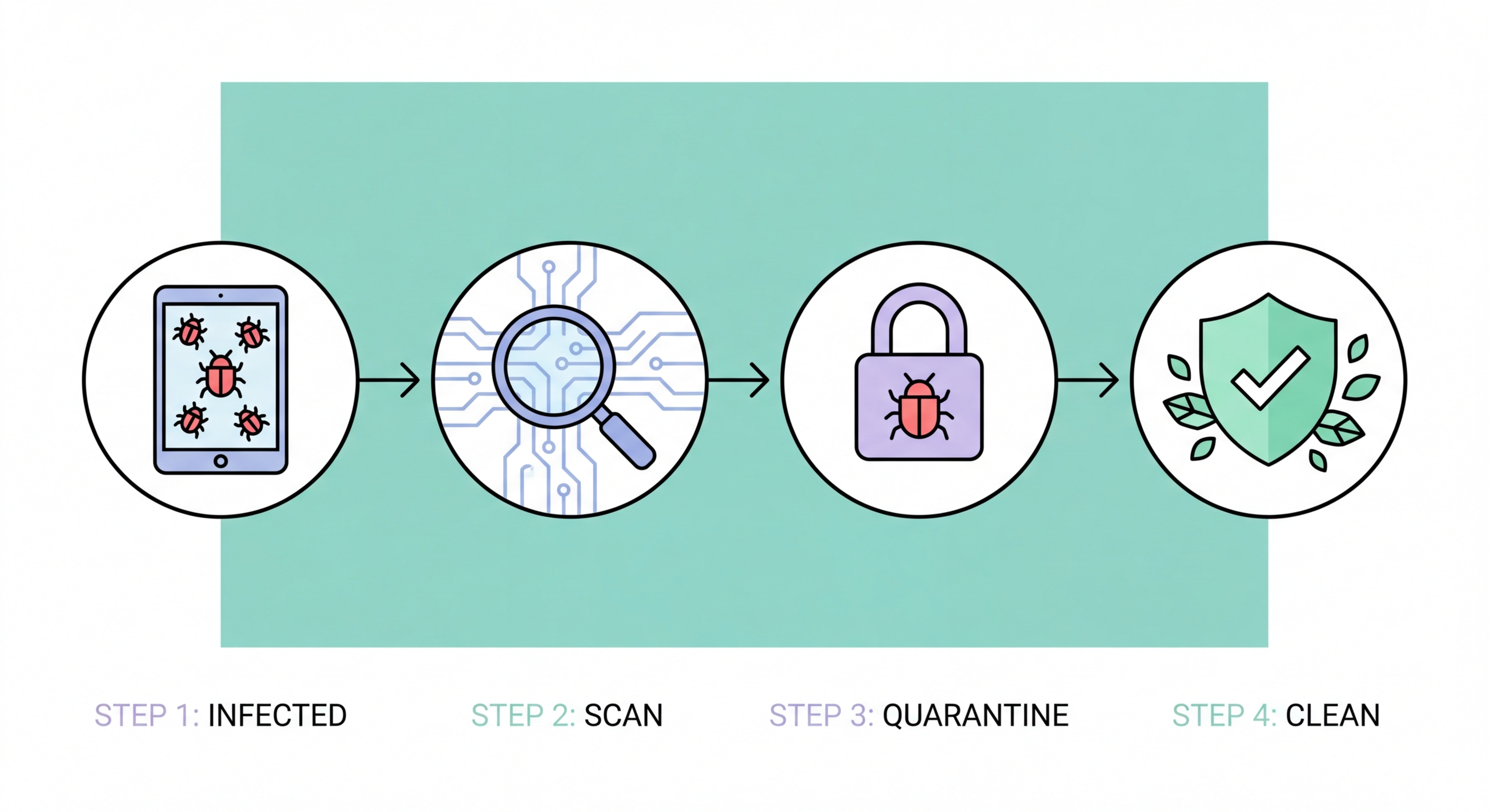
If your device is infected with malware, acting quickly and methodically limits damage. This guide walks through the complete malware removal process across Windows, Mac, and Android.
Before running removal tools, confirm that your symptoms are actually malware-related rather than hardware failure, software conflicts, or simple performance degradation from a full hard drive. Common genuine malware symptoms include: antivirus alerts that you've dismissed or that your antivirus won't let you resolve; unexplained processes in Task Manager consuming CPU, RAM, or network bandwidth; browser redirects to unexpected sites, new extensions you didn't install, or a changed homepage/search engine; files with unfamiliar extensions appearing, or files you can't open; accounts showing login activity from unexpected locations; and suspicious charges on financial accounts linked to the infected device. Performance slowdown alone isn't a reliable malware indicator — it often has mundane explanations.
Use Windows Task Manager (Ctrl+Shift+Esc) to review running processes. Sort by CPU and Network usage to identify unusual resource consumers. Right-click any suspicious process and select "Open file location" — processes located in temporary directories (%temp%, AppData\Local\Temp, AppData\Roaming), the root of C:\, or with random character names are highly suspicious. The Microsoft Sysinternals Process Explorer provides a more detailed view, including the publisher signature of each process — unsigned processes or those that fail to match their claimed publisher are indicators of malware. Search the process name online if you're uncertain — a web search for the exact process name typically quickly confirms whether it's legitimate or known malware.
For browsers specifically, open each installed browser's extensions page and review all installed extensions. Remove any you don't recognise. Check the browser homepage setting, default search engine setting, and new tab page — these are frequently modified by browser hijackers. If your browser opens to an unexpected page or your searches redirect through an unfamiliar search engine, browser hijacker malware or a malicious extension is the likely cause. Check Windows Settings > Apps > Startup for unfamiliar entries that run at login, and Settings > Apps > Installed Apps for software you don't recognise. Unknown software with installation dates correlating to when symptoms began is a strong indicator of the infection source.
Begin Windows malware removal by disconnecting from the internet if you suspect active data exfiltration or a rapidly spreading infection (ransomware in progress, banking trojan actively logging credentials). For non-urgent cases, proceed with network connected to enable cloud lookups during scanning. Boot into Safe Mode with Networking (Windows Settings > Recovery > Advanced Startup > Restart Now > Troubleshoot > Advanced Options > Startup Settings > Restart > F5). Safe Mode loads only essential Windows components, preventing the majority of malware from running — which both improves detection (malware can't hide from the scanner) and reduces the risk of the malware interfering with removal tools.
In Safe Mode, run a full scan with Malwarebytes Free — download it fresh from malwarebytes.com (not cached copies) to ensure you have the latest version and definitions. Malwarebytes excels at detecting and removing the adware, PUPs, and many trojan families that primary antivirus may miss. After Malwarebytes completes and you've quarantined all detected items, run a full scan with your primary antivirus product. Running both in sequence (not simultaneously) provides the complementary second-opinion coverage that's most valuable for confirmed infections. If your primary antivirus was already running and missed the infection, this suggests it may need to be updated or replaced — consider whether a different product would have detected what it missed.
After antivirus removal, perform manual cleanup: use Autoruns (Sysinternals) to verify no malware persistence entries remain in startup locations, scheduled tasks, browser helper objects, or services. Remove any remaining unknown software through Settings > Apps. Reset all browsers to default settings (this removes any malicious extensions, homepage changes, and search engine modifications). After restarting in normal mode and confirming the infection appears removed, change all passwords that were used on the infected machine from a different, clean device — treat any credentials as potentially compromised during the infection period. Enable 2FA on email and financial accounts if not already active.
For Mac malware removal, use Malwarebytes for Mac (free version available) as the first scanning tool — it's particularly effective against the adware and info-stealer families most common on macOS. Check Applications folder and drag any unfamiliar apps to Trash. Open System Settings > General > Login Items and review startup programs — remove anything you don't recognise. Check Safari Extensions (Safari > Settings > Extensions) and similarly review extensions in Chrome and Firefox. If you suspect a more sophisticated infection, boot into macOS Recovery (hold Cmd+R at startup) and use Disk Utility to check disk health, or consider reinstalling macOS using the "Reinstall macOS" option which reinstalls the OS while preserving your user data.
Android malware removal begins in Settings > Apps > See All Apps. Look for apps you didn't install, apps with unusual permissions, or apps you recognise but don't use that have been recently updated unexpectedly. Check Settings > Security > Device Admin Apps and revoke administrator permissions from any app that shouldn't have them — stalkerware and some aggressive adware grant themselves device admin status to prevent removal. Install Malwarebytes for Android from the Play Store and run a full scan. For banking trojan infections that have accessed financial apps, notify your bank immediately and consider enabling a temporary block on your account while you clean the device. For severe or uncertain infections, a factory reset (Settings > General Management > Reset) is the most reliable solution — back up contacts and photos to Google Drive beforehand.
For iPhone, "malware removal" is largely not applicable for non-jailbroken devices — as described in the iOS security article, traditional malware that can be detected and removed doesn't typically affect non-jailbroken iPhones. If you're experiencing unexpected behaviour on an iPhone, check Settings > Privacy & Security to review app permissions, delete any apps you don't recognise, and restart the device. If you believe an app from the App Store is behaving maliciously (excessive data use, unexpected account access), delete it and report it to Apple. For persistent unusual behaviour that can't be explained, a factory reset via Settings > General > Transfer or Reset iPhone > Erase All Content and Settings provides a clean slate. After reset, restore from iCloud backup (selecting a backup from before the suspicious behaviour began if possible).
After successful malware removal, a structured post-infection checklist prevents the most common follow-on harms. First, change passwords for all accounts accessed on the infected device, in order of sensitivity: email accounts first (because email reset enables all other account takeovers), then banking and financial accounts, then work accounts and VPN credentials, then other services. Do this from a device you're confident is clean — your smartphone (if not also infected) or a different computer. As you change passwords, assess whether to use a password manager going forward — LastPass, 1Password, or Bitwarden provide unique strong passwords for every service without the memorisation burden that leads people to reuse passwords.
Review financial accounts for any unauthorised transactions in the period the device was infected. For Hong Kong bank accounts, most local banks have a 24-hour fraud hotline and specific procedures for reporting suspected malware-related fraud. The Hong Kong Monetary Authority has guidance on consumer rights in bank fraud cases, and banks are generally required to investigate and often compensate for unauthorised transactions when reported promptly. Credit card companies in Hong Kong (Visa/Mastercard) have chargeback mechanisms for fraudulent transactions. Report suspicious transactions immediately — delay reduces the likelihood of recovery. For businesses, check whether any corporate email accounts were accessed during the infection period, as business email compromise (BEC) attacks often follow enterprise malware infections.
Prevent reinfection by addressing the root cause of the original infection. Review how the malware likely got onto the device: was it a phishing email attachment? A downloaded cracked program? A drive-by download from a malicious site? Understanding the initial access vector tells you what behaviour to change. Install a quality antivirus product if the infected device didn't have one, or reconsider the product if it missed an active infection. Enable automatic OS updates if they were disabled. For businesses, consider whether the infection reveals gaps in email filtering, endpoint protection coverage, or security awareness training that need to be addressed organisation-wide. A single malware incident is often a diagnostic indicator of security posture gaps that likely affect more than one device.